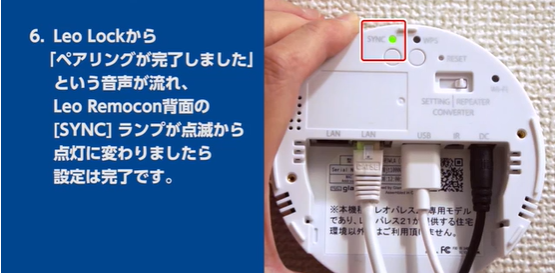
Regarding the LeoLock.
Regarding the LeoLock.
Introduction to the Leo Lock.
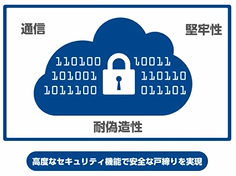
1.Lock your room with a safe and reliable system.
What you will need when entering the room for the first time.
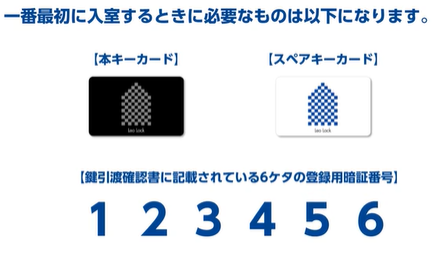
①「Main card key (Black card, "hon key")」
②「Spare card keys (White cards)」
③「The document containing the 6 digit code handed along with the card keys」
↓
・Check " How to register the main card key. "
・Check " How to register spare keys. "
↓
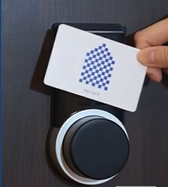
・Check " How to lock/unlock using the card keys. "
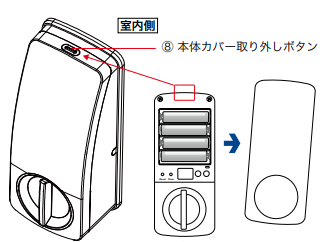
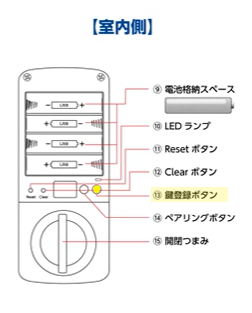
LeoLock parts instructions.
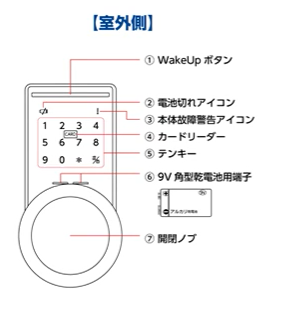
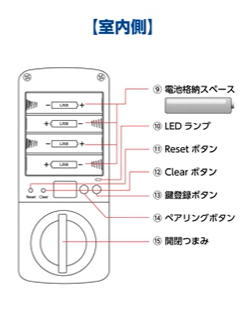
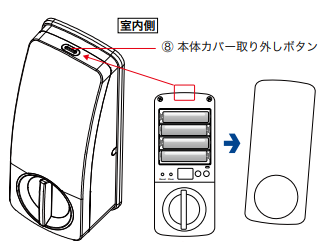
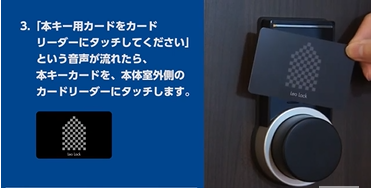
How to register the main card key (Black card).

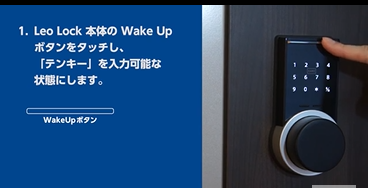
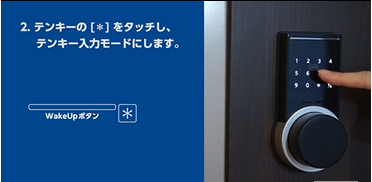
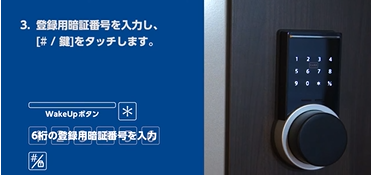
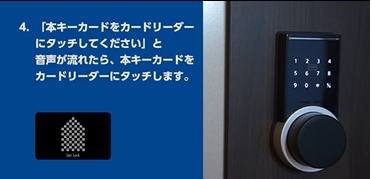
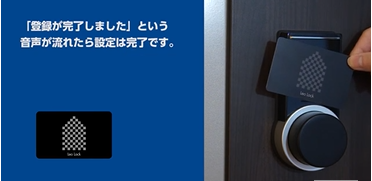
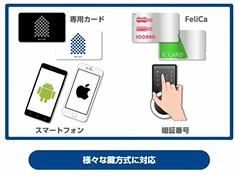
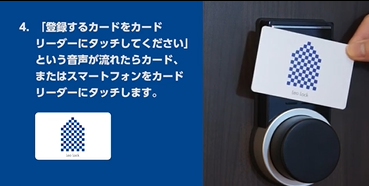
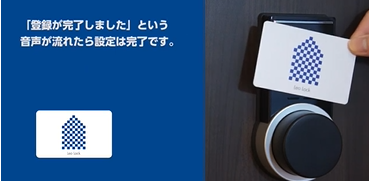
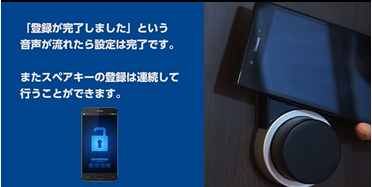
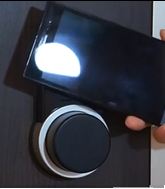
How to register spare keys (White cards, smartphone, magnetic cards, etc)

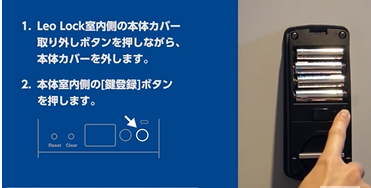
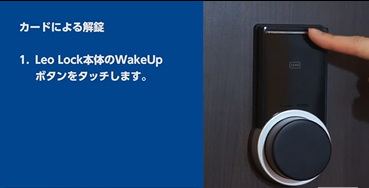
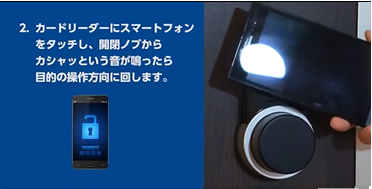
■To Unlock:
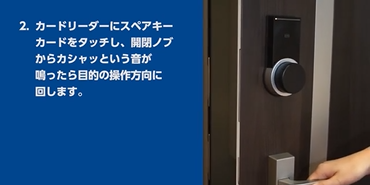
① Touch the Wakeup button.
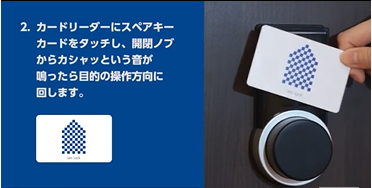
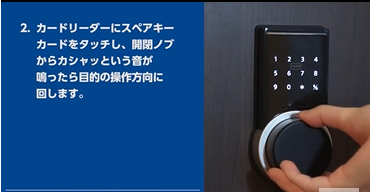
■ To lock: [ Follow the steps ① and ② above ]
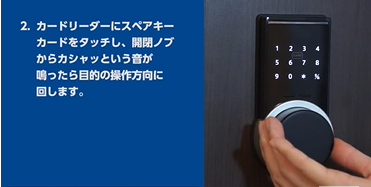
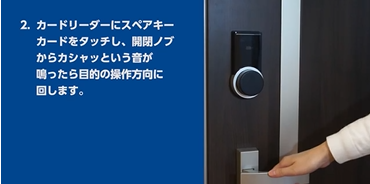
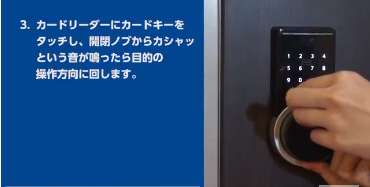
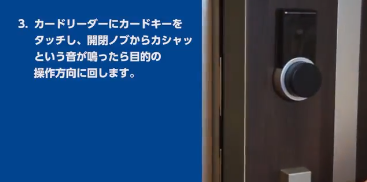
③ After the unlocking sound, turn the knob to lock the door.
■To unlock:
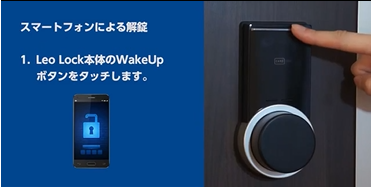
① Touch the Wakeup button.
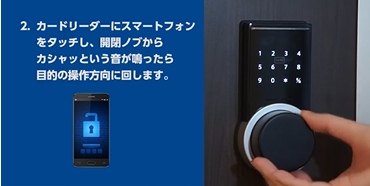
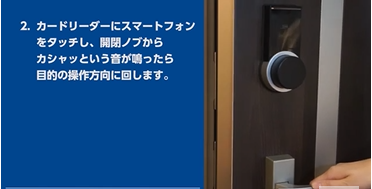
■ To lock: [ Follow the steps ① and ② above ]
③ After the unlocking sound, turn the knob to lock the door.
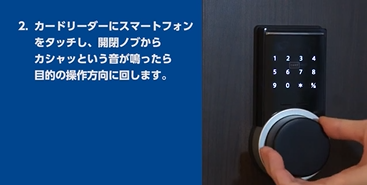
④ The door is now locked.
Double-check if the door locked correctly.
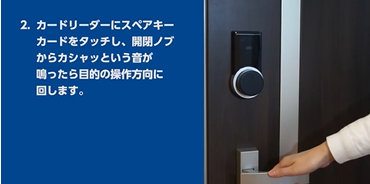
■To unlock:
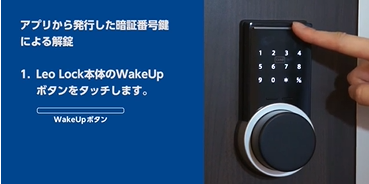
①Touch the Wakeup button.
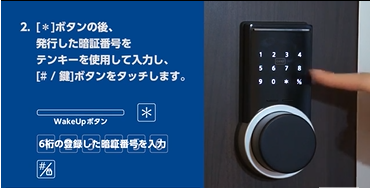
② I. Touch the asterik [*] on the number pad.
II. Type the code generated by the app.
III. Touch the sharp/key [ # / 鍵 ] button.
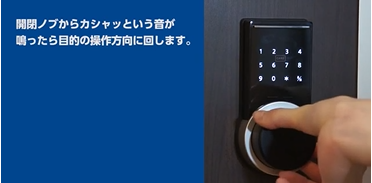
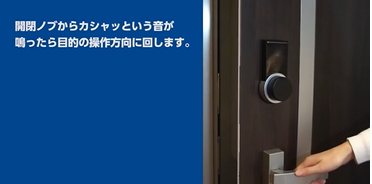
■How to lock: [ Follow the steps ① and ② above ]
③ The device will make the unlocking sound and you can turn the knob to lock the door.
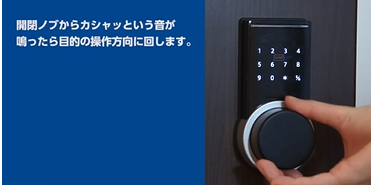
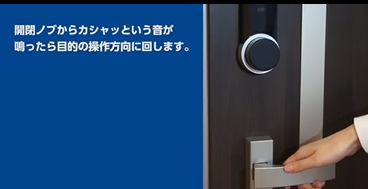
Click here for the video instructions (Japanese)
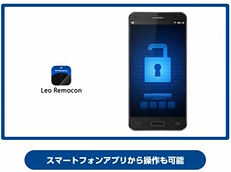
※Check " Leo Remocon App - Smartphone application " for information on how to manage the settings through the app.
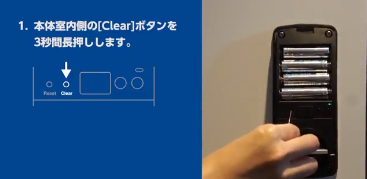
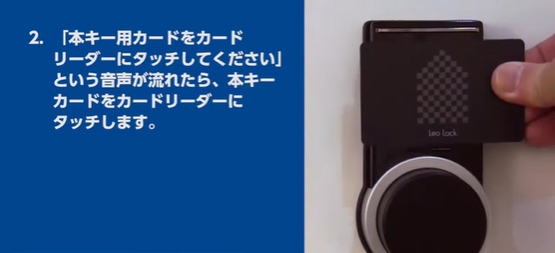
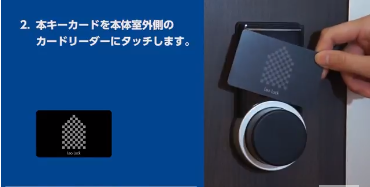
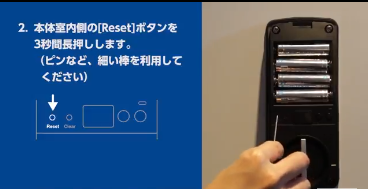
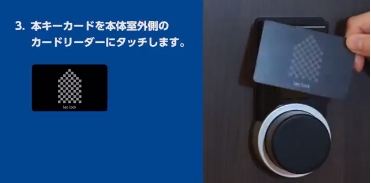
② Touch the reader on the device outside with the main card key (black card).
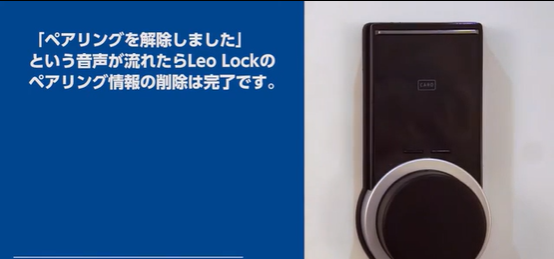
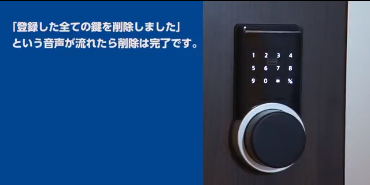
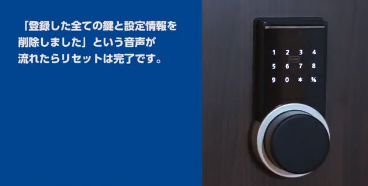
③ After the "The registered key information has been erased"「登録した全ての鍵を削除しました」annoucement, all the registered spare keys information will be erased.
■On the inner side of the room:
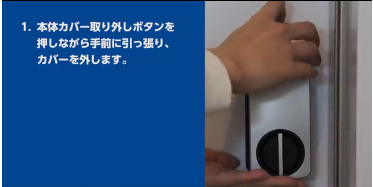
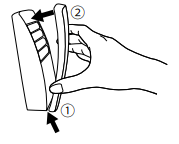
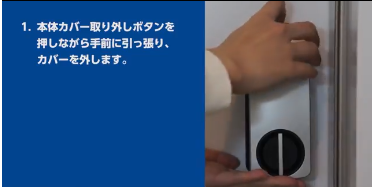
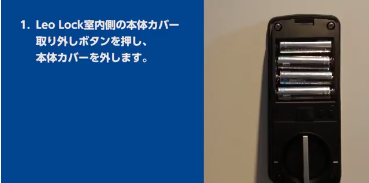
① Press the button on the top of the cover to open.
*After removing the cover, you will be able to see the batteries sockets.
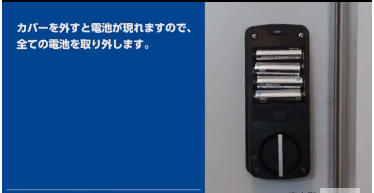
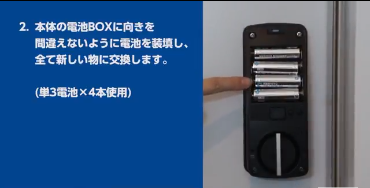
② Replace for the new batteries. Be careful to not mistake the socket side. (4 AA batteries)
■ From outside the room:
① Use a 9V battery, attaching to the 2 small metallic surface below the reader (the + and - poles can be either side).
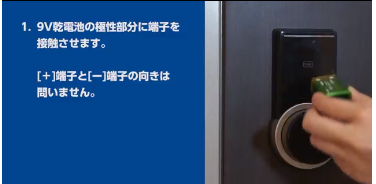
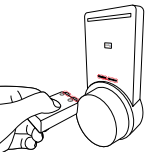
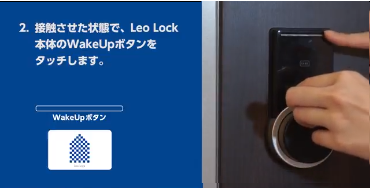
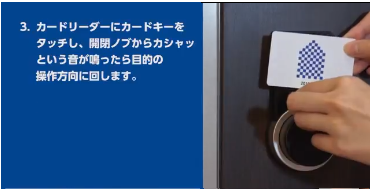
③ While holding the battery, touch your registered card key on the reader.
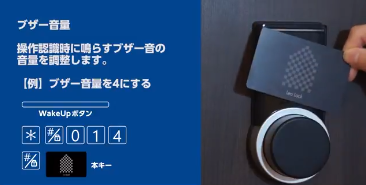
① How to adjust the volume:
The volume of the sound when using the device.
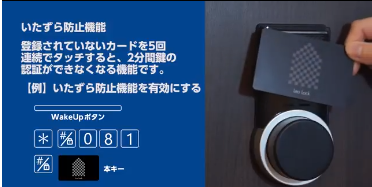
② How to configurate to temporarily lock the device after multiple attempts:
It is possible to lock the device for 2 minutes after 5 failed attempts.
■Leo Remocon:
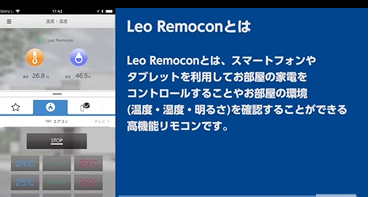
The Leo Remocon is a device that can be synchronized with your own smartphones or tablets which can then remotely control the equipment in your room. Such as the lights, temperature regulation.
■First, prepare the LeoRemocon application.
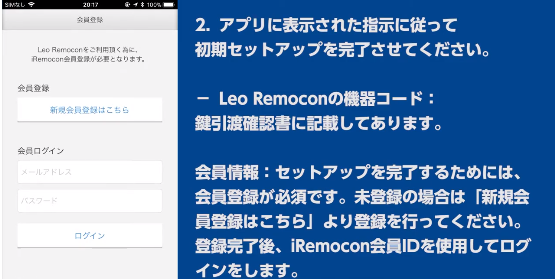
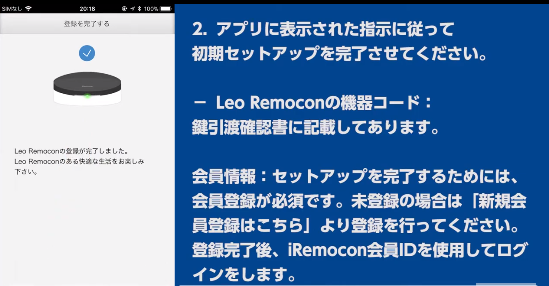
Follow the guidance on the LeoRemocon app.
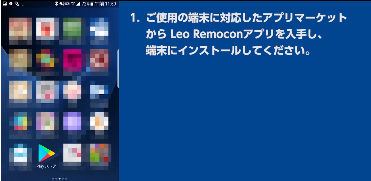
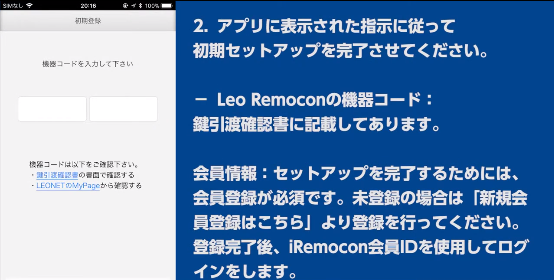
②-1: On the initial settings, type the device code.
※The device code is written on the document that is given to the tenant along with the keys of the room.
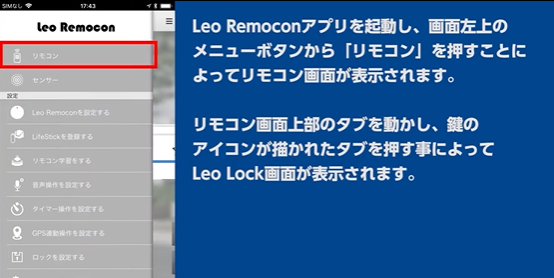
① After starting the LeoRemocon app, click on the top left corner menu icon.
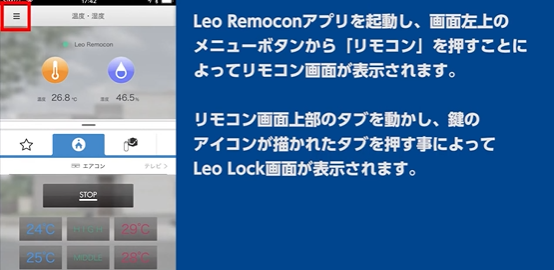
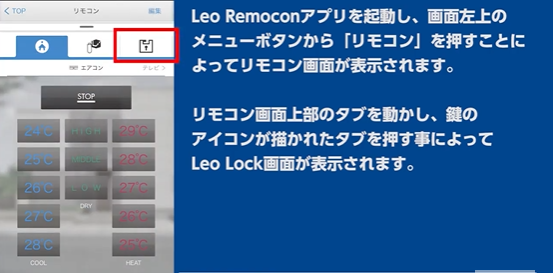
② The general menu will be shown, select the first option Remocon「リモコン」 .
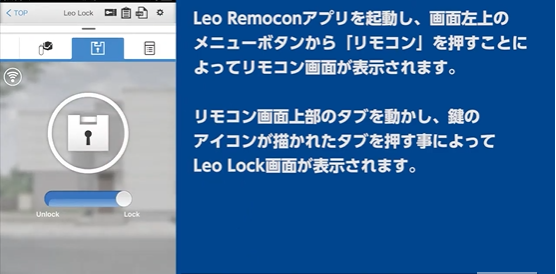
■ Leo Lock screen:
① When the door is locked:
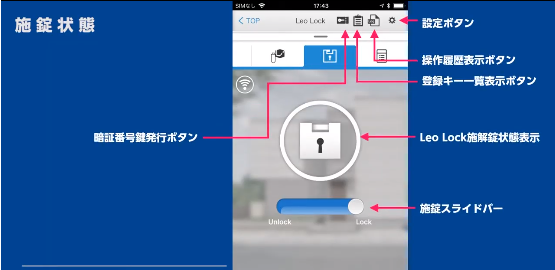
② When the door is unlocked:
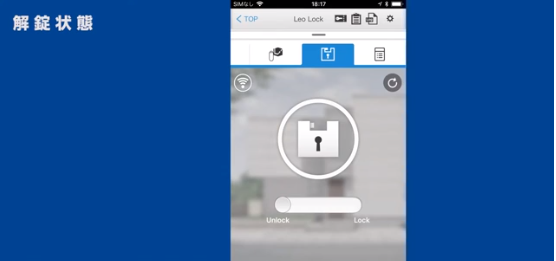
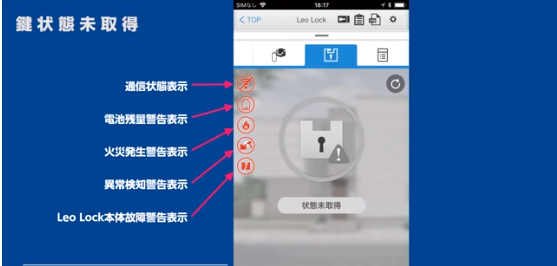
③ When there is an issue with the lock is (not configurated, not connected, etc..).
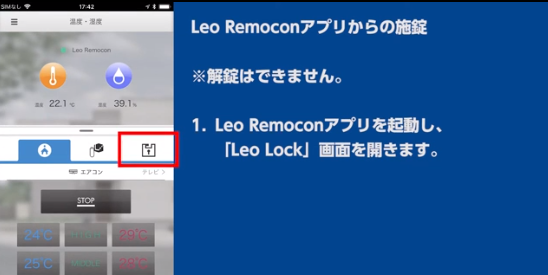
※It is not possible to Unlock the door through the application.
① Start the LeoRemocon app and access the 「Leo Lock 」 options.
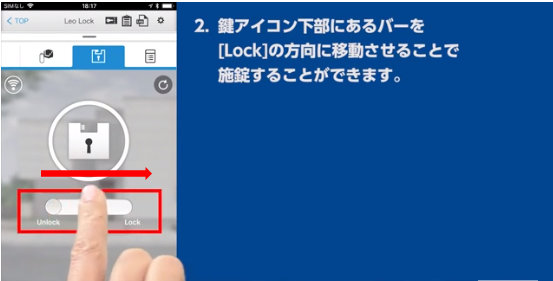
② Select the lock icon and in the lock scrreen, hold down the pin below the lock image, on the unlock side and slide it to the right side [Lock]. The door will be locked remotely.
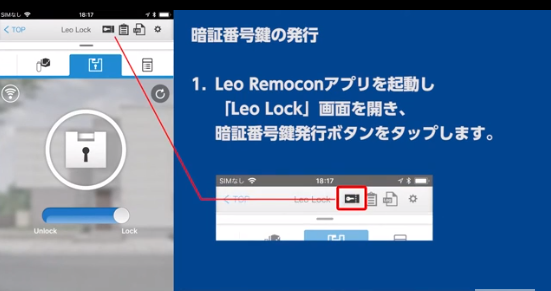
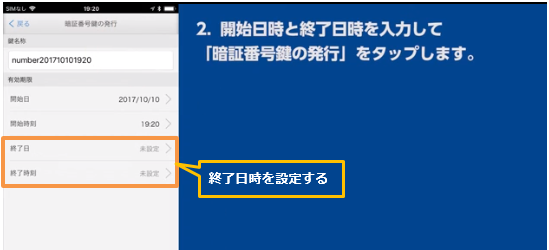
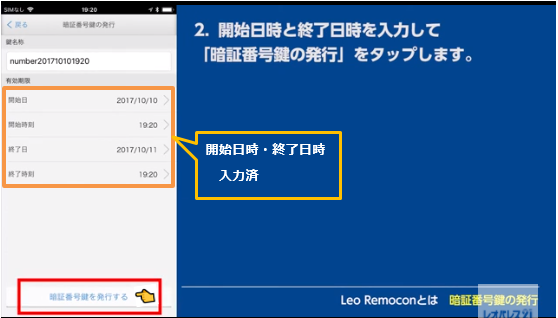
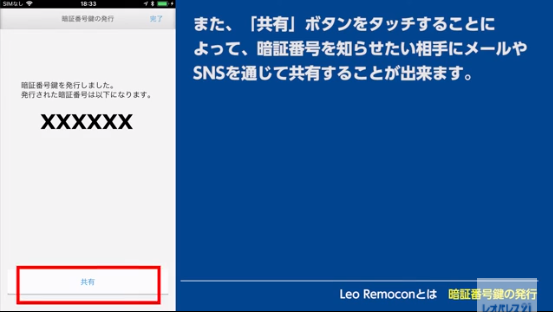
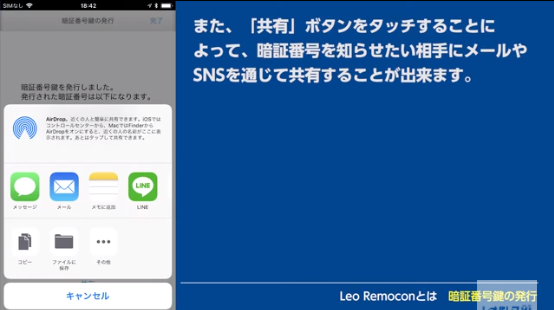
※On the screen that will show the new code generated, you can click on the Sharing button "共有" and send the code through your e-mail, SNS, etc...
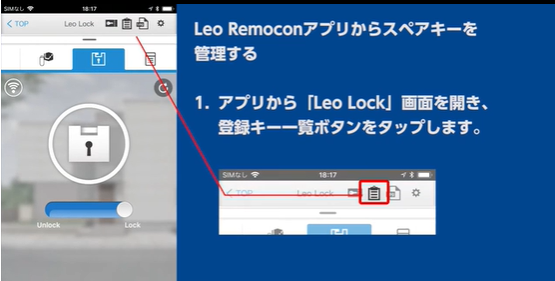
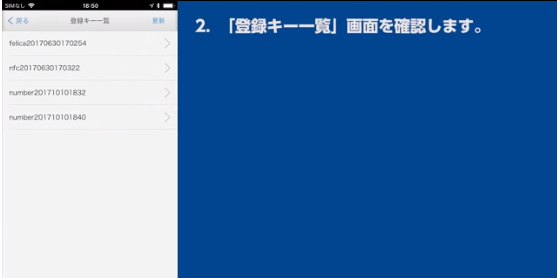
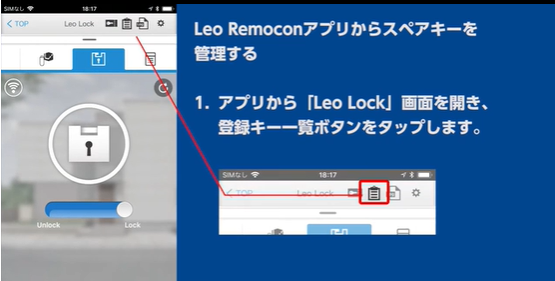
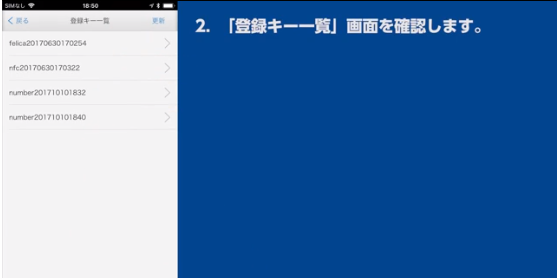
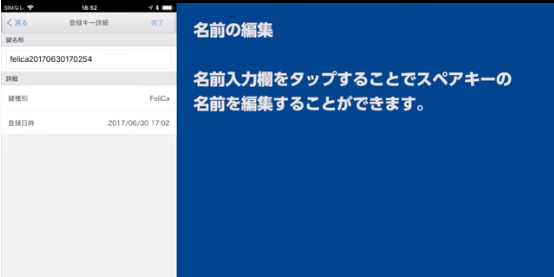
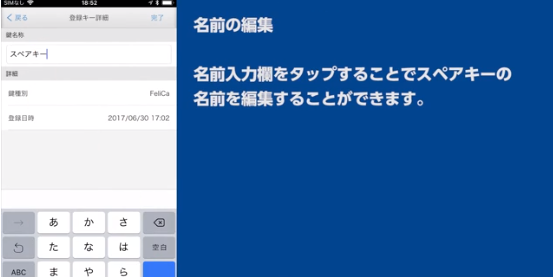
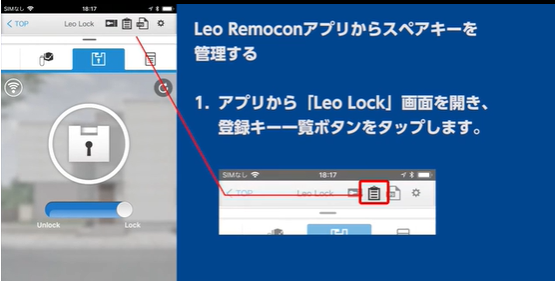
① On the LeoRemocon app, select the key details icon on the 「Leo Lock」 options.
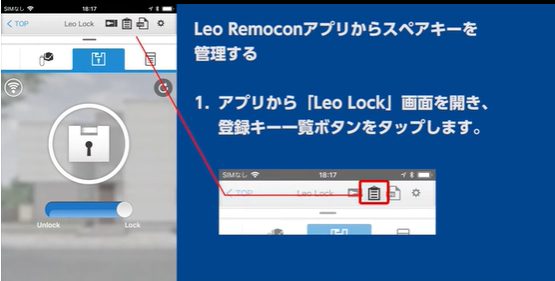
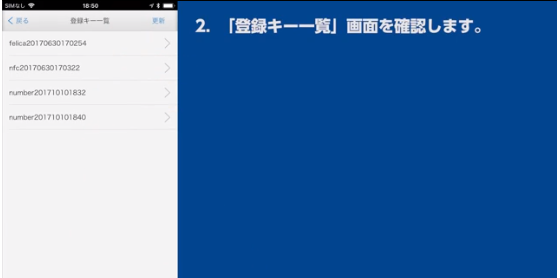
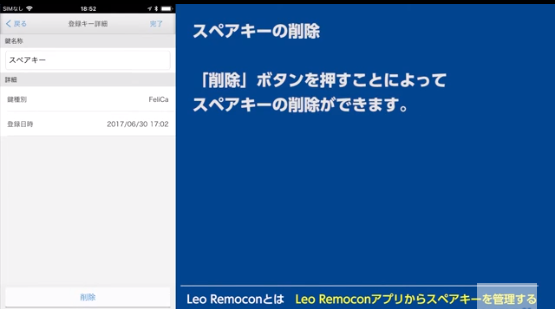
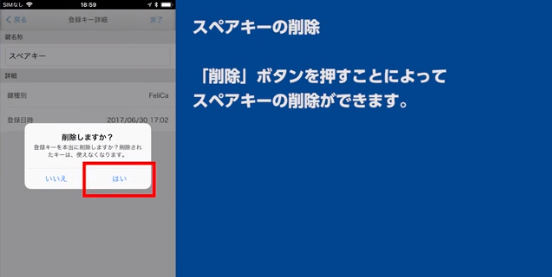
③ Select the desired key and then the delete 「 削除 」 option.
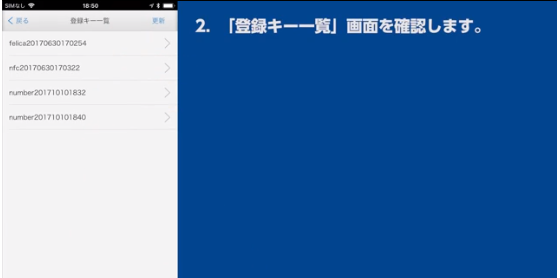
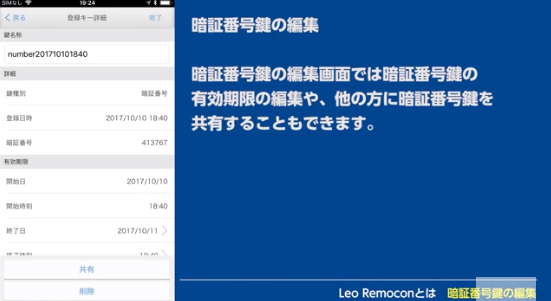
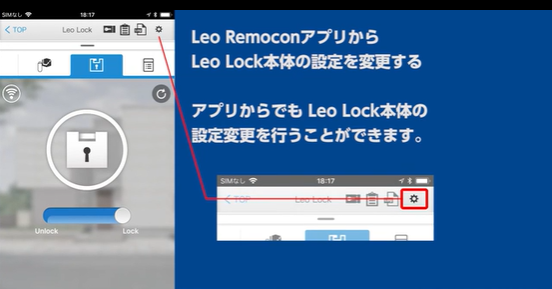
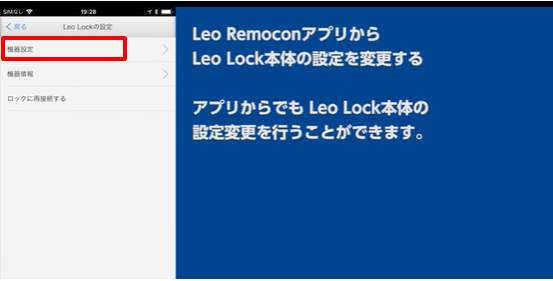
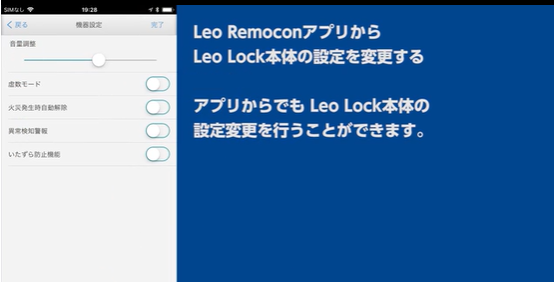
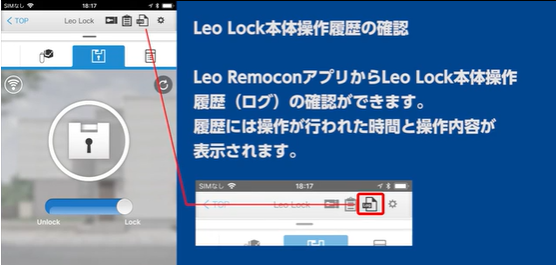
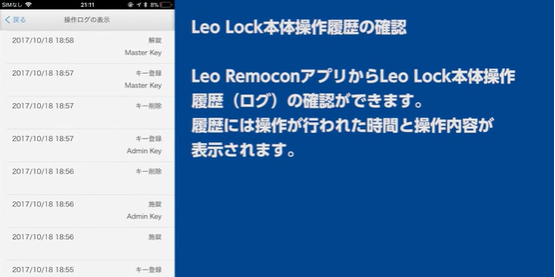
You can also change the LeoLock device settings through the app.
① On the LeoLock screen, select the settings (gear icon).
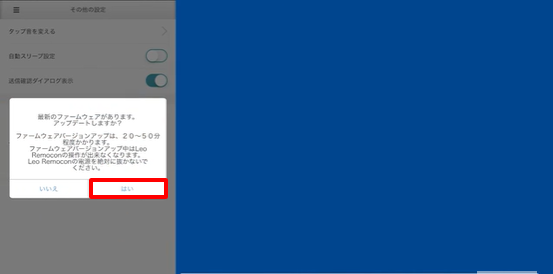
■ Important notes for the Firmware update:
-
※While the firmware is being update, you will not be able to use the application.
-
※Be sure to have enough battery charge on your device while updating the app.
Do not turn off the LeoLock device or the LeoRemocon while it is being updated.
If the Firmware is already on the latest version, it won't update.
- ※During some Firmware updates, it may not be possible to open or lock the door.
Try to lock/unlock the door after some minutes or after the update is complete.
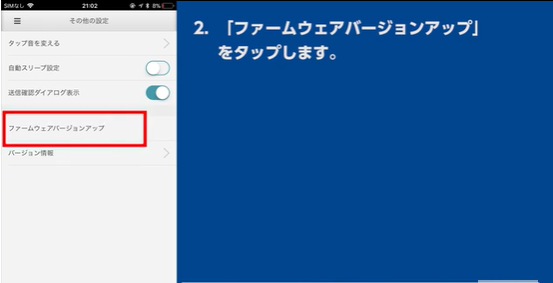
■How to update the Firmware:
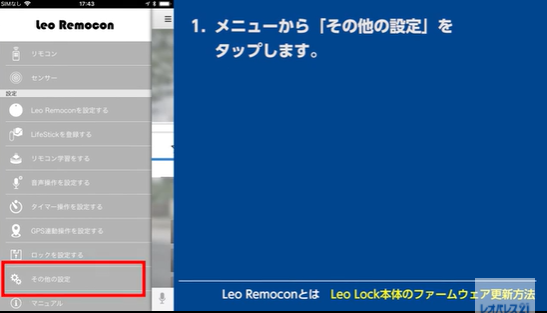
① On the LeoRemocon menu, select "General Settings"「その他の設定」.