Tenants who live in a building with a smart lock and doesn't know their LEONET ID and Password.
Tenants who live in a building with a smart lock and doesn't know their LEONET ID and Password.
If you live in a property that supports smart keys and you do not know your initial ID and password, please try the following method.
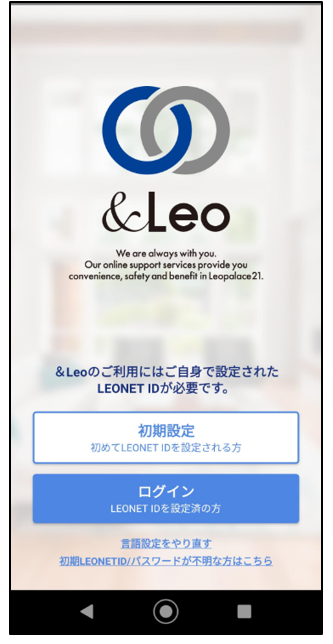
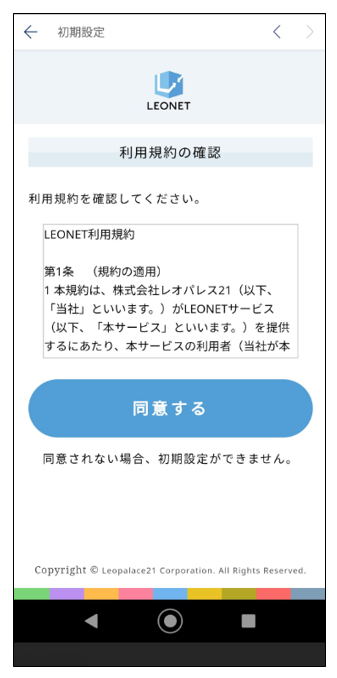
1.After proceeding with "Language Settings" and "Agreeing to the Terms of Use", the following screen will be displayed.
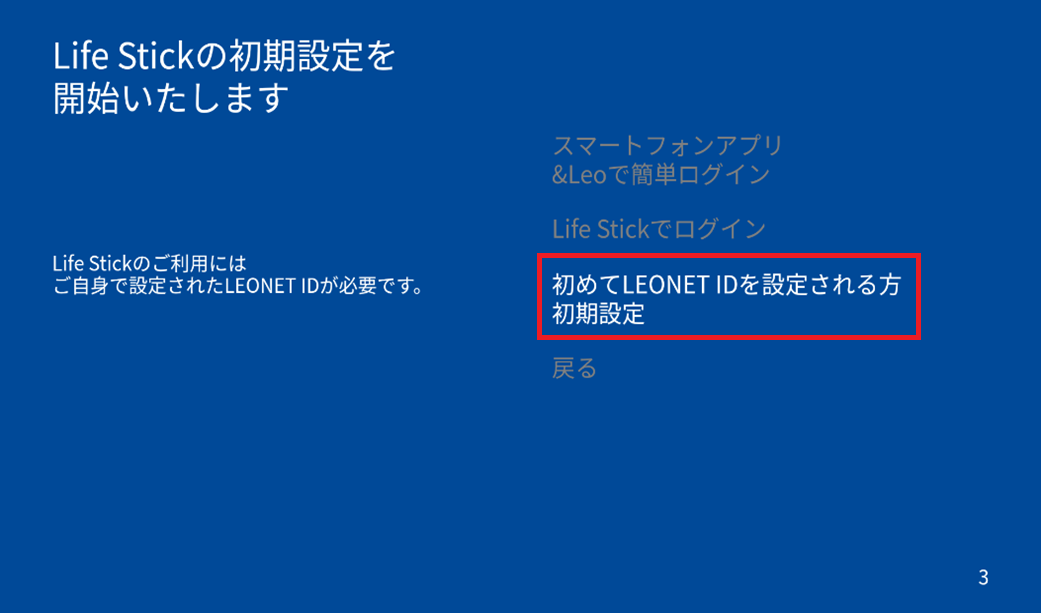
Select "Initial settings for those setting up a LEONET ID for the first time."
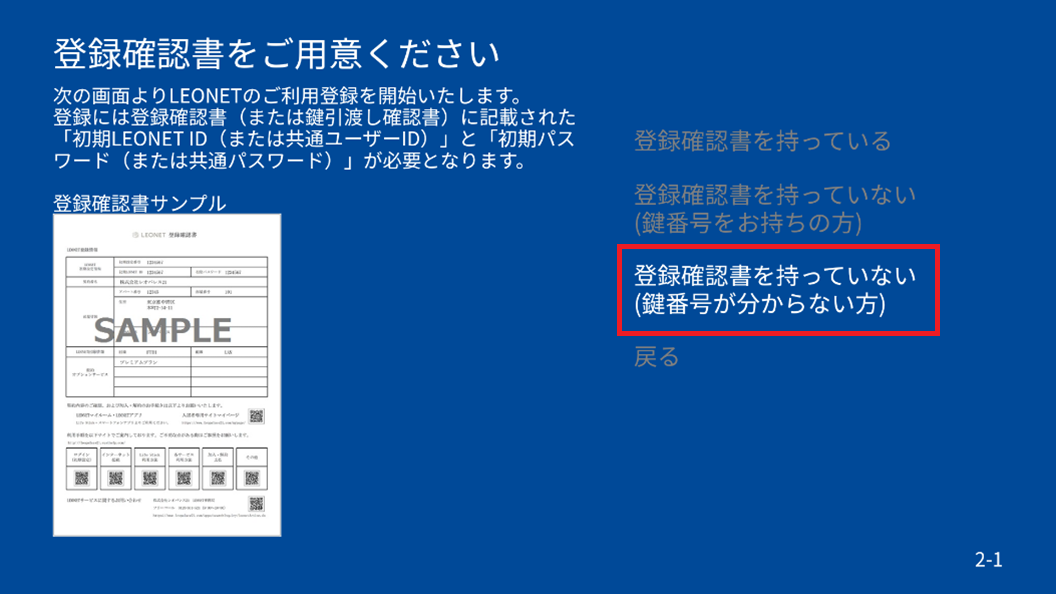
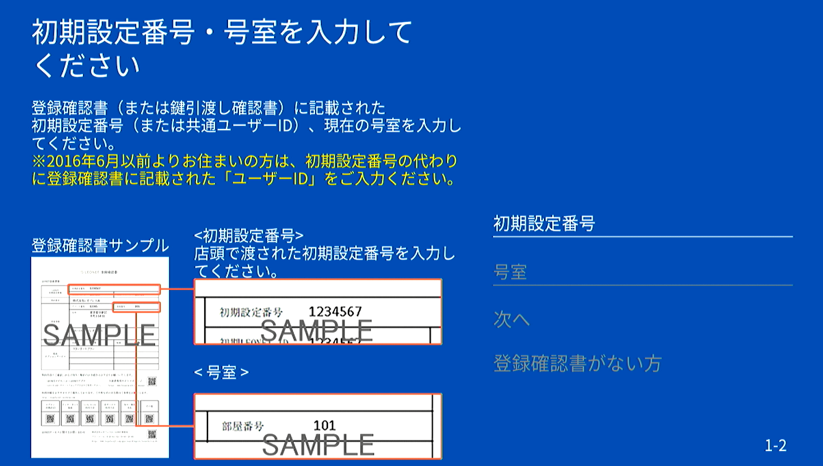
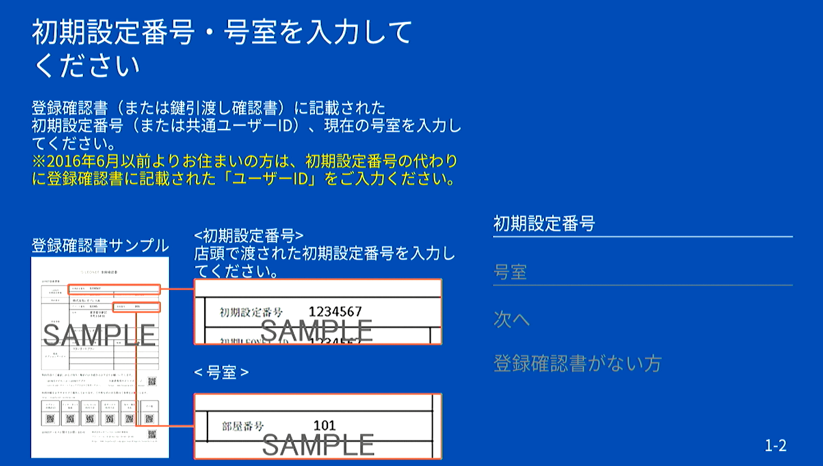
3.Enter the "Application Reception Number (Room Reception Number)", "AP Number", and "Room Number".
Click here to find out how to check your application number.
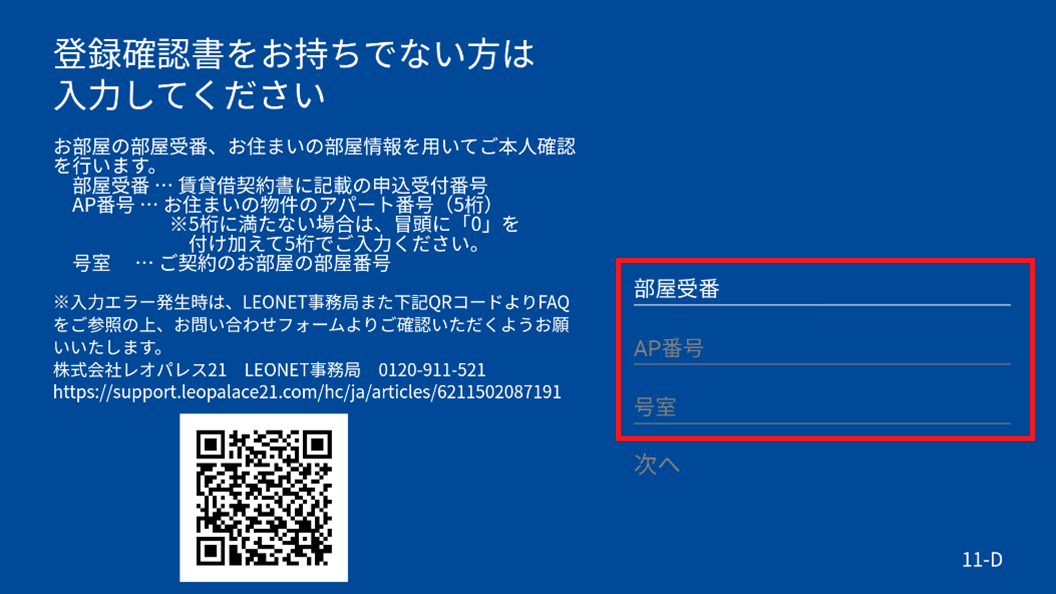
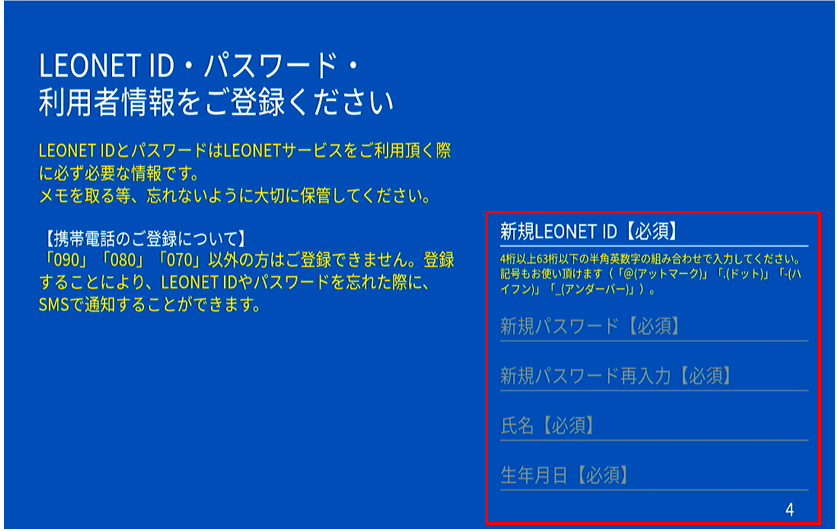
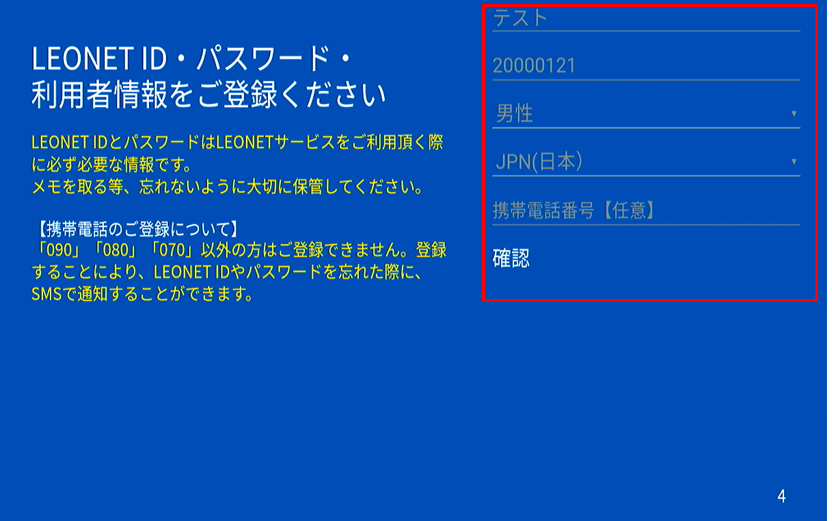
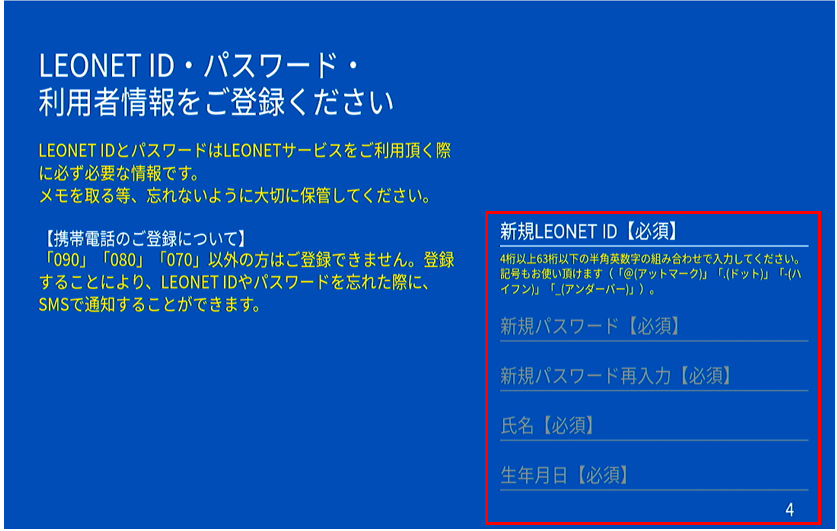
4.Enter your desired ID, password, name, date of birth, gender, nationality, and phone number.
Additionally, the ID and password you set here will be your LEONET ID and password from now on, so please be sure to keep it safe.
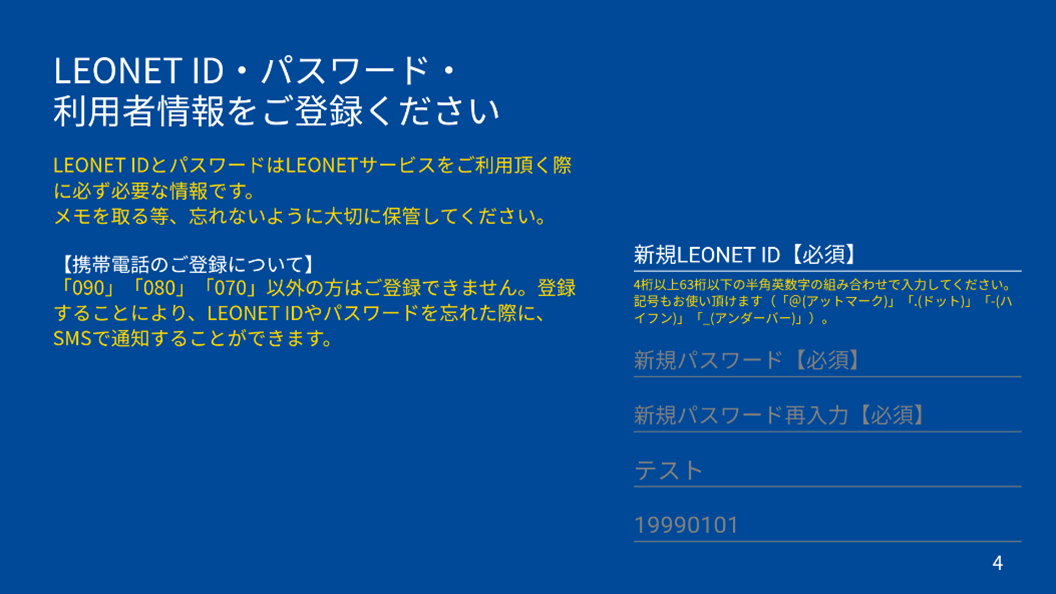
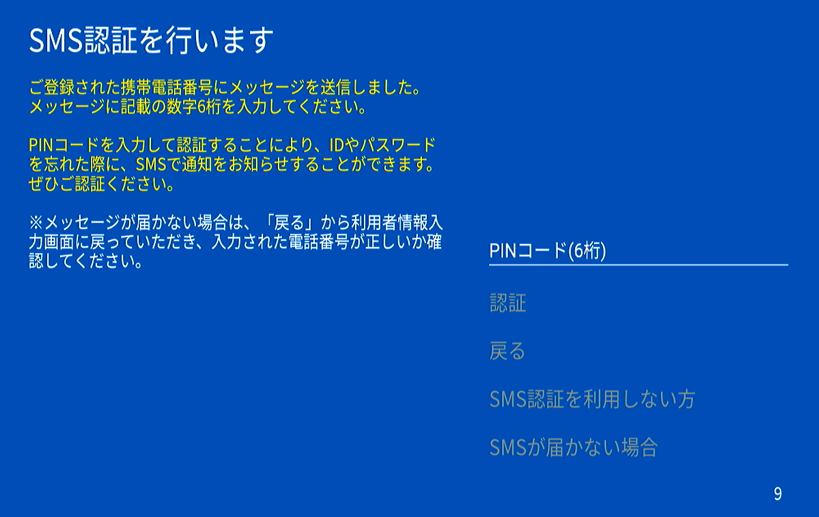
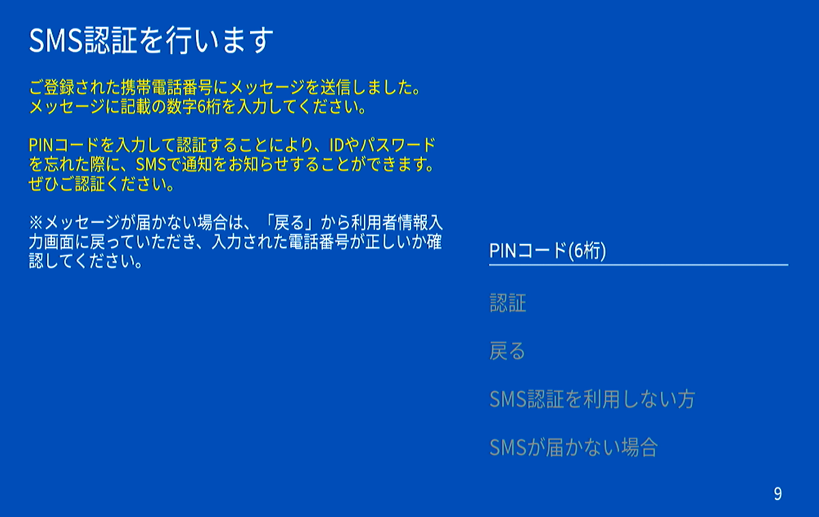
※If you enter your mobile phone number, you will be taken to the screen below where you can send the PIN code.
※If you have not entered your mobile phone number, you will be taken to a screen where you can enter your secret question.
Both will be used to confirm your LEONET ID and password if you forget them.
5.Finally, confirm the "Initial Setup Number" and the room number information again to complete the initial setup.
Please, contact through the LEONET Inquiry form (Japanese) and start a inquiry regarding [Lost LEONET ID and Password] and input the information listed below.
※For the key number, input 「000」 if requested.
▼ Information requested for the inquiry:
① Name of the Building.
② Apartment number/code. ⇒ If you don't know the AP number, check here.
③ Room number.
④ Full address of the building.
⑤ Full name.
⑥ Phone number for contact.
⑦ Mail address for contact.
⑧ After inputting the information above, on the contents of the inquiry, write the information below:
I. Your birth date.
II. The phone number you registered for the account.
III. The Customer number in your contract.
After confirming your initial LEONET ID, please follow the steps below to issue a new LEONET ID and password.
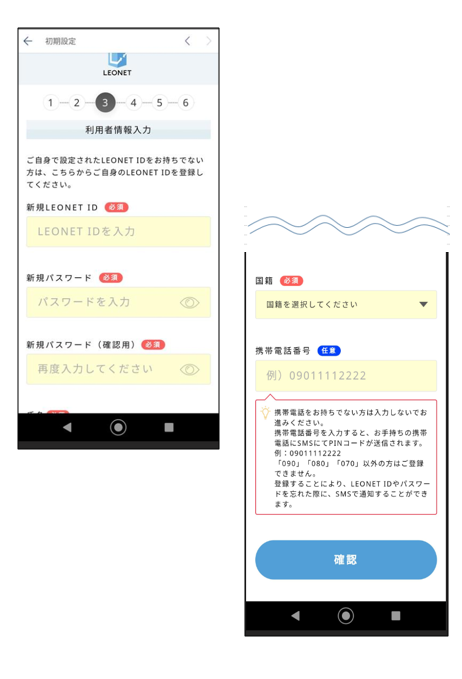
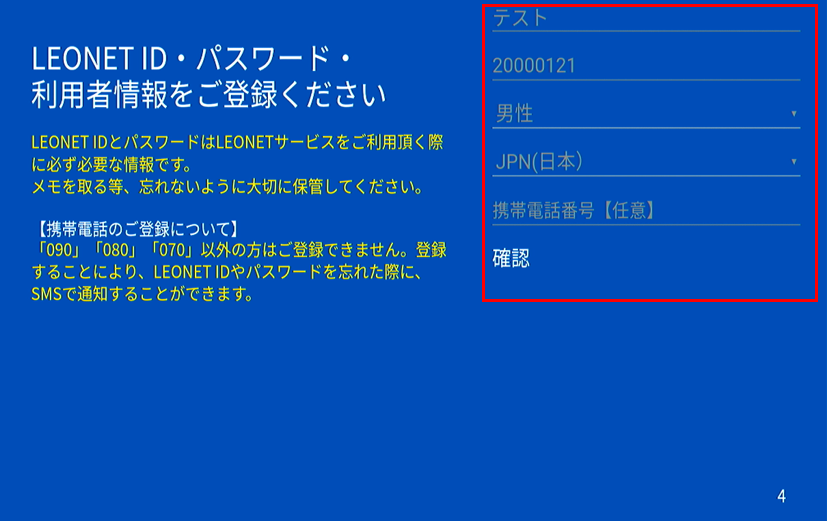
5.Please enter the required information such as your new ID and password, date of birth, gender, and phone number (optional).
After entering the information, select "Confirm" at the bottom of the screen.
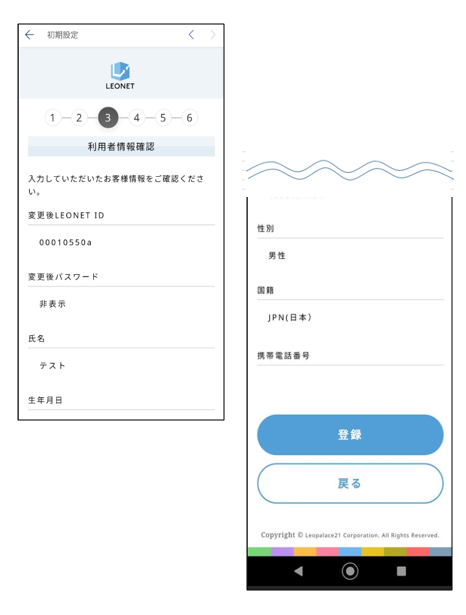
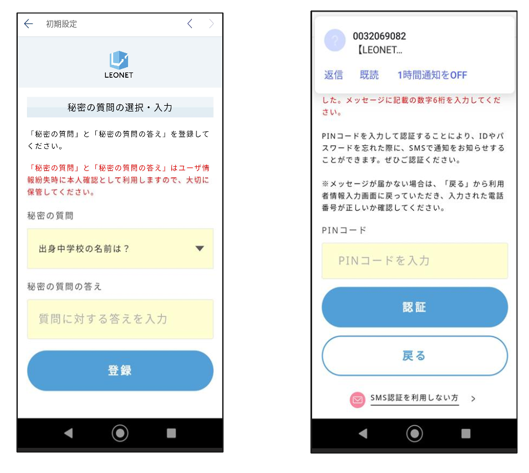
7.If you have not entered your phone number on the user information registration screen (4), you will be taken to a screen where you can enter your secret question on the left, or if you have set one, the PIN code that will be sent to your phone number on the right.
※By entering this information, you will be required to verify your LEONET ID or password if you forget it.
Left: Screen when no phone number is entered
Right: Screen when a phone number was registered
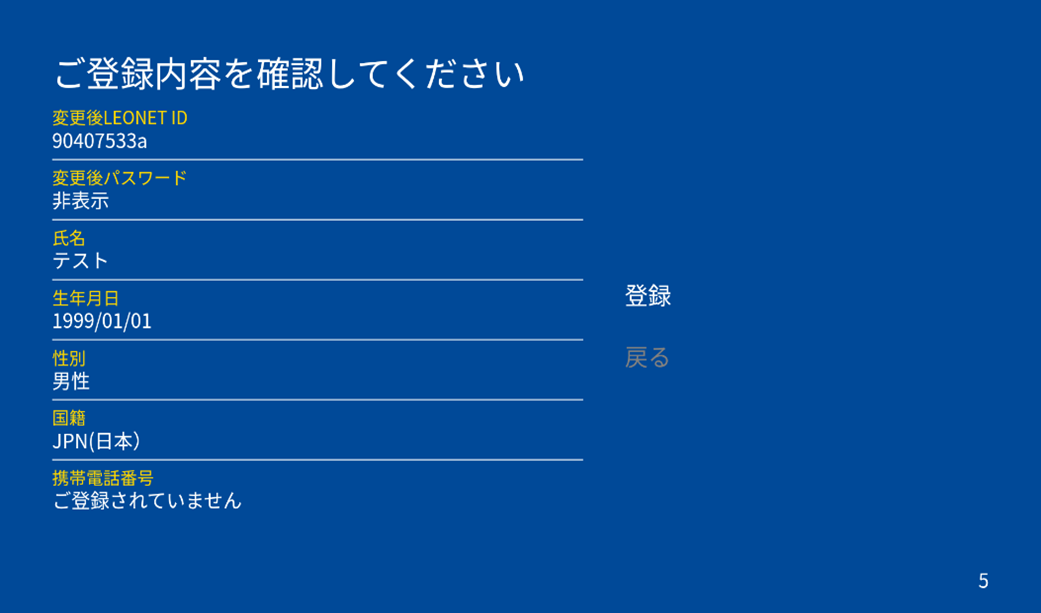
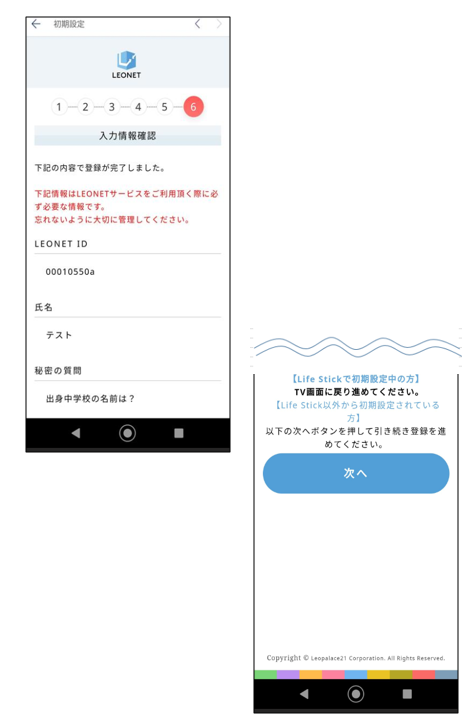
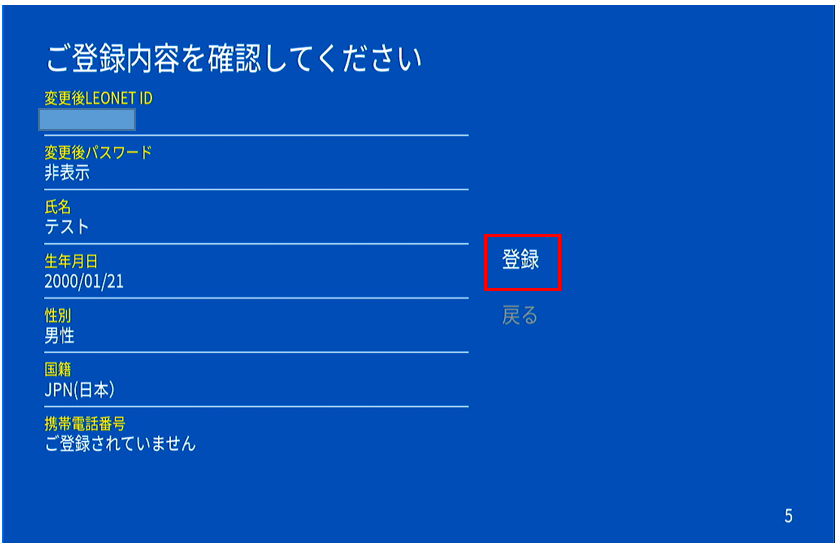
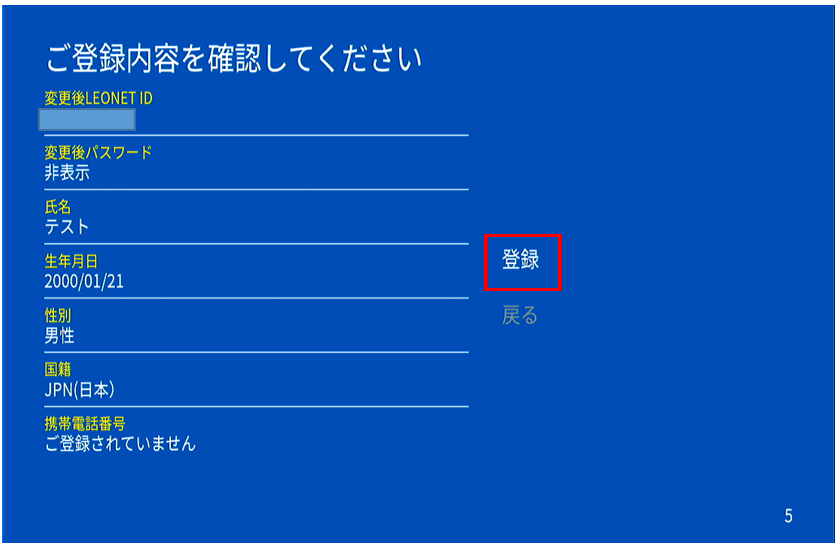
8.After entering the above information, you will be taken to the final confirmation screen for your registration details. If there are no problems with the confirmation details, select "Next" at the bottom of the screen to begin using the &Leo app service.
① For the pairing instructions when initializing the Life Stick check here.
After the pairing, you will be directed to the Google settings. Since it is not mandatory, you can skip this configuration. ※You can login into your Google account later if you are to use the Google apps.
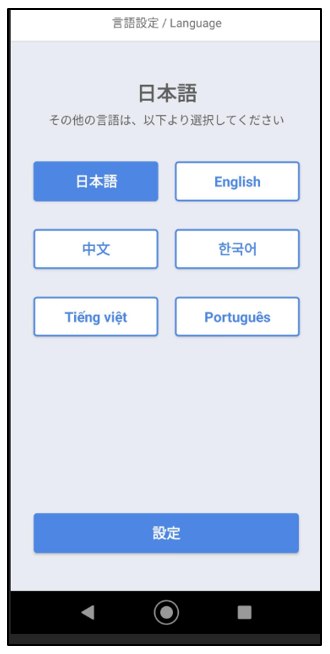
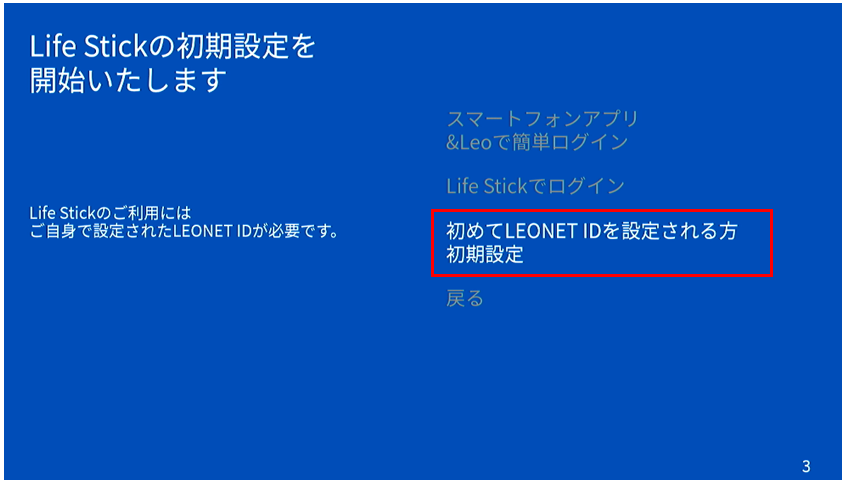
② After selecting the language for the configuration and accepting the terms of use, you will see a screen as shown below. Select the option "For those who are setting the LEONET ID for the first time".
⑨ If you registered a cellphone number, a PIN code will be sent as an SMS to your phone. Check the SMS and ※If you do not register a [Phone number], you must register a [Secret Password]. When registering your phone, you will be able to recover your ID or Password with this information.
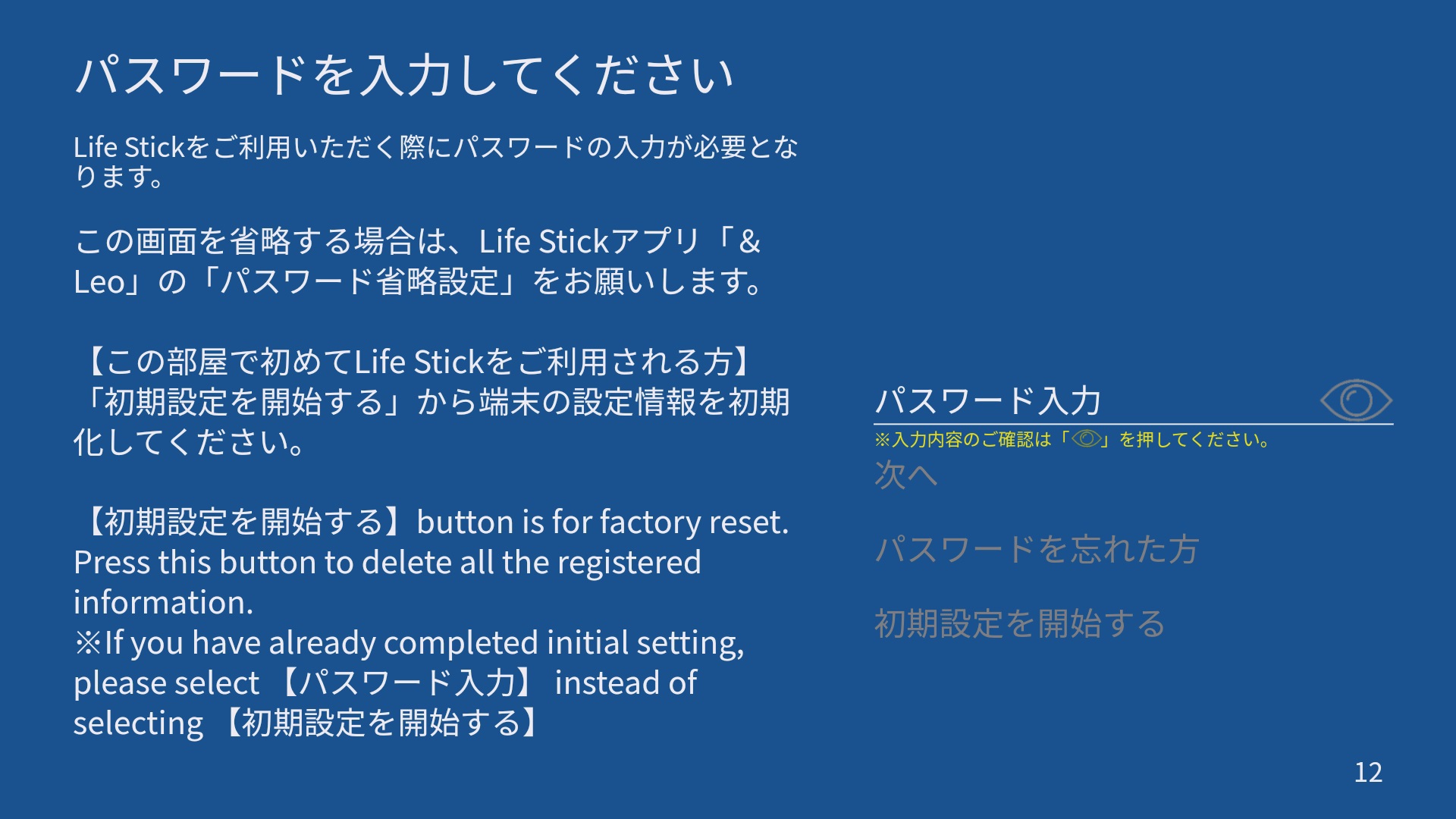
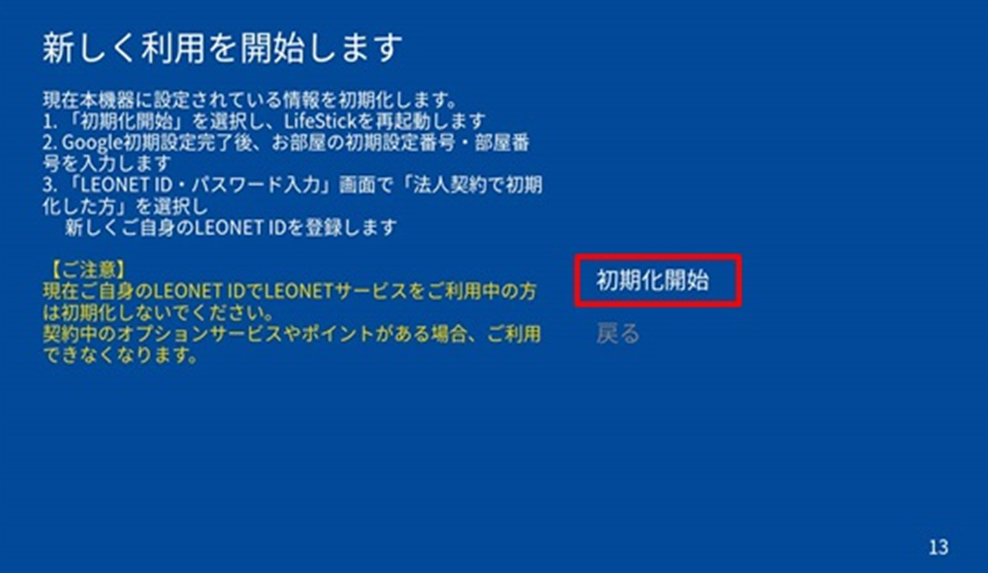
3.When you do this, the initialization screen will appear.
※ Initialization may take approximately 10 to 15 minutes.

4.Once initialization is complete, the LifeStick Remote Control Pairing screen will appear.
After pairing is complete, you will be prompted to set up Google, but please select "Skip" or similar and proceed through the screens.
※You can also configure Google settings after completing the initial setup.
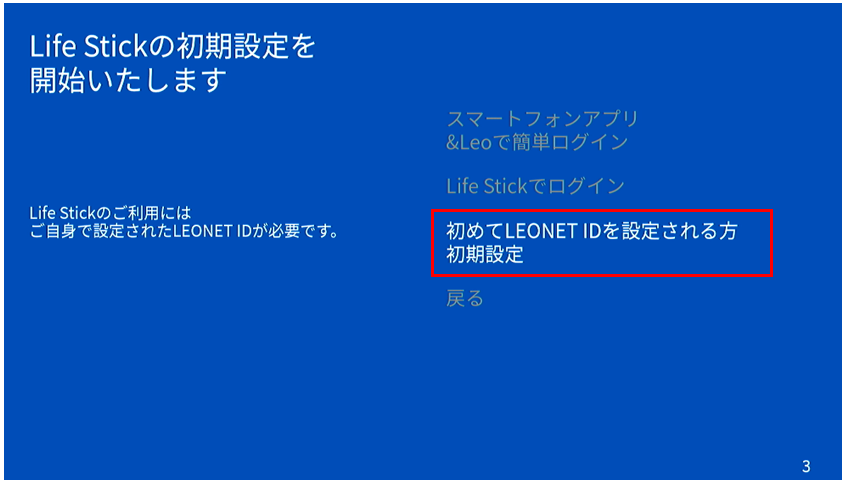
5.After proceeding with "Language Settings" and "Agreeing to the Terms of Use", the following screen will be displayed.
Select "Initial settings for those setting up a LEONET ID for the first time."
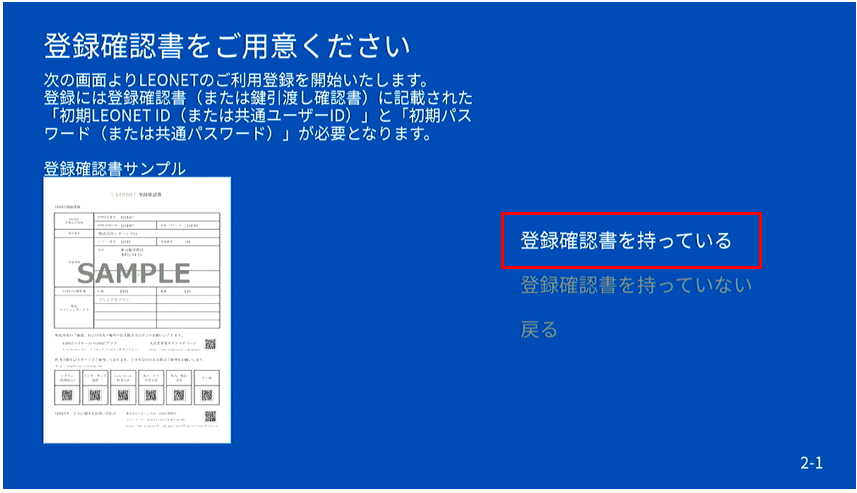
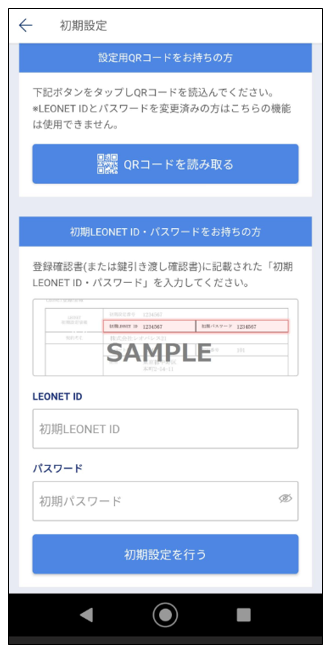
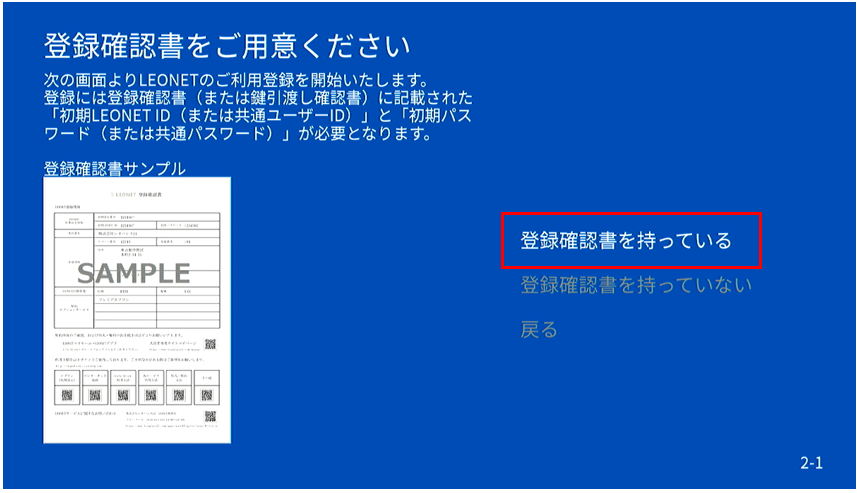
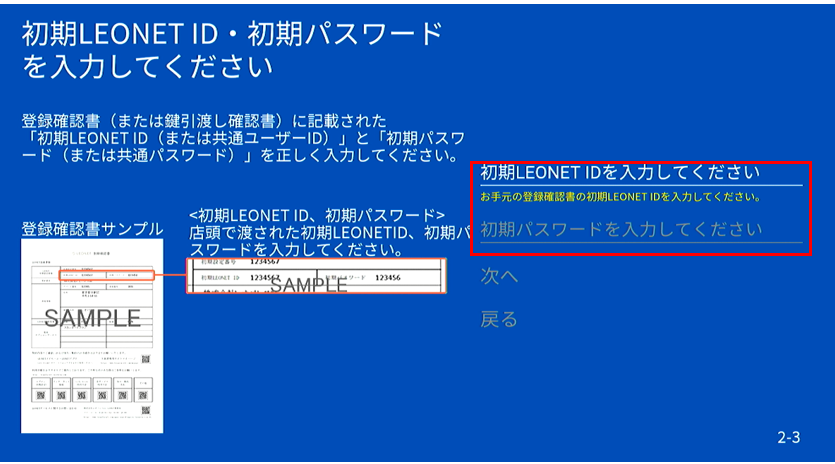
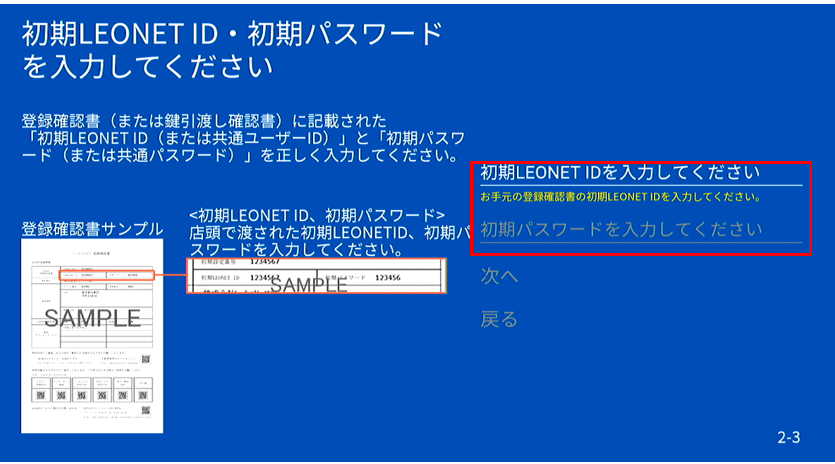
7. Input the information you received from the inquiry regarding the ID and password respectively. ・「Input your initial LEONET ID」 ・「Input your initial Password」
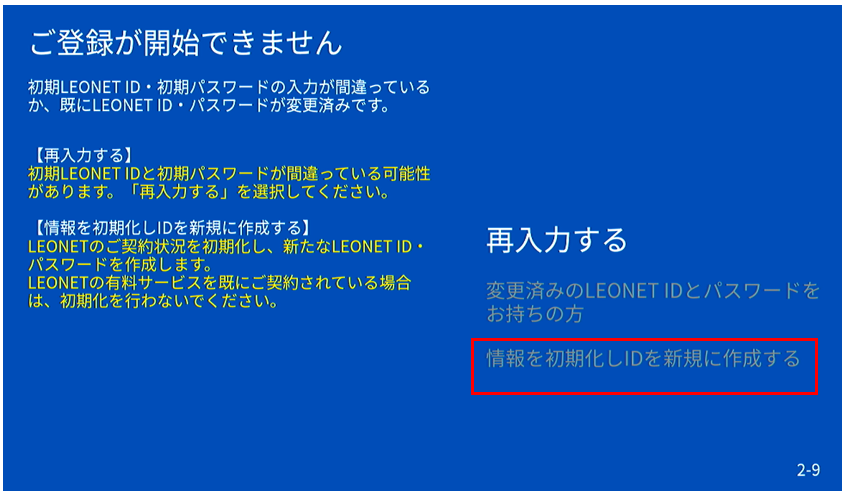
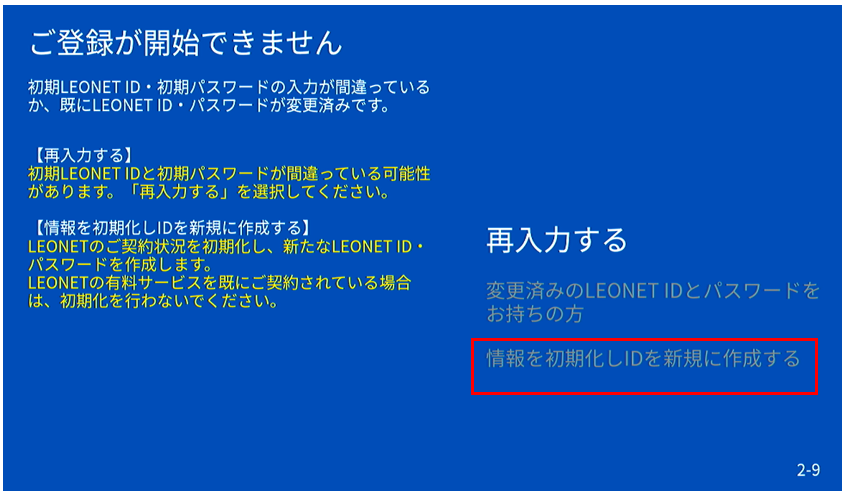
8. Select "Reset the registered information and create a new ID".
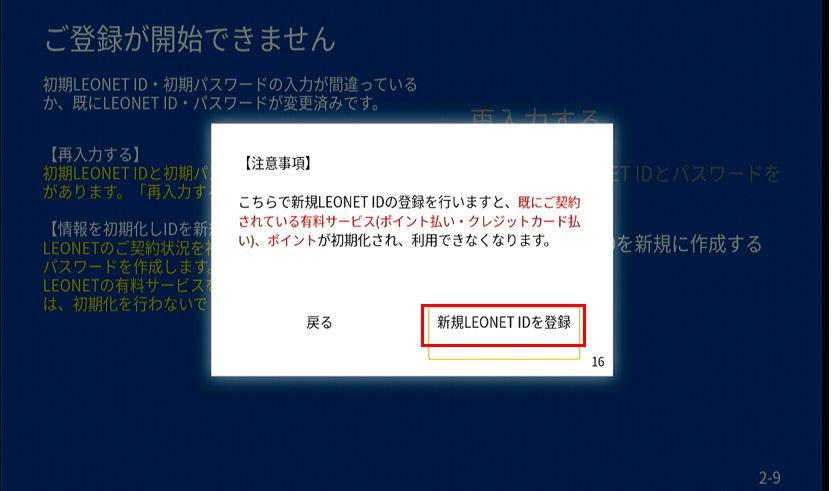
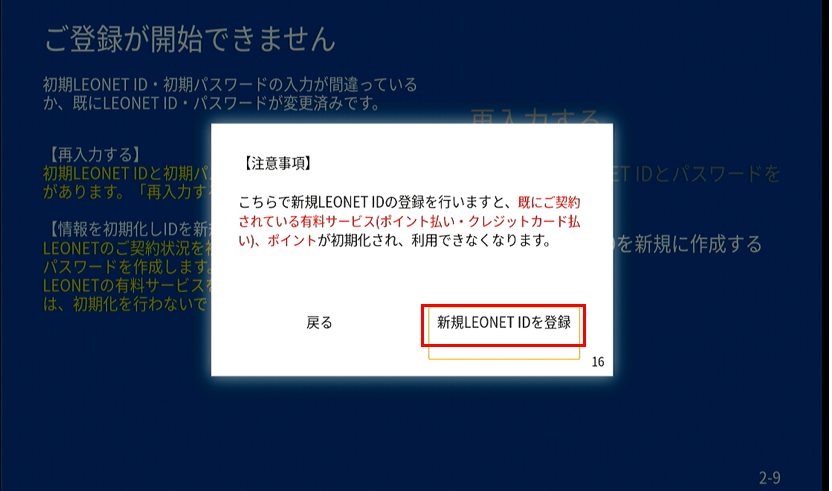
9. A notification pop up will be shown to confirm the reset. Select the "Register a new LEONET ID".
10. Input the information required for the new account. New ID, New Password, name, birthday, nationality, gender, phone number, etc... This will be the ID and password you will be using for your room. Be sure to note it down and keep it in a safe place in case it's needed.
12. If you registered a cellphone number, a PIN code will be sent as an SMS to your phone. Check the SMS and ※If you do not register a [Phone number], you must register a [Secret Password]. When registering your phone, you will be able to recover your ID or Password with this information.