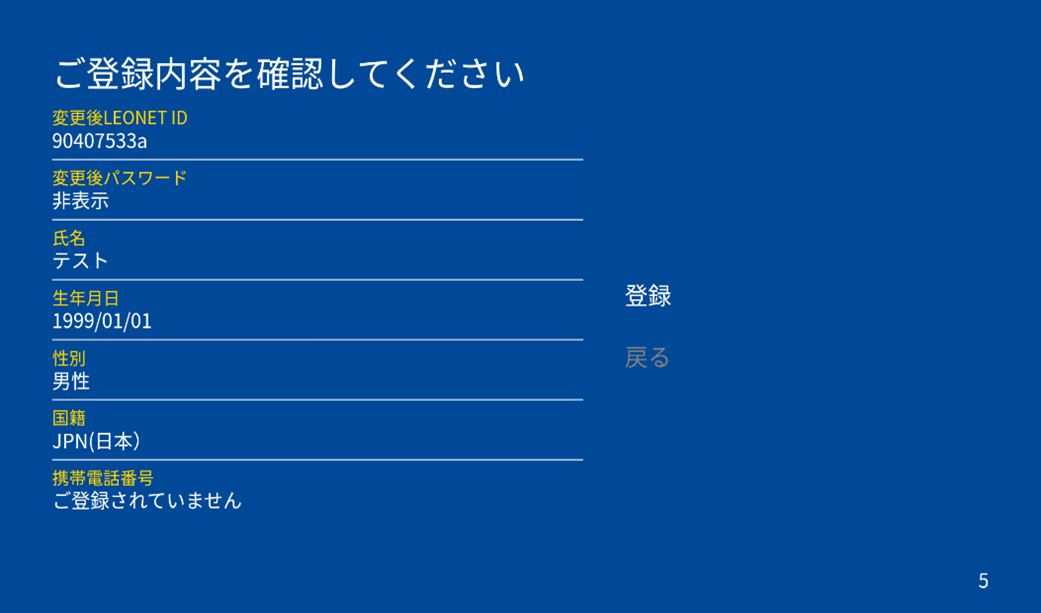
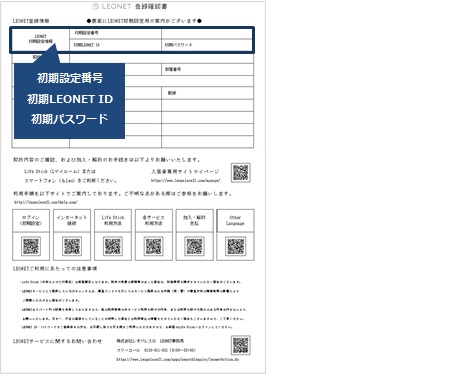
1) If the Life Stick remote pairing screen is displayed, please refer to this guide.
After completing the pairing, you will see the Google setup screen. Please proceed by selecting "Skip" or other options to move forward. Note that the Google setup can also be done after the initial setup.
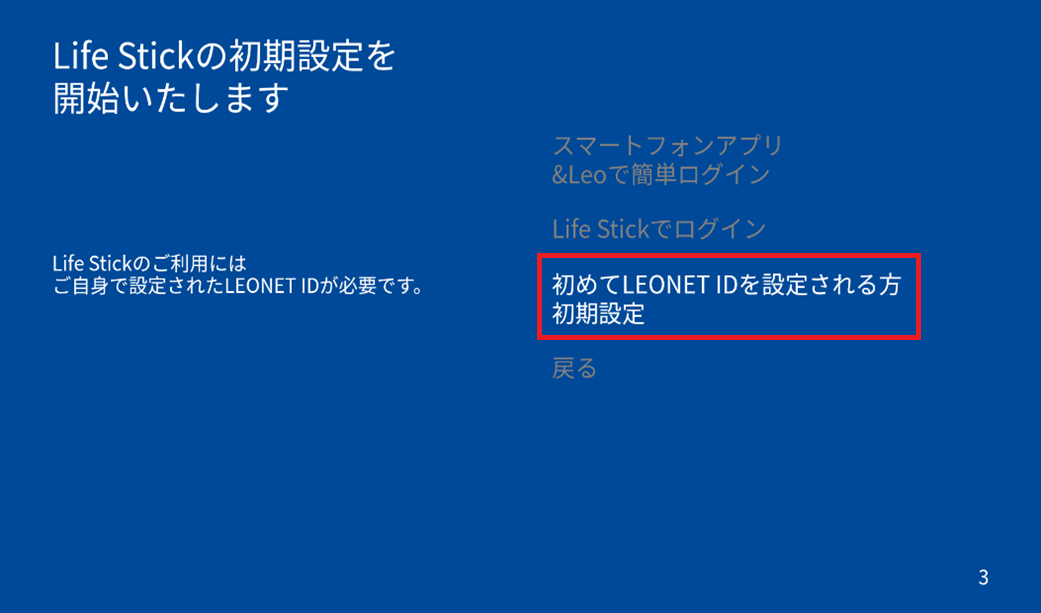
2) Once you proceed with "Language Settings" and "Agree to Terms of Use," the following screen will be displayed: Select "Initial Setup for First-time LEONET ID Configuration."
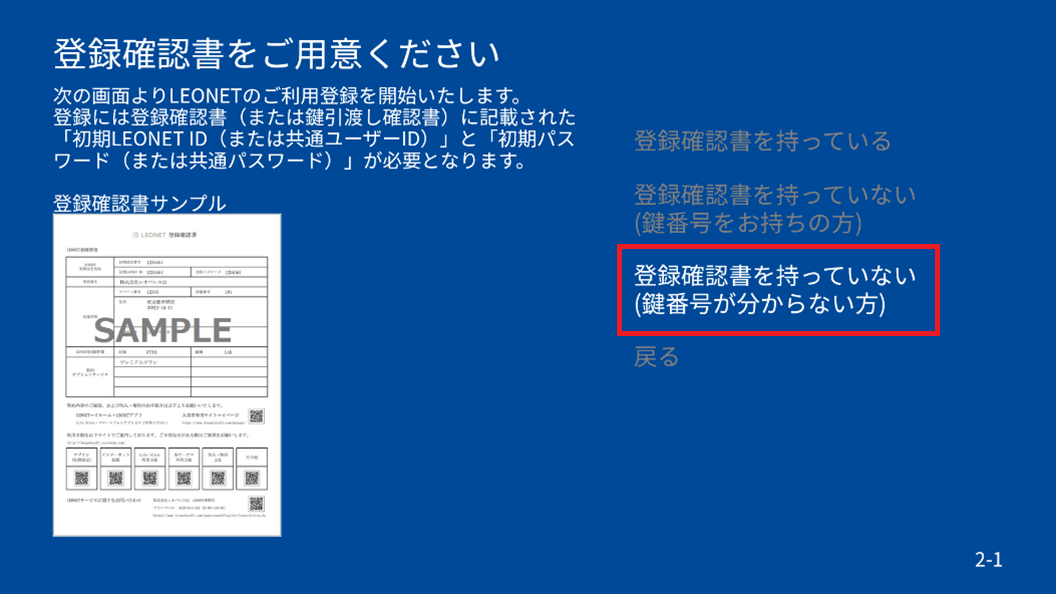
3) Select "I don't have the registration confirmation (I don't know the key number)."
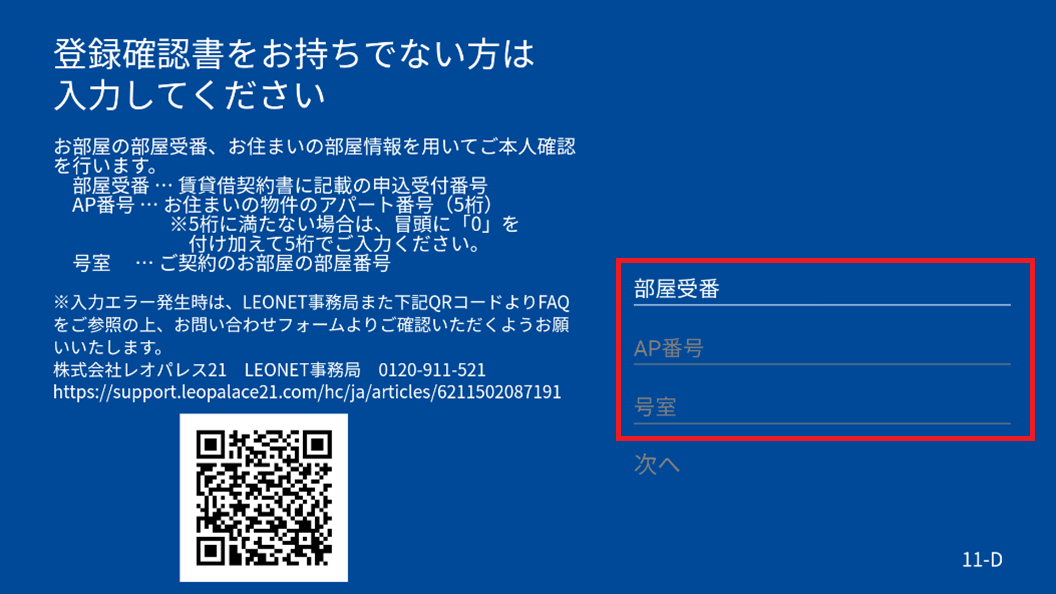
4) Enter the "Application Reception Number (Room Acceptance Number)," "AP Number," and "Room Number."
For information on how to confirm the Application Reception Number, click here.
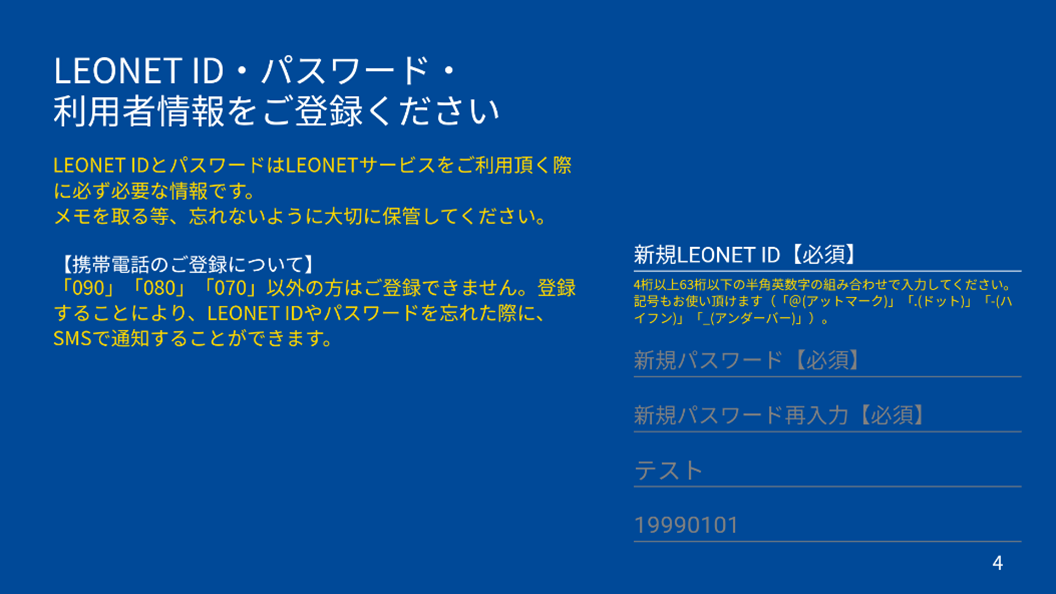
5) Enter your desired ID, password, along with your name, date of birth, gender, nationality, and phone number.
Please note that the ID and password you set here will become your LEONET ID and password going forward, so be sure to keep them safe.
※If you have entered your "mobile number" on the user information registration screen, the following screen to send a PIN code will appear.
※If you do not enter a "mobile number," a screen to enter a "secret question" will appear.
Both will be used to verify your identity if you forget your LEONET ID and password.
6) Finally, confirm the "initial setup number" and your room "number" once more to complete the initial setup.