Regarding the use of the Internet (LEONET)
Regarding the use of the Internet (LEONET)
Check the common troubles and inquiries regarding the Internet:
※Click on the desired item to jump to the details.
※Click on the desired item to jump to the details.
The LEONET is the the optional Internet services available for LeoPalace21 tenants, which includes Internet connection, video streaming, net shopping, among others services.
The Internet connection speed for apartment buildings are affected by various factors, such as the customer's devices being used, the network of the buildings area at the time of use, the congestion of the server when sharing the connection in the building, etc.. so it is not possible to stipulate an exact speed.
The LEONET service follows the "Best-Effort" business model and the minimum connection speed also can not be determined.
Although, if the connection is being lost or you get disconnected frequently, you may be experiencing a problem with the server, the network service or the installations in your building. Please, prepare your information such as LEONET ID or apartment address and when you are in your room, contact us through the following.
LEONET - Internet department: 0120-911-521
【Working hours】 Japanese: 24 hours. / English ・ Vietnamese: 10:00~19:00.
The provider (ISP) will be Leopalace21
You can also connect to the Internet with the LEONET without using the LifeStick.
To use the Internet on your devices, you still need a contract with one of the optional plans with internet access (Basic Plan/ Light Plan). Check here for how to subscribe to the optional plans.
※The Light Plan can only be used by paying along the rent of the apartment and the contract must be made at the LeoPalace Center branch.
There is also a difference between making the Internet contract for a room rented under your name and a room rented through your company. Please, check the details below:
| ------------ | Personal room contract | Corporate contract |
| Contract method | Only available along the room contract | By visiting the branch |
| Cancellation method | By visiting the branch | By visiting the branch |
| Redoing the contract | It is not possible to redo a cancelled contract | By visiting the branch |
※It is not possible to make a new Internet contract after the room contract started. You also can not redo a Internet contract after cancelling it once.
※For corporate contracts, the tenant in the room will not be able to start or cancel the contract by himself. The procedure must be made by the responsible of the contract in the company.
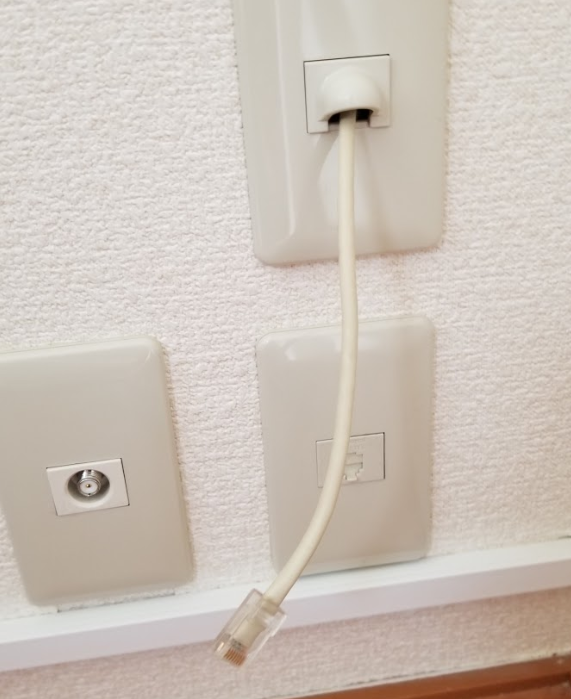
For the connection of the cables, you can use the LAN cable installed on the wall of your room and plug it into the ethernet socket of your device.
※Some properties have a LAN cable socket outlet, instead of one coming directly from the wall.
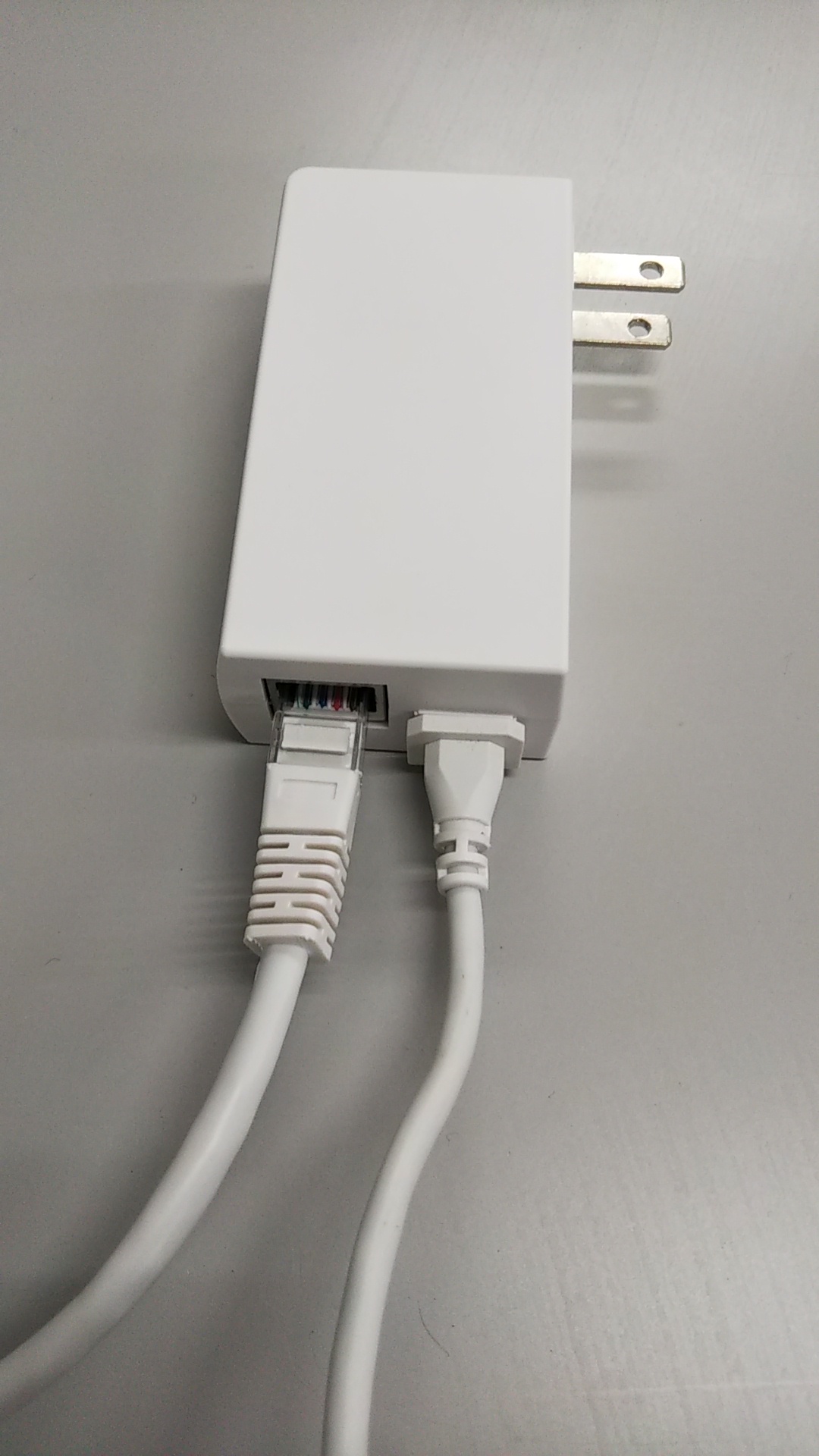
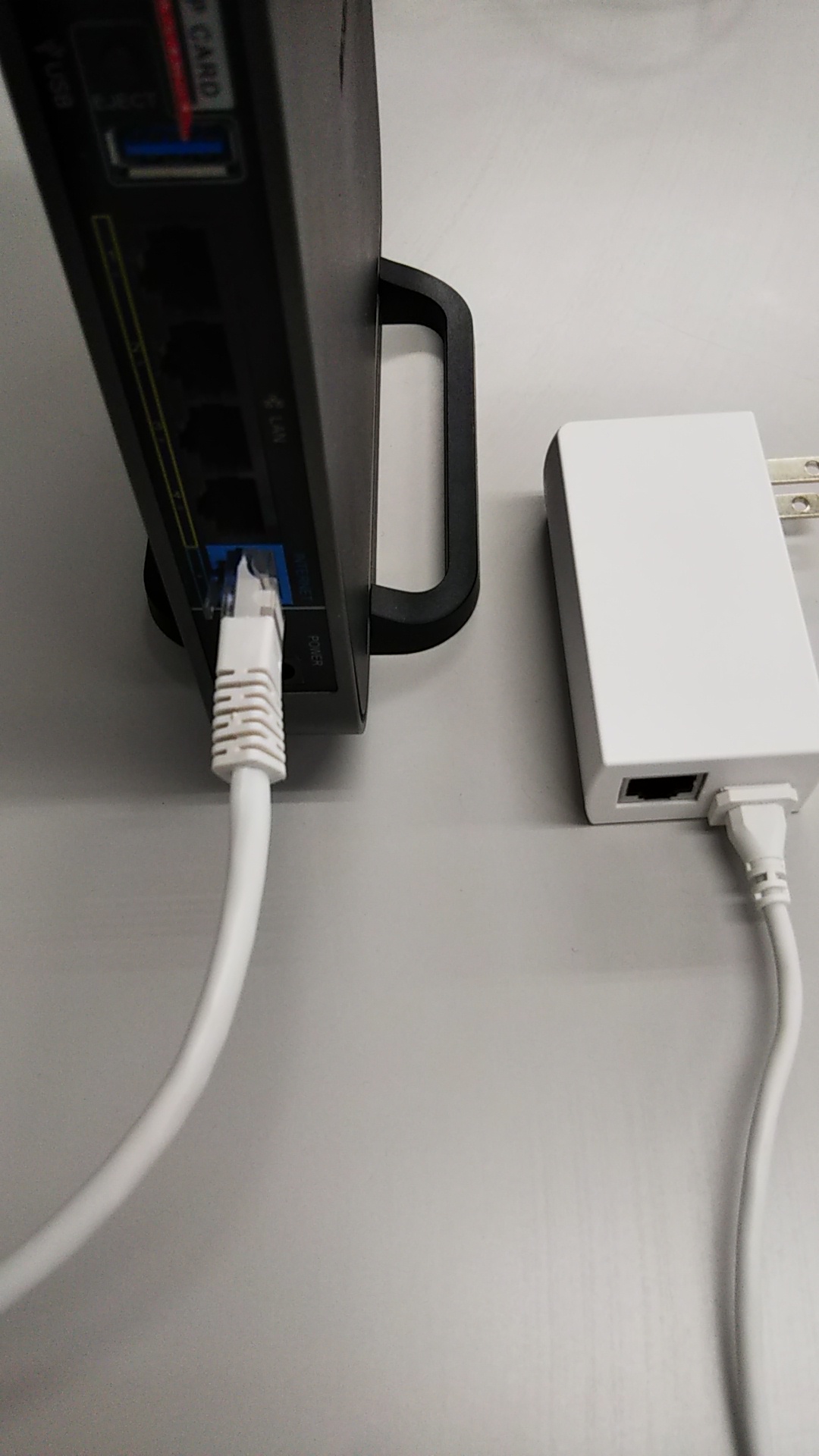
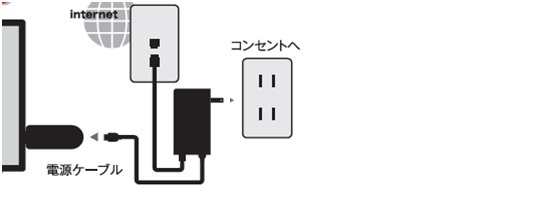
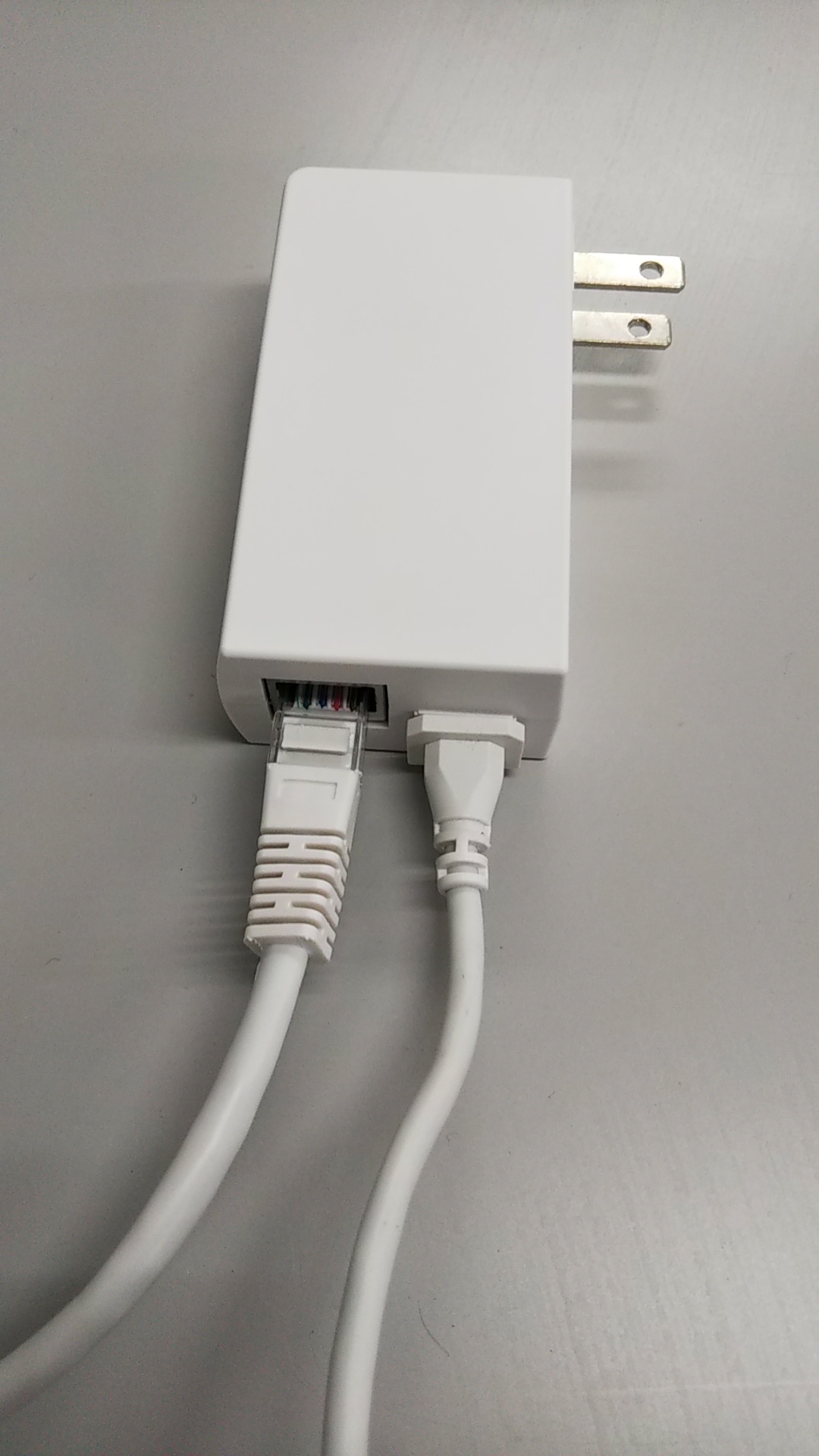
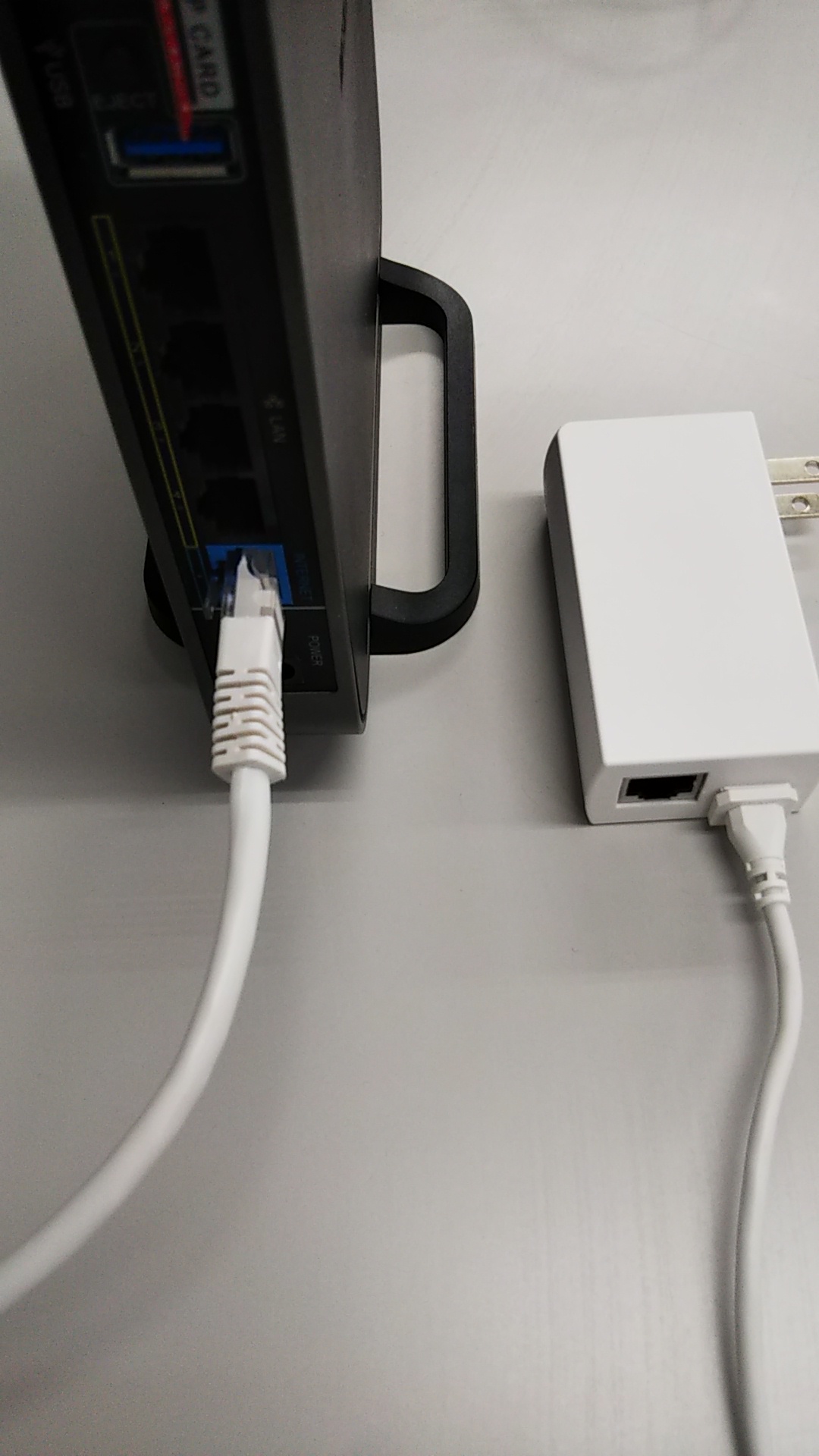
Unplug the LAN cable from the LifeStick's AC adapter and connect it to your device (a Wi-Fi router, computer Ethernet socket, etc...) as shown below.
The following services are not available in the rooms that a TV is not installed.
・LifeStick's Wi-Fi
・Watching video services(L MOVIE L Channel YouTube ABMETV etc.)
※Some services can be used as some apps.
If you bring your own TV, you can use the above services by performing the initial settings on your TV.
※However, the TV must have an HDMI port.
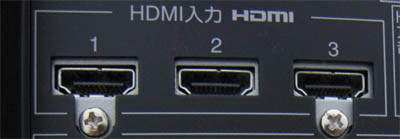
Look for the "change input" 【入力切替】 button on the TV remote then press it to change the input to 『HDMI』. (There might be 2 or more HDMI sockets, depending on the TV model. Check which socket the LifeStick is plugged to and change to that input.)
〜Customers who are using the LEONET service for the first time〜
〜Customers who will use for the first time through a corporate contract〜
■Initial settings for the (Life Stick) through the room's TV:
First, check if the Life Stick is connected correctly and follow the settings below.
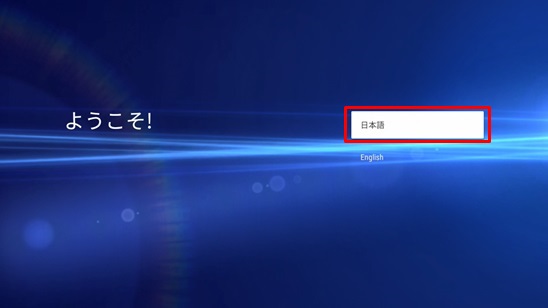
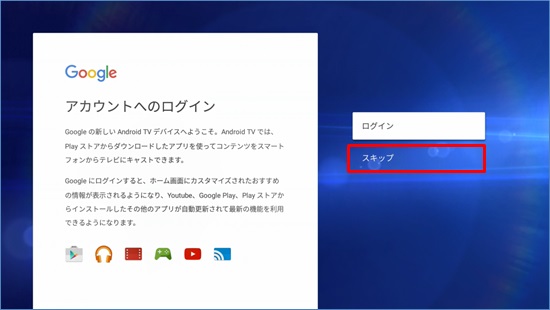
③ Set up your Google account.
If you have an account, select "Log in" for login. ⇒ How to log in
Select "Skip" if you do not have. ※You can register after initial settings.
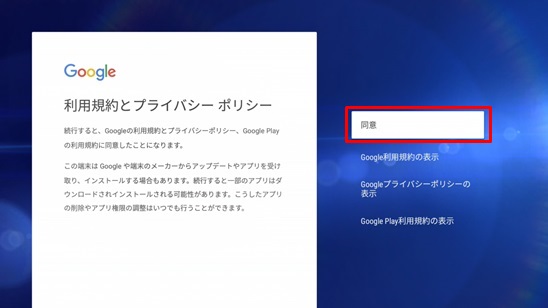
④ Confirmation of agreement with Google's Privacy Policy and Terms of Use.
Check the contents and select "Agree".
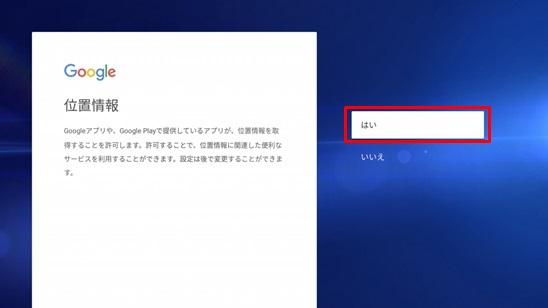
⑤ The screen to confirm whether each application is allowed to acquire location information. Either one is okay to select.
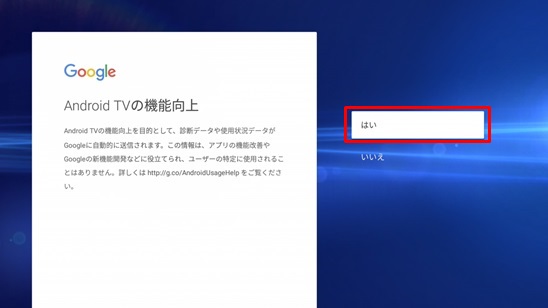
⑥ To improve the function of Android TV, confirmation to be allowed to send the usage status of the device to Google. Either one is okay to select.
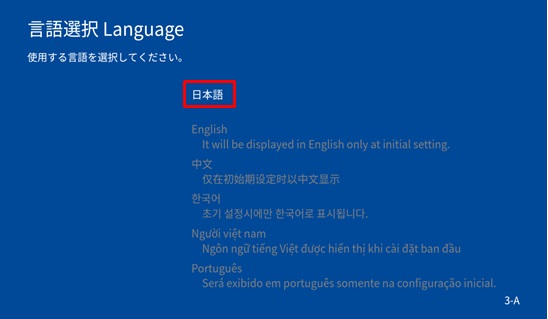
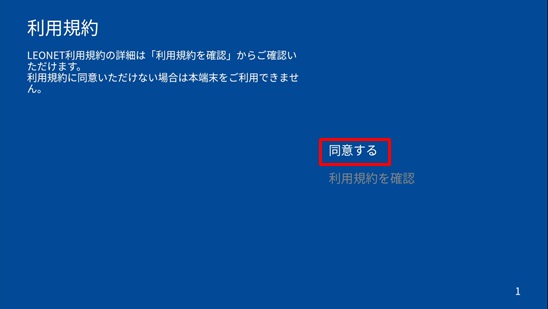
⑦ After the registration of Google account/ Skip the registration, it will be the confirmation screen of the terms of use on LEONET.
Select "Agree"(or consent), it will be the language select screen again. Please select a language and start initial settings.
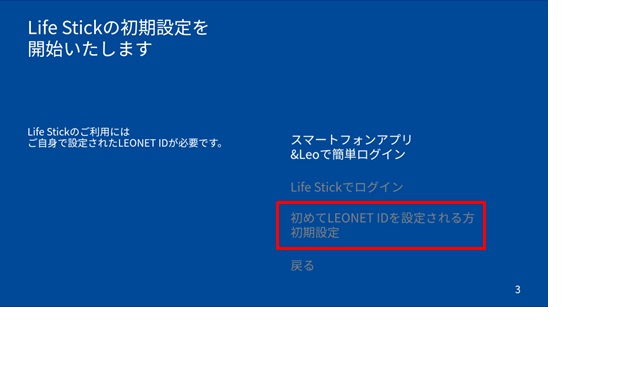
⑨ Select "Initial settings for those who set up LEONET ID for the first time".
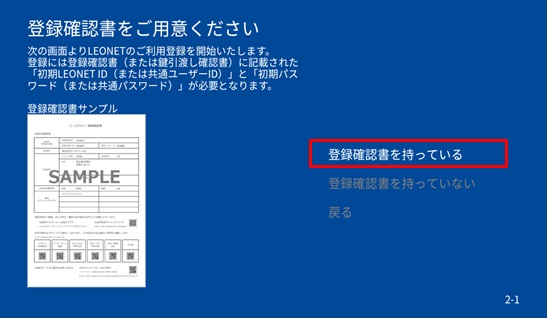
⑩ Confirmation screen whether you have "Registration confirmation" or "Key handover certificate".
Select "I have".
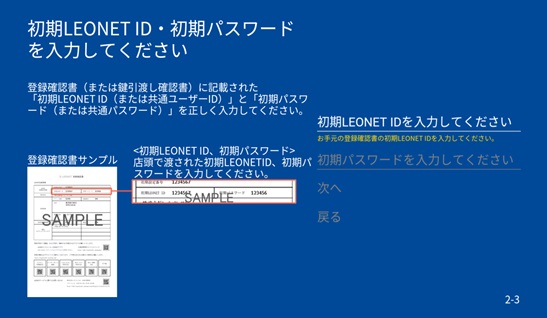
⑪ Enter the initial LEONET ID and password stated in the form, and select "Next".
⑫ Enter your new LEONET ID and password to create.
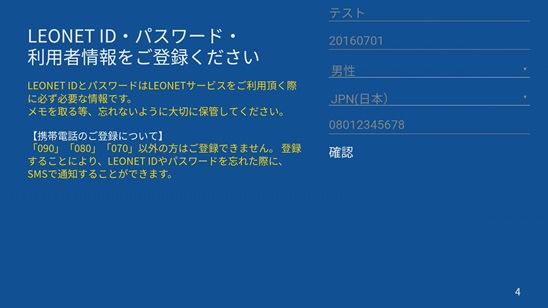
Register customer information such as mobile phone numbers. Enter and select "Confirm".
※For corporate contracts, there are input items such as name and nationality.
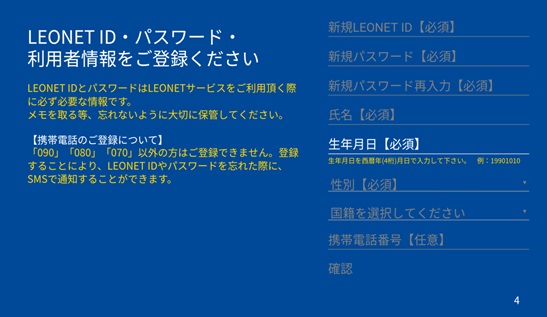
⑬ Check the entered information, and select "Register".
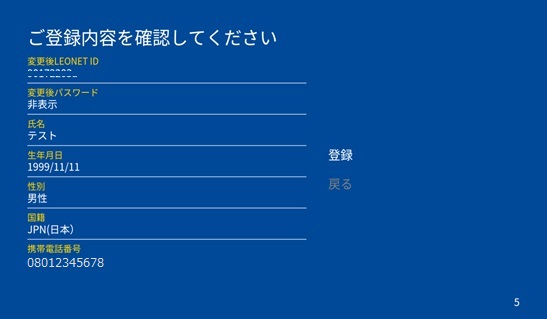
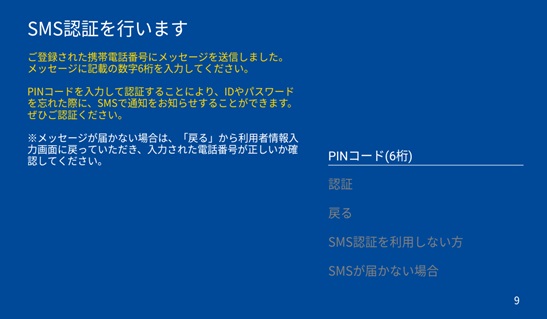
⑭ If you have registered a mobile phone number(starting with 070,080,090) in ⑬, a SMS message with the PIN code(6 digits) will be sent in your mobile phone.
Enter the sent 6-digit code on the TV screen, and select "Authentication".
※If you do not have a mobile phone number(starting with 070, 080, 090) or chose "Those who do not use SMS authentication", please check here.
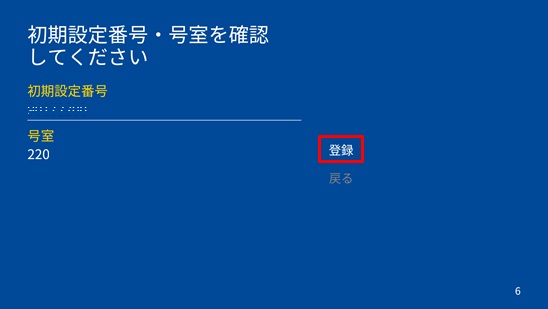
⑮ This is the confirmation screen of the room contract information. Check the initial configuration number and your room number are correct, and select "Register".
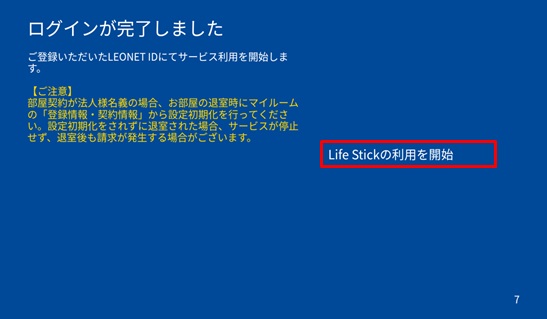
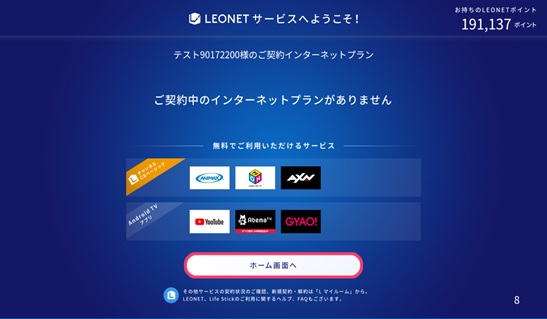
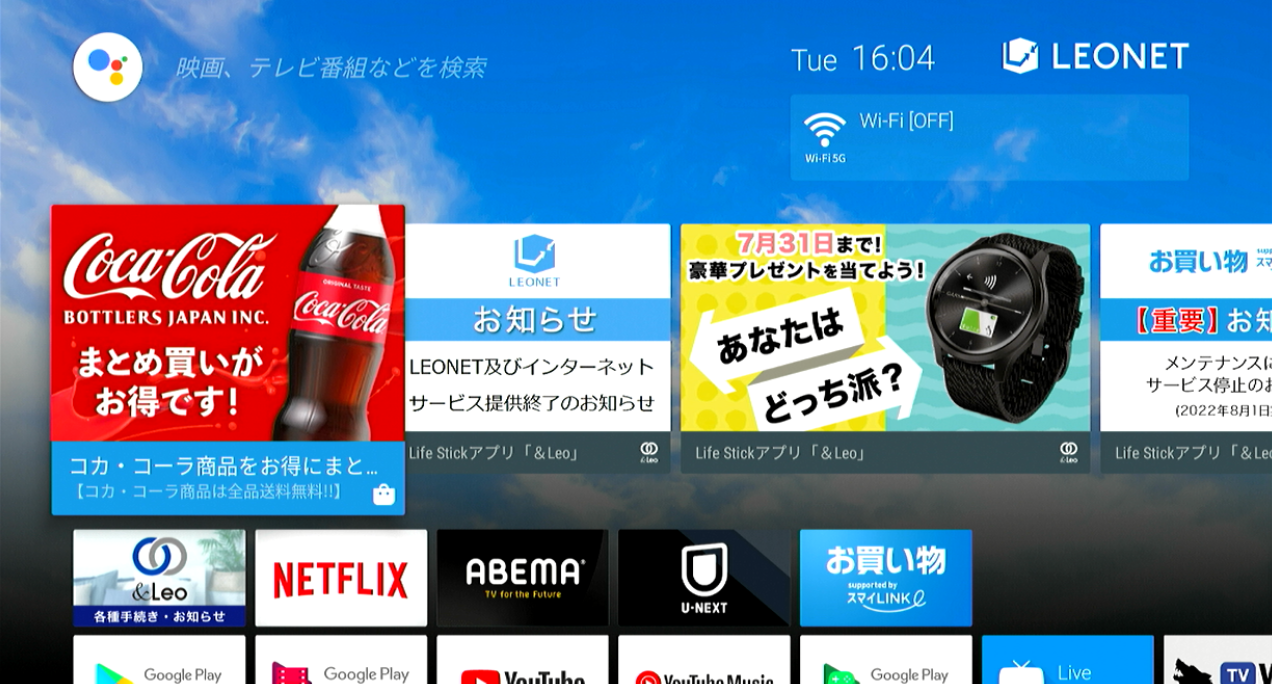
⑱ The HOME screen with the blue sky background is displayed, and the initial settings are complete.
You can use various LEONET services.
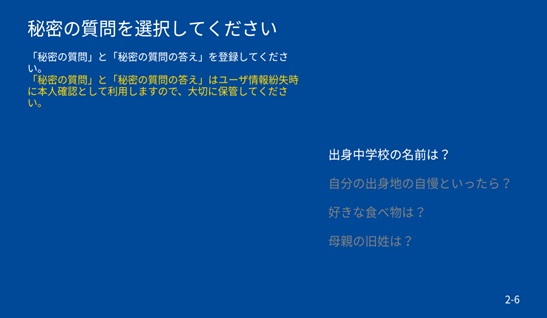
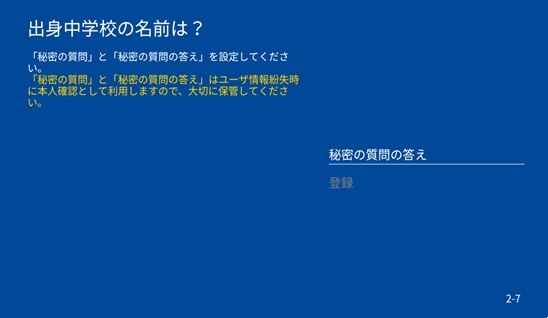
[1]The following screen of "Secret question" will be displayed if you do not register your mobile phone number(11 digit numbers starting with 070, 080, 090) or select "those who do not use SMS authentication".
※"Secret question" and "Answer" can be used to for identification when you lost "LEONET ID" or "password", so please take a memo not to forget.
[2]Enter "Answer".
Please be sure to write down the answer to your secret question and select "Register".
■Go to the explanation screen of LEONET login.
If the problem is not resolved, please prepare your customer information such as your user ID or apartment address, and contact us when you are at home.
LEONET - Internet department: 0120-911-521
【Working hours】 Japanese: 24 hours. / English ・ Vietnamese: 10:00~19:00.
・ Guidance of Life Stick Settings 20190625.pdf
1 MBDownload
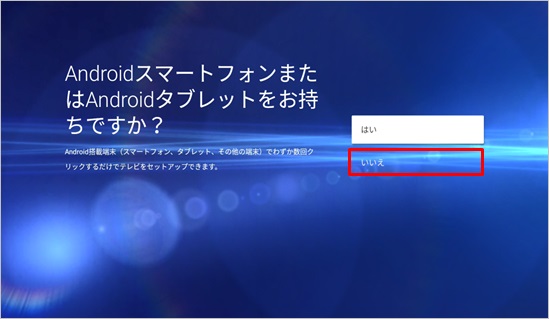
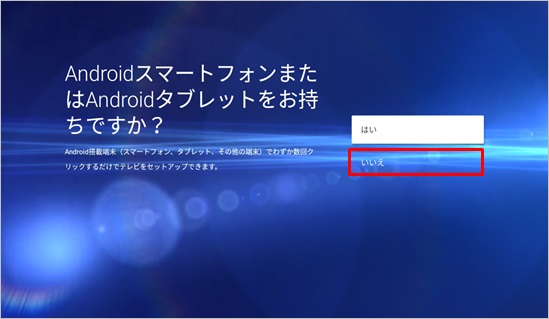
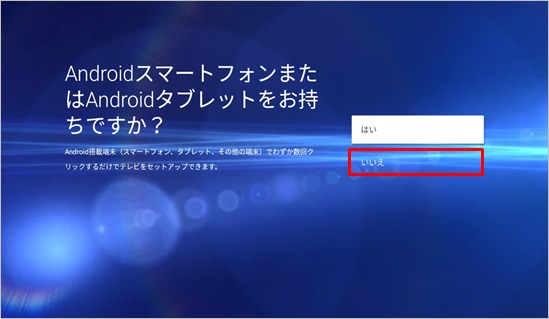
(2)The screen with the message "Do you have an Android smartphone or Android tablet?" is displayed, but please select "No" because no settings are made here.
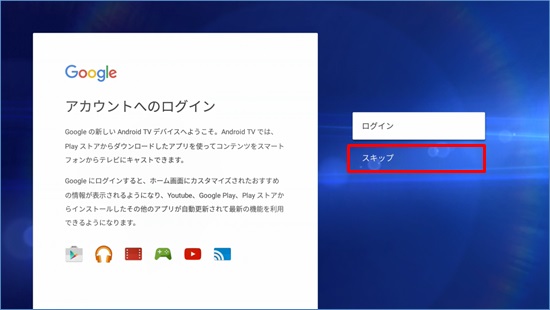
(3)Set up your Google account.
If you have an account, select "Log in" for login. ⇒ How to log in
Select "Skip" if you do not have. ※You can register after initial settings.
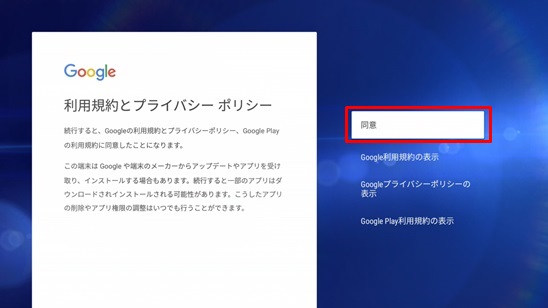
(4)Confirmation of agreement with Google's Privacy Policy and Terms of Use.
Check the contents and select "Agree".
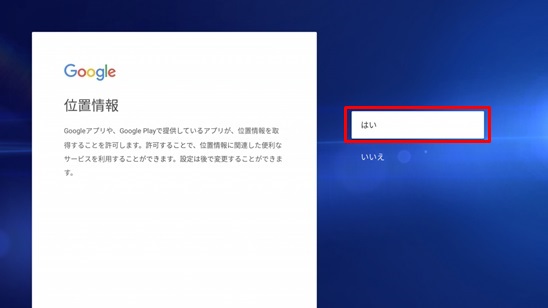
(5)The screen to confirm whether each application is allowed to acquire location information. Either one is okay to select.
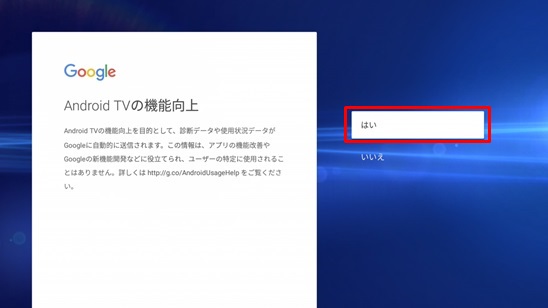
(6)To improve the function of Android TV, it is the confirmation to be allowed Android to send the usage status of the device to Google. Either one is okay to select.
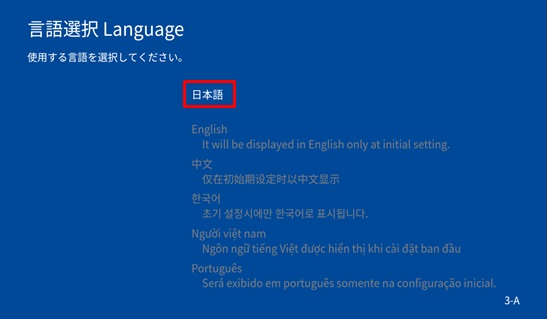
(7)After the registration of Google account/ Skip the registration, it will be the confirmation screen of the terms of use on LEONET.
Select "Agree"(or consent), it will be the language select screen again. Please select a language and start initial settings.
In addition, the language you select is applied only in the initial settings, and it will be in Japanese after initial settings.
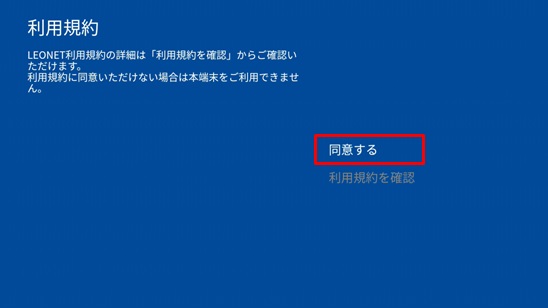
(8)The confirmation screen of the LEONET terms of service will be displayed.
Select "Agree". The terms of service screen will be displayed if you select "Confirm terms of service".
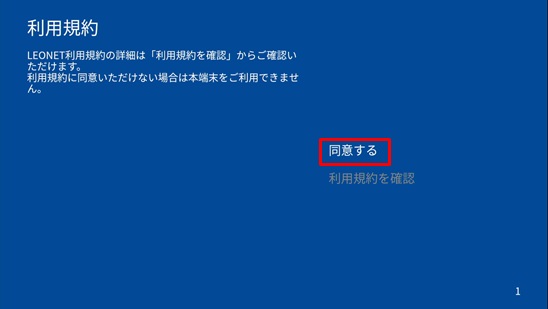
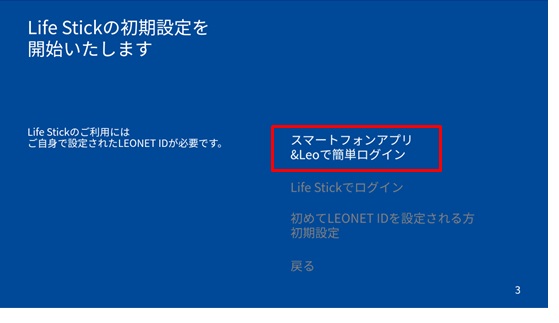
(9)Select "Easy login with smartphone app &Leo".
※This function is only available for new registrants.
If you have a previous account by relocation, please register following this method.
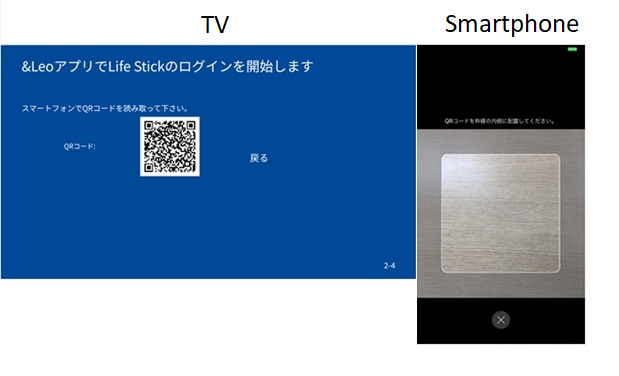
(10)Scan the 2D barcode with your smartphone and log in.
※Click here for those who have not registered the tenant only smartphone app "&Leo"
※If you fail to log in, please uninstall the app, reinstall it, and try again.
(11)After login, select "Start using Lifestick" in the TV screen.
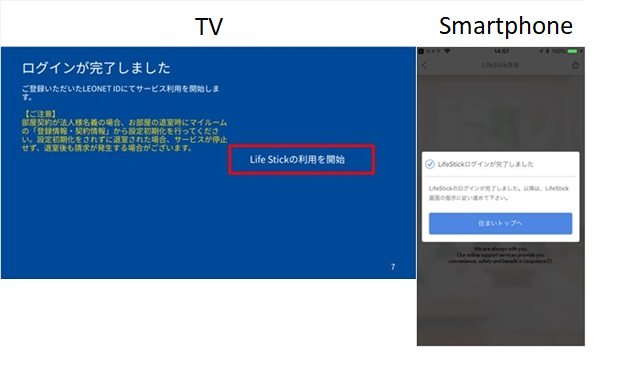
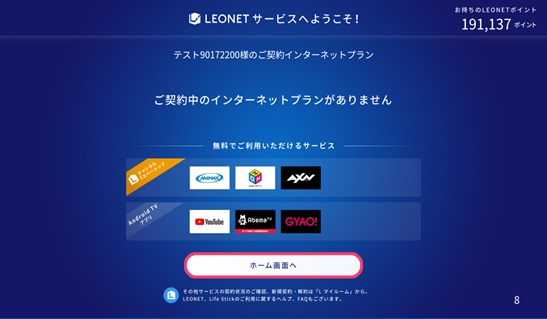
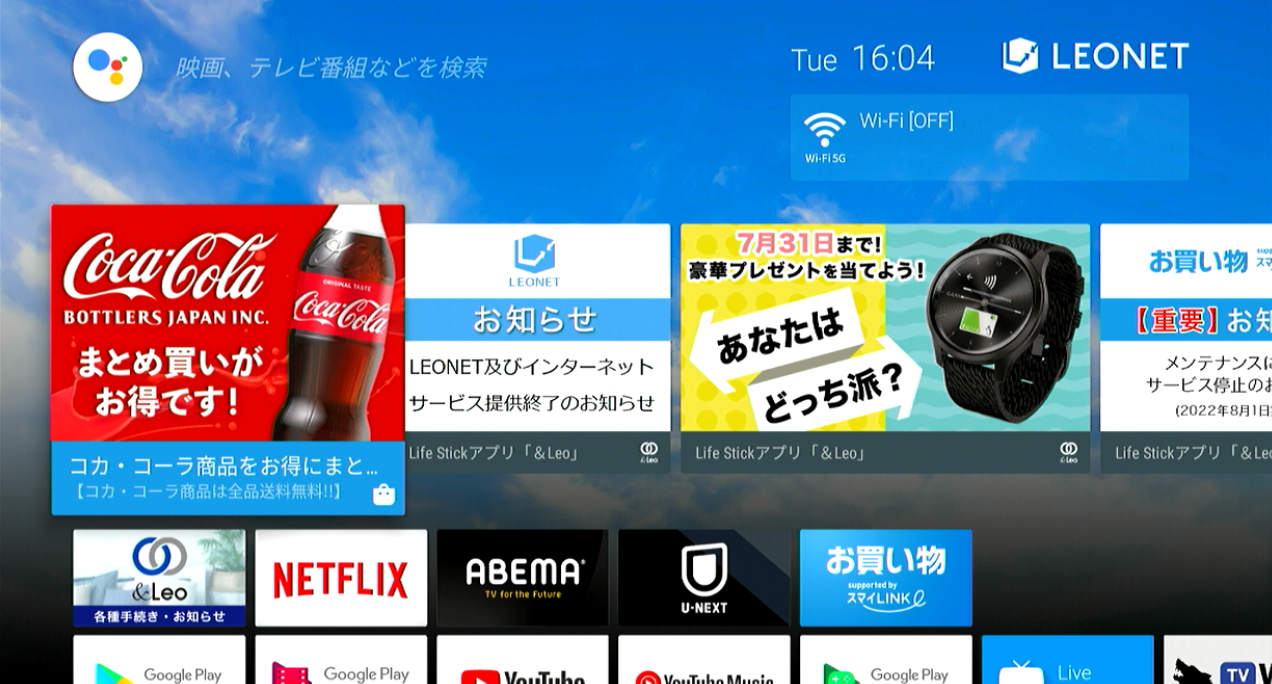
(13)The HOME screen with the blue sky background is displayed, and the initial settings are complete.
You can use various LEONET services.
If the problem is not resolved, please prepare your customer information such as user ID or apartment address, and contact us when you are at home.
LEONET - Internet department: 0120-911-521
【Working hours】 Japanese: 24 hours. / English ・ Vietnamese: 10:00~19:00.
■Initial setting from the TV in the room(Life Stick)
Please check the Life Stick is connected correctly, and set it up following the below.
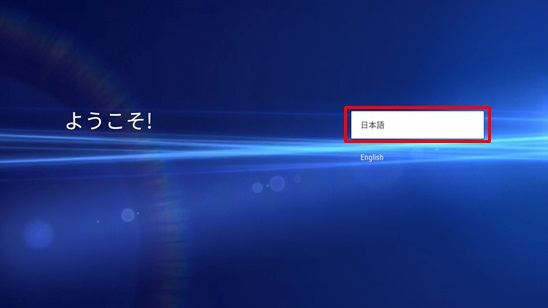
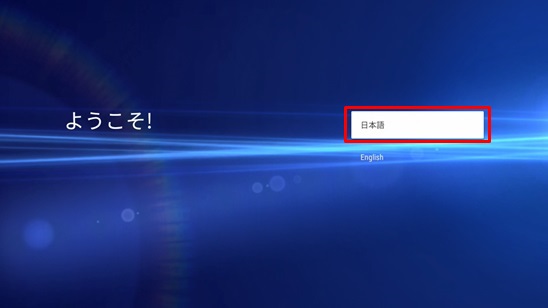
①Select a language.
③Set up your Google account.
If you have an account, select "Log in" for login. ⇒ How to log in
Select "Skip" if you do not have. ※You can register after initial settings.
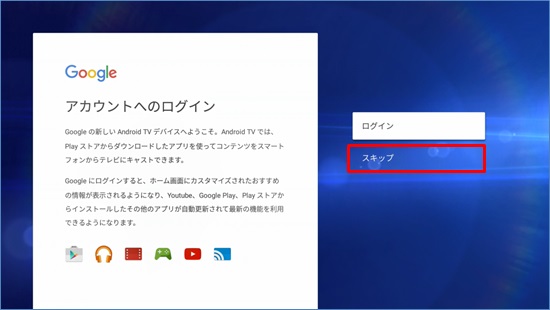
④Confirmation of agreement with Google's Privacy Policy and Terms of Use.
Check the contents and select "Agree".
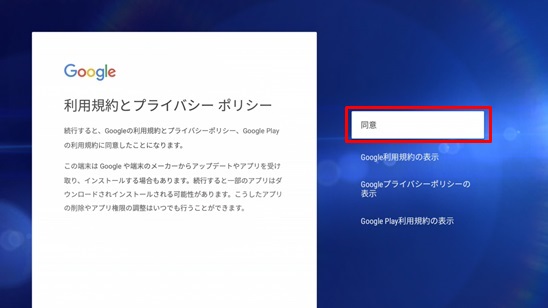
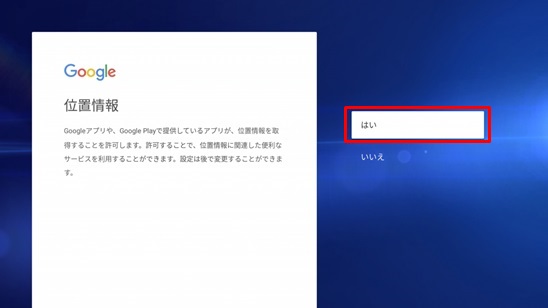
⑤The screen to confirm whether each application is allowed to acquire location information. Either one is okay to select.
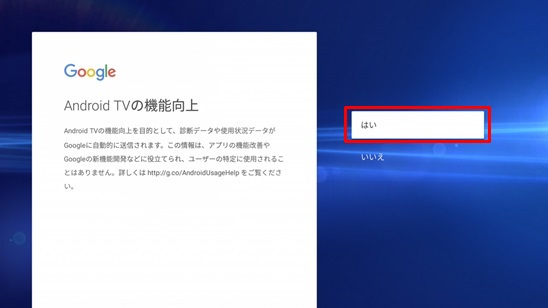
⑥To improve the function of Android TV, confirmation to be allowed to send the usage status of the device to Google. Either one is okay to select.
⑦After the registration of Google account/ Skip the registration, it will be the confirmation screen of the terms of use on LEONET.
Select "Agree"(or consent), it will be the language select screen again. Please select a language and start initial settings.
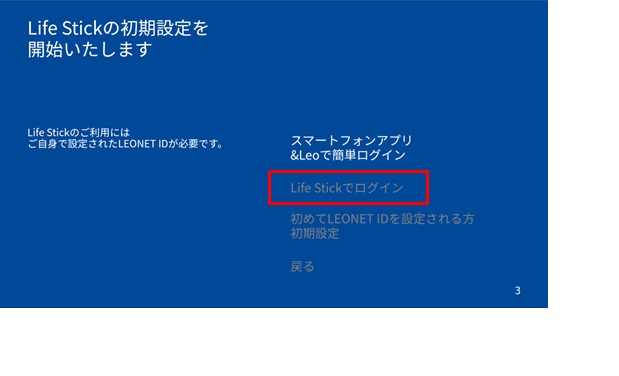
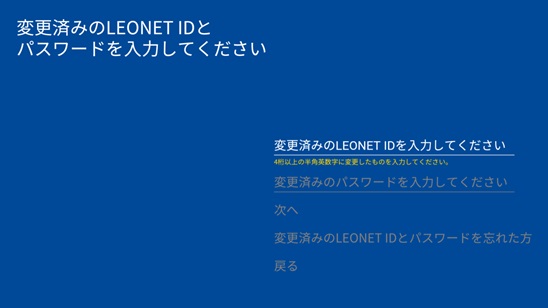
⑨Enter your changed LEONET ID and password, and select "Next".
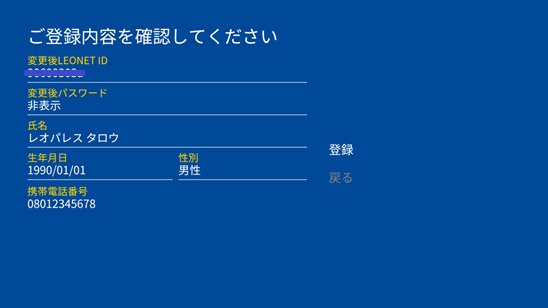
⑩The registered customer information is displayed. Select "Confirm".
⑪Select "Register".
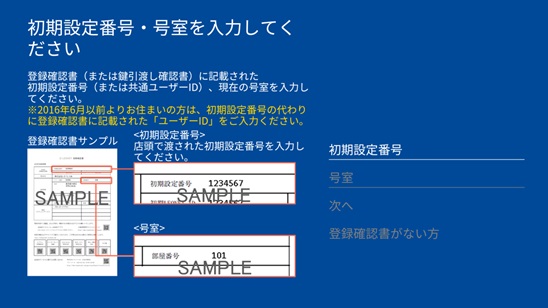
⑫Enter the "初期設定番号"(Initial configuration number)" stated in 登録確認書"(Registration confirmation) and "Room number", and select "Next".
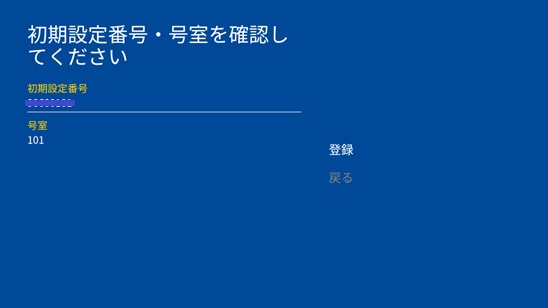
⑬Select "Register".
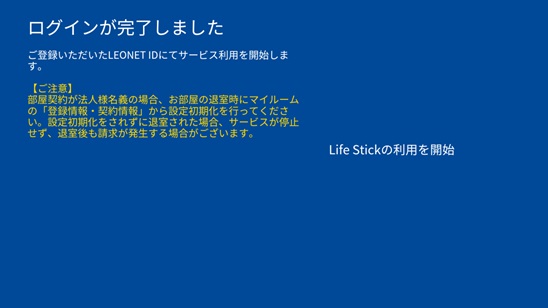
⑭If the screen as below is displayed, login is complete.
Select "Start using the Life Stick".
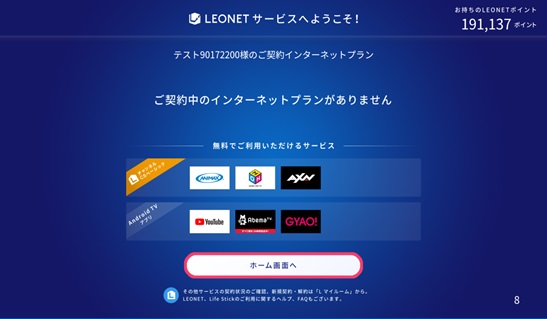
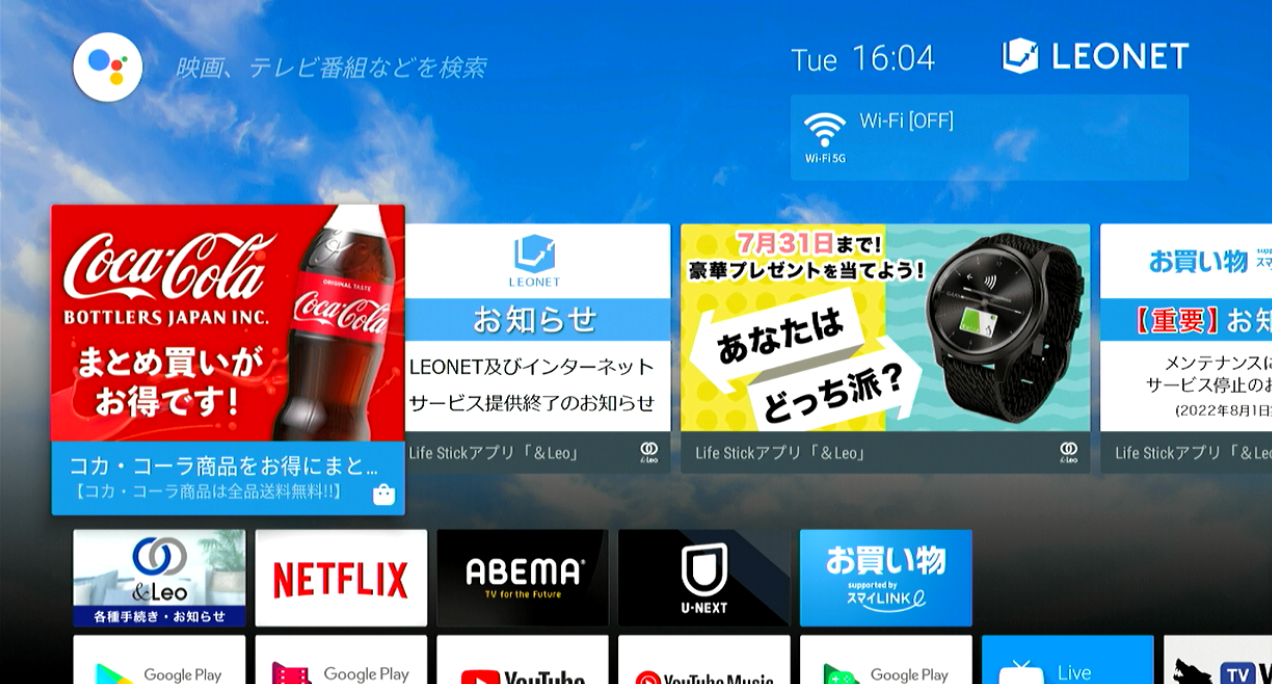
⑯The HOME screen with the blue sky background is displayed. Initial setting is complete. You can use various LEONET services.
※For those who have not joined LEONET ⇒ Here
Enter your "LEONET ID and password" and select "ログイン"(Login).
■Refer to here for LEONET login
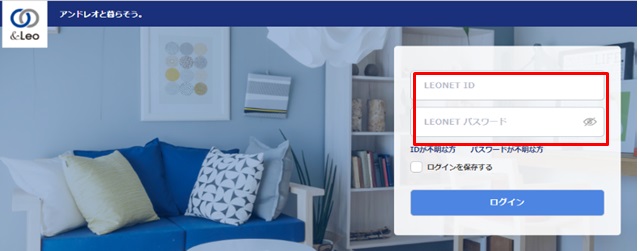
■LEONET Login
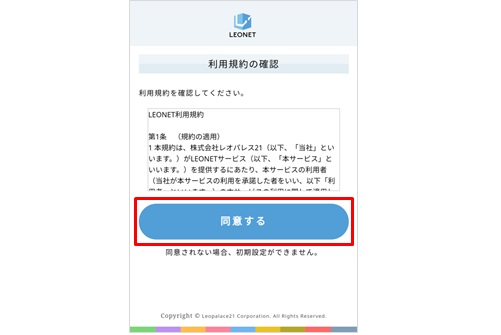
①The confirmation screen of the terms of use is displayed.
Check the terms of use and select 「同意する」(Agree).
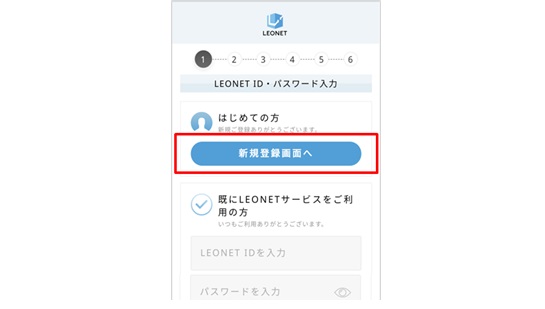
②Select「新規登録画面へ」(To new registration screen).
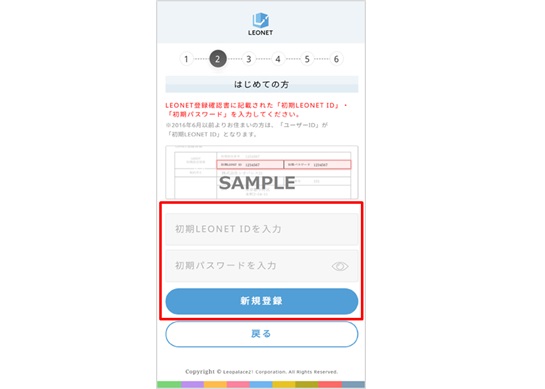
④Decide your new LEONET ID and password, and enter.
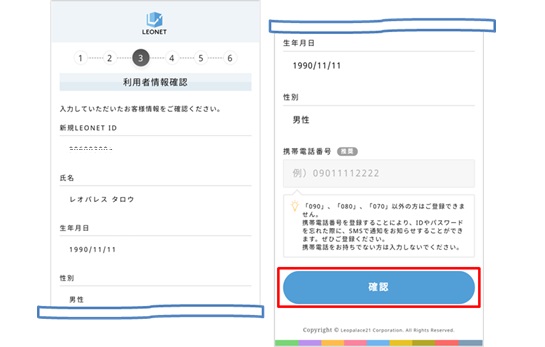
Register your customer information such as mobile phone number. Select 「確認」(Confirm).
※For customers with corporate contracts, there will be items for name and nationality.
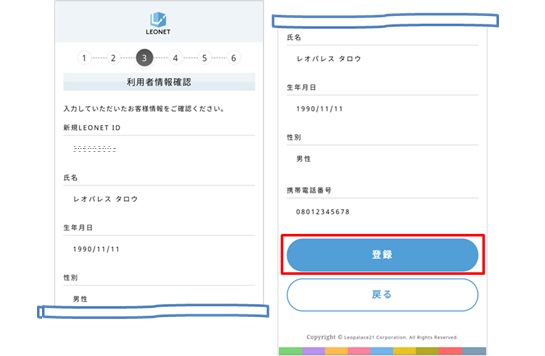
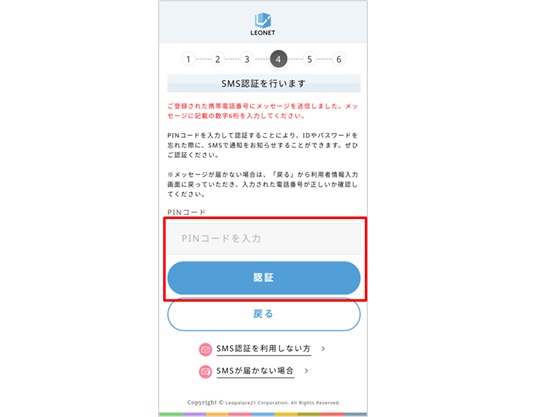
⑥ If you register your mobile phone number(starting with 070, 080, 090) in ⑤, a PIN code(6 digits) will be sent to the SMS of the registered mobile phone.
Enter the sent 6-digit code on the input screen and select 「認証」(Authentication).
※Click here for those who do not have a mobile phone number or selected "Do not use SMS authentication".
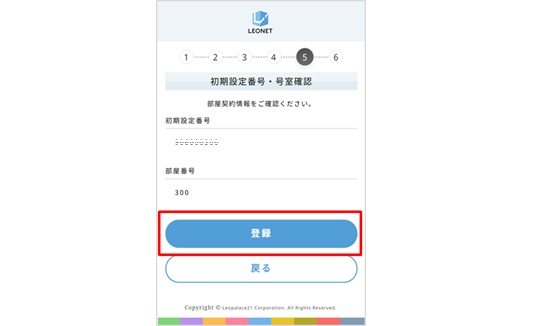
⑦This is the confirmation screen for room contract information. Select 「登録」"Register" if the 「初期設定番号」(Initial configuration number) and room number are correct.
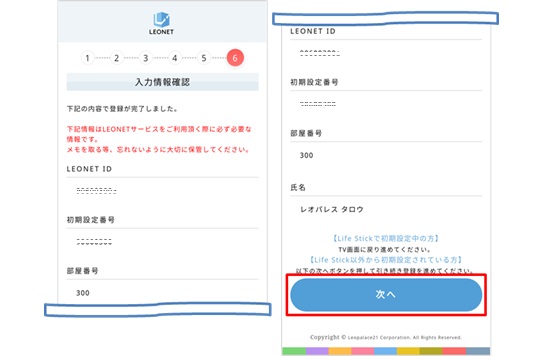
⑧When this screen is displayed, login is complete.
Select 「次へ」(Next), and go to the original page "&Leo" app. / residents only website "&Leo".
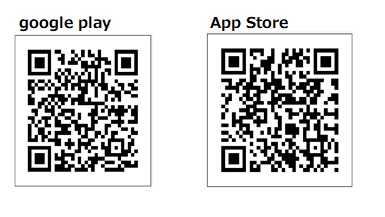
●How to install the "&Leo" app.
Scan the following 2D barcode with your smartphone, or search for "&Leo" in each store and download it.
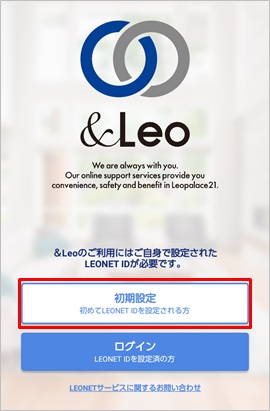
①After installation, select 「初期設定(初めてLEONET IDを設定される方)」(Initial settings(those who set the LEONET ID for the first time)).
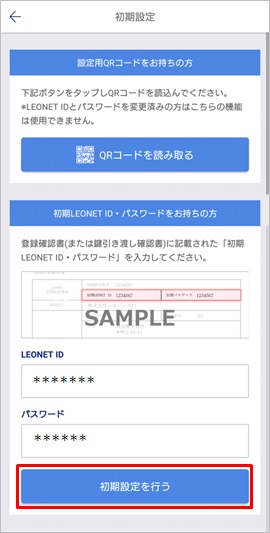
②Enter your initial LEONET ID and initial password, select 「初期設定を行う」(Start initial settings).
■Check here for LEONET login
●「&Leo」 app
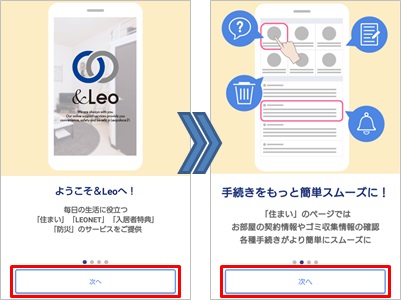
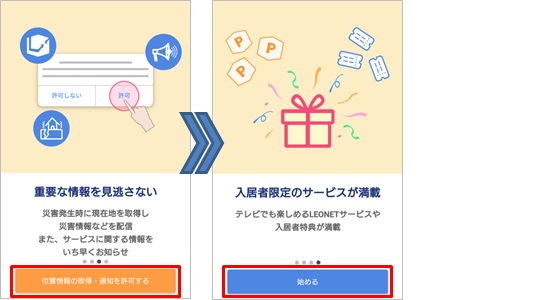
①There is a brief description of the "&Leo" app.
Confirm the contents and select 「次へ」(Next).
※Click on the desired item to jump to the details.
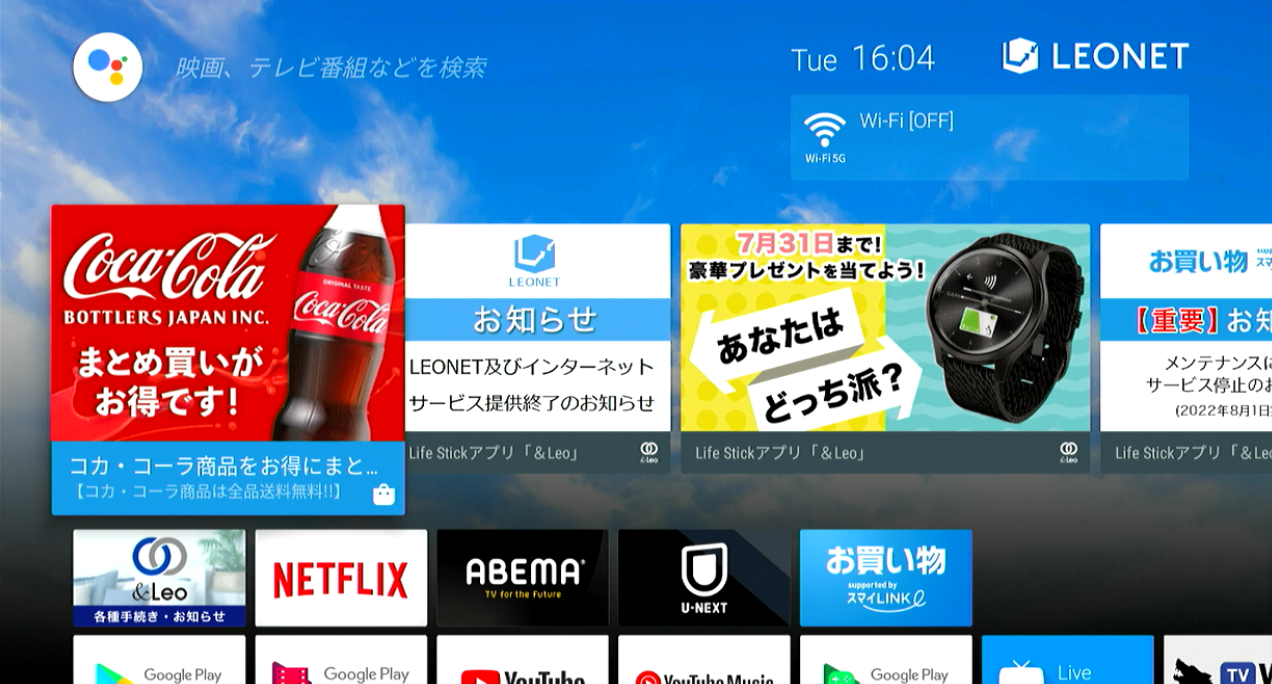
For a new contract of option service, you can proceed from the menu 「&Leo 各種手続き・お知らせ」(&Leo Procedures and notice) displayed in the main screen in the TV. (Contract procedures on Life Stick)
①Select 「&Leo 各種手続き・お知らせ」(&Leo procedures & notice) in the main page.
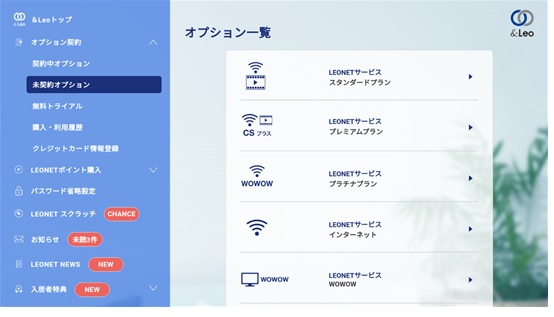
②Contract plan is displayed in the menu 「オプション契約」(Option contract) ⇒ 「未契約オプション」(uncontracted option).
Please select an option service to contract.
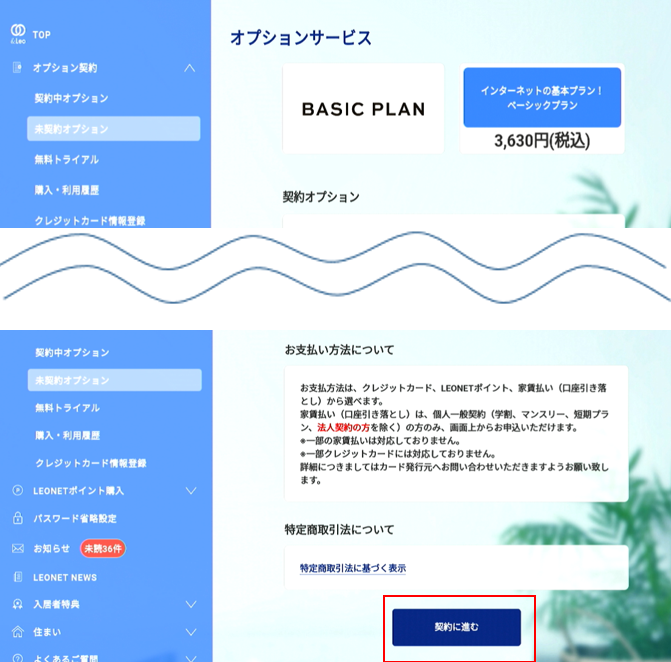
③Explanation screen about selected option service.
Check and select 「契約へ進む」(Contract) to proceed.
④Select a payment method.
■Registered credit card
Pay with the registered credit card.
■New credit card
Pay with a new credit card.
■Automatic transfer with the rent
It's able to combine with the rent. However, the first payment should be paid with LEONET point or a credit card.
※This method is not available for corporate customers.
■Convenience store payment
You can pay at the designated convenience store.
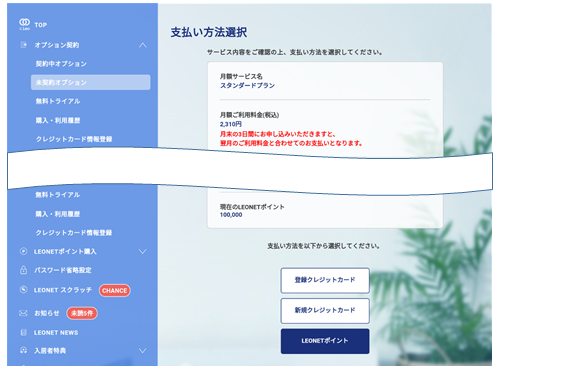
⑤Select a payment method, and 「契約に関する注意事項」(Notes on contract) screen is displayed.
※[Telecommunication business law] screen will be displayed if you contract Standard plan, Basic plan or Light plan.
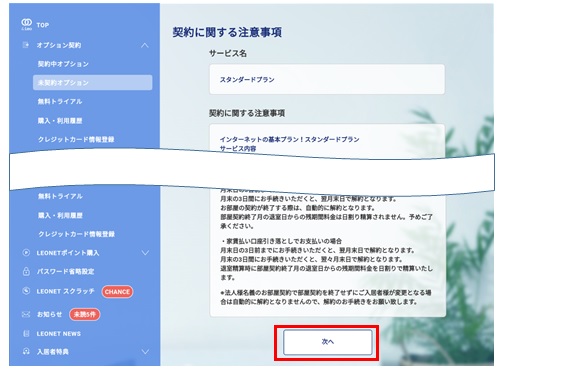
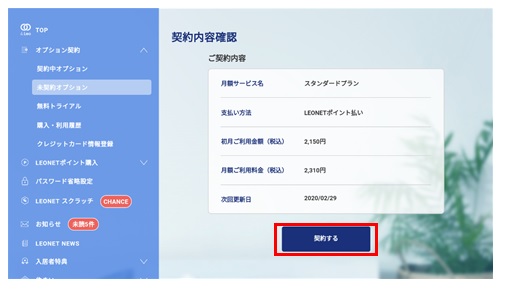
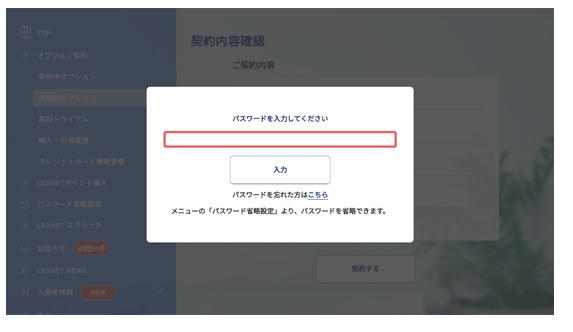
⑦Please enter your LEONET password that was set during the initial settings.
In addition to the Life Stick, you can subscribe to optional services from the & Leo app.
※Unavailable to make a contract from iOS ver. (iPhone etc.).
◇Click here for optional service details◇
①If you subscribe to an optional service from the "& Leo" application, you need to "log in". After login, select "Option contract procedure" from the bottom [LEONET] tab.
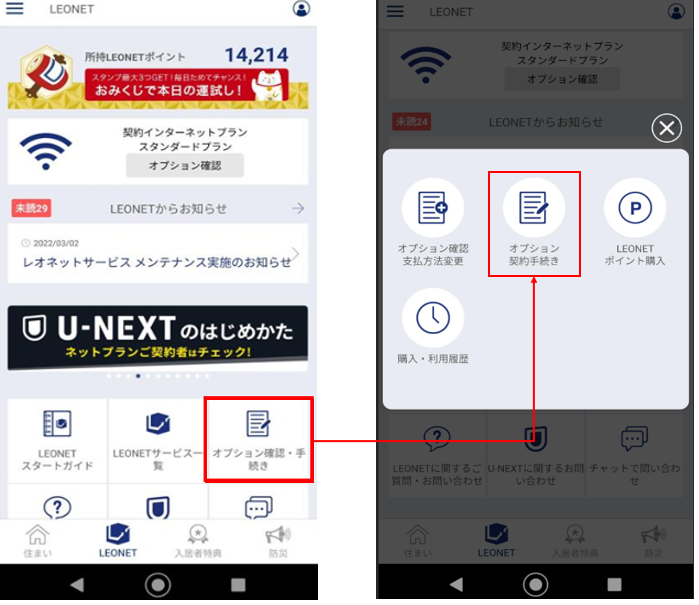
②Select the option you want to subscribe from "Unsubscribed Options".
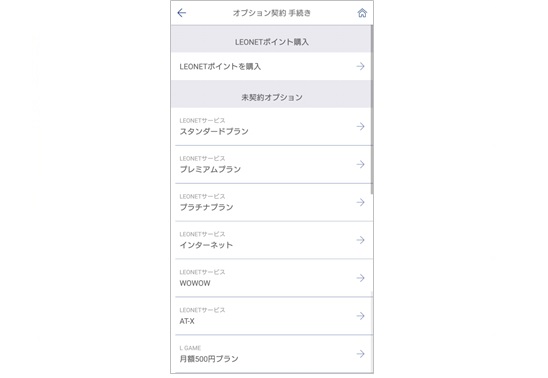
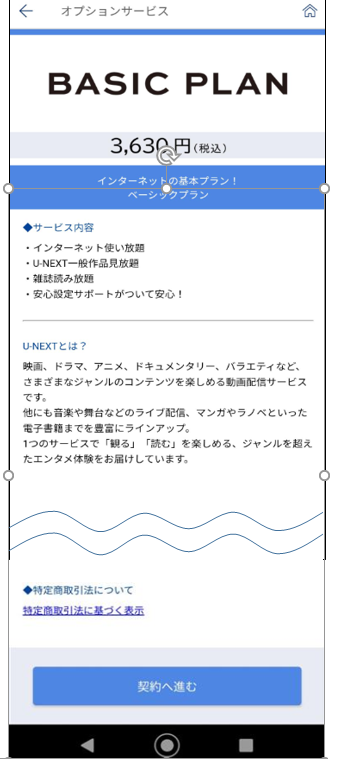
③The description screen for the optional service you selected is displayed.
Confirm the notes and select "Proceed to contract".
④Select your payment method.
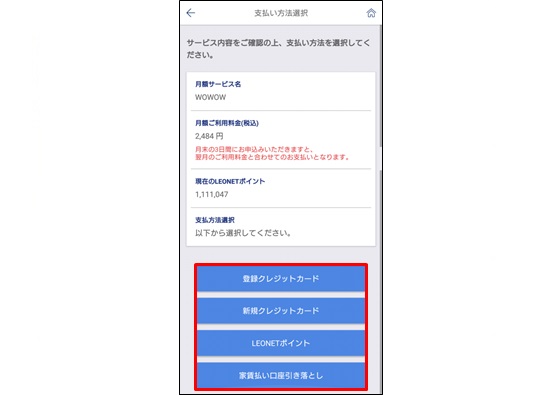
■Registered credit card
Pay from the already registered card.
■New credit card
Pay from the newly registered card.
■Rent and Net Charge Sum Account Payout
Pay by the sum of rent and Internet charge. However, the first payment will be made with LEONET points or credit card.
※ In the case of a contract with a corporate contract, procedures can not be made with "Rent payment account withdrawal".
■Convenience store payment
You can pay at the designated convenience store.
⑤Next, "Notes on Contract" will be displayed.
※ In the case of a contract with the Standard Plan, Basic plan, a guidance screen about the Telecommunications Business Law will be displayed.
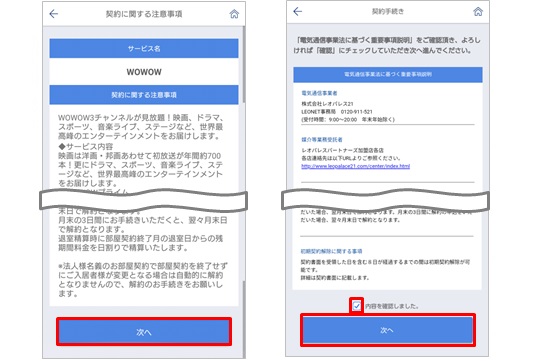
⑥If you agree with the content on the confirmation screen, please select the "Contract" button.
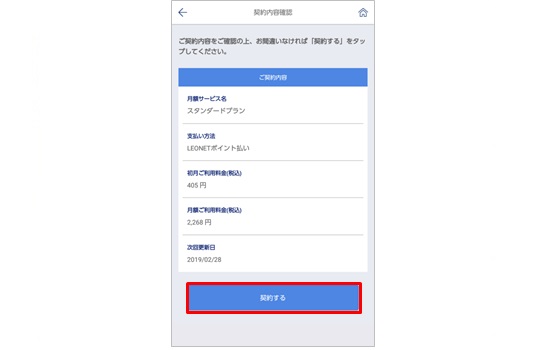
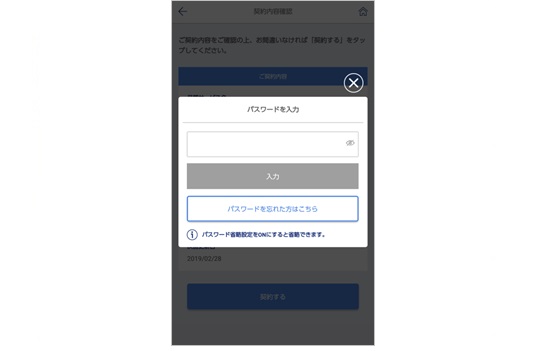
⑦Enter the password you set when you logged in. Your subscription is complete.
In addition to Life Stick, optional services can be purchased from the resident-only website "& Leo".
Click here for more details of optional contract.
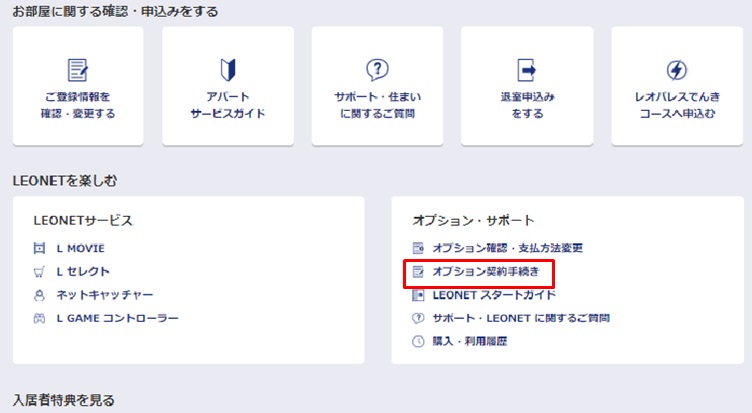
①Enter your LEONET ID and password in each columns on right top coner of the screen.
After login, please select 「オプション契約手続き」(Optional contract procedures) at bottom part of the screen.
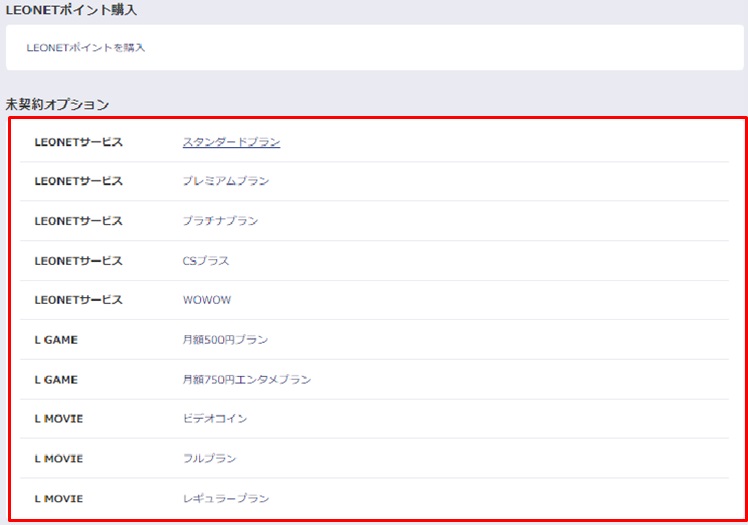
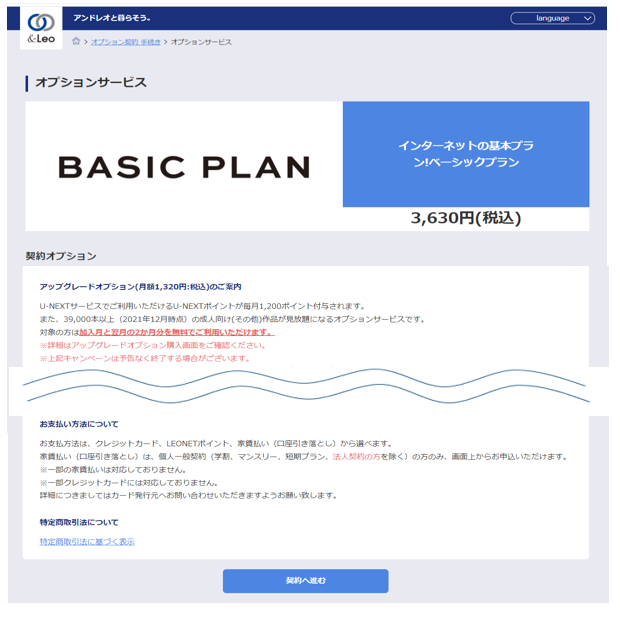
④Explanation for selected optional service is displayed.
Please select a payment method:「クレジット」(Credit card)「LEONETポイント」(Leonet point)「家賃払い」(Rent).
■Registered credit card
Pay by a registered credit card.
■New credit card
Pay by a new credit card
■Rent payment account withdrawal
Pay by combining with the rent. However, the first payment should be paid at the convenience store or credit card.
※If it is a company housing, it is not able to proceed with "Debit Rent Account".
■Convenience store payment
You can pay at the designated convenience store.
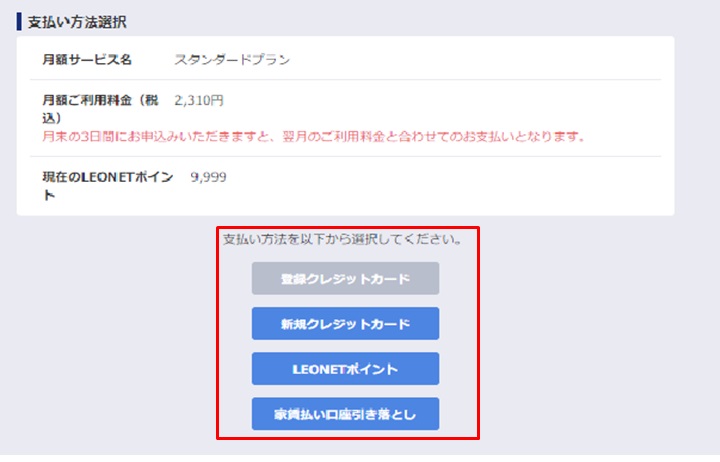
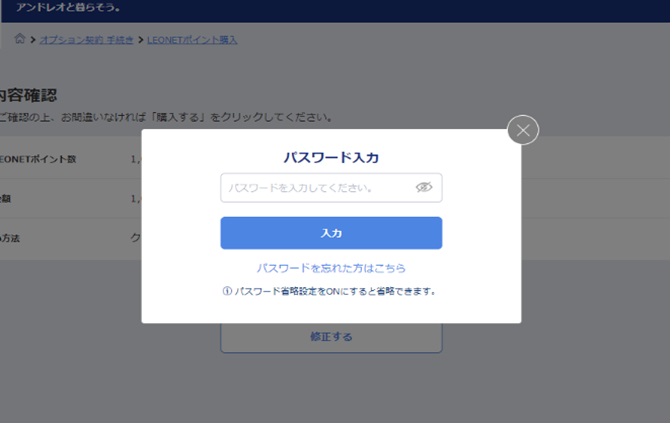
⑤After selecting a payment method, the screen requiring your password will be displayed.
Enter your password used for login, then it's completed.
※Click on the desired item to jump to the details.
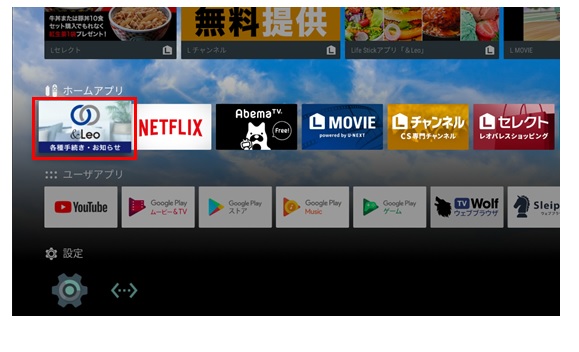
You can cancel the LEONET option service contracts from the "Optional contract procedures" 【 オプション契約手続き】 with the &Leo app on the LEONET top page with the TV.
① Select "&Leo Procedures and Notifications"「&Leo 各種手続き・お知らせ」.
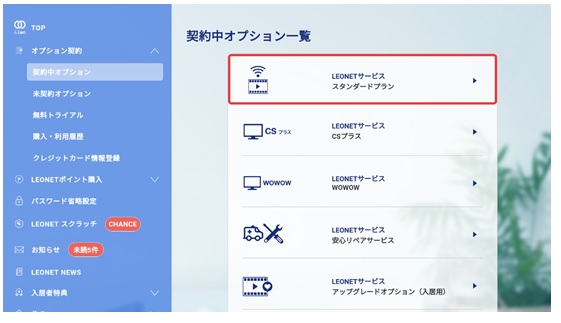
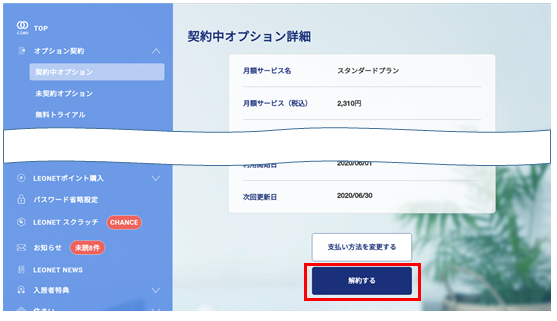
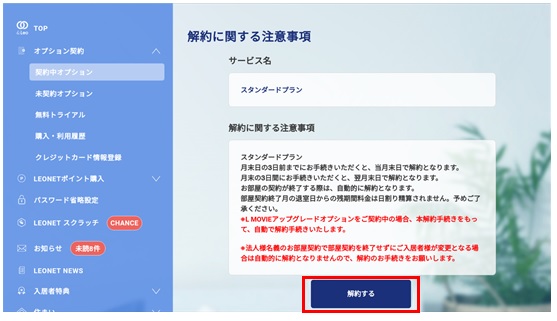
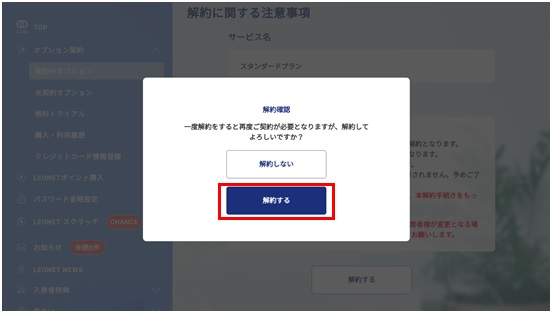
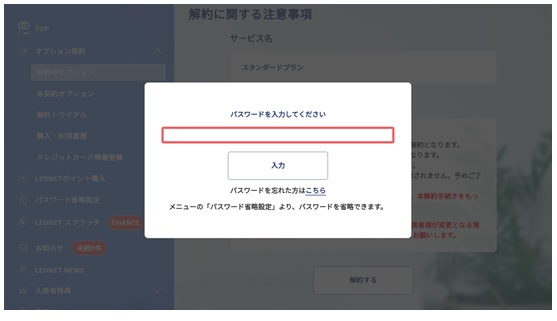
As stated on the important notes, the contracts that were requested to end at least 3 days before the last day of the month will end by the last day of this same month.
※If the payment method is along the room rent, if you complete the procedure before at least 3 days before the last day of the month, the optional plan contract will be over in the last day of the following month.
※Corporate contracts that pay the optional plan along the rent can only cancel the contract through a LeoPalace center.
You can also cancel the LEONET optional service through the「&Leo」 smartphone app.
※Only available for Android devices. ※Not available for iOS (iPhone) devices.
① Log in to the 「&Leo」 app, on the LEONET tab select "Confirm optional contracts/ Change payment methods"「オプション確認・支払方法変更」.
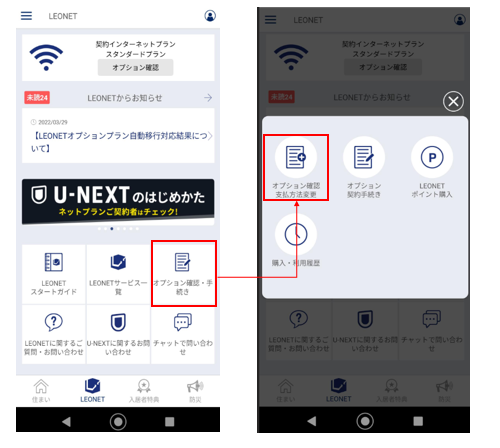
② Select the optional plan contract you wish to cancel and select "Cancel contract"「解約する」.
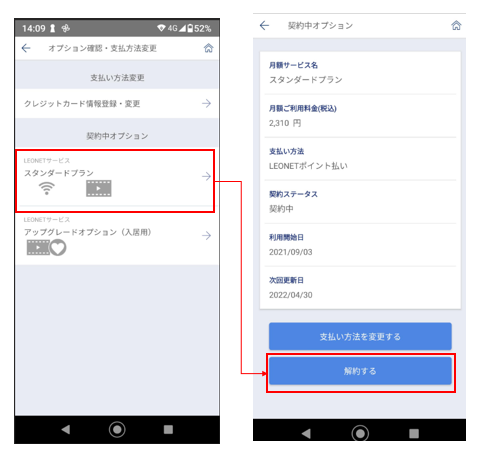
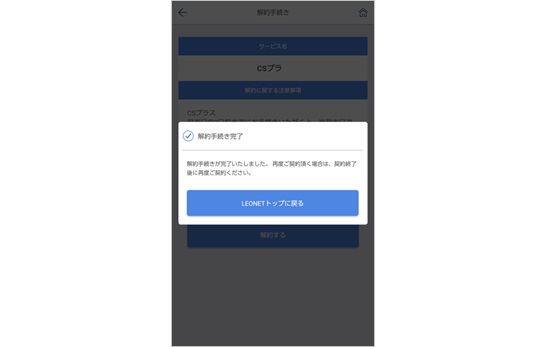
③ The important notes regarding the end of the contract will be displayed. Confirm the contents select "Cancel contract"「解約する」 and confirm again for the warning.
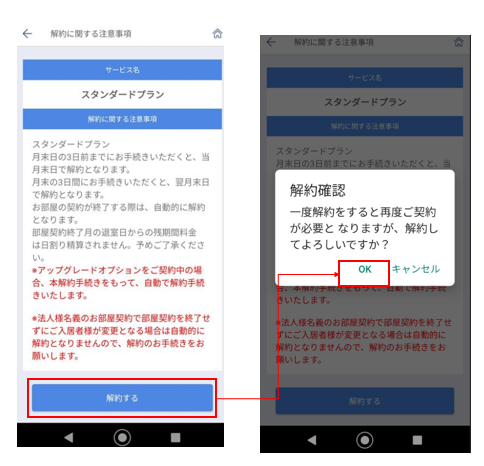
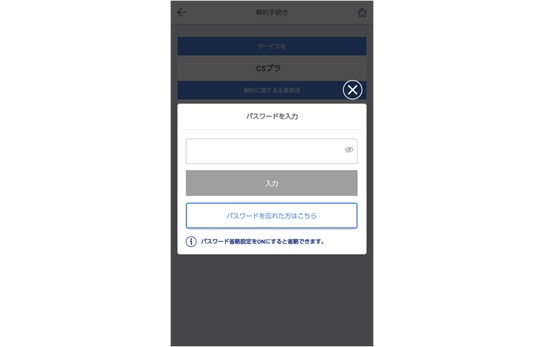
⑤ When you can see the return to the top screen popup, the cancellation procedure will be completed.
As stated on the important notes, the contracts that were requested to end at least 3 days before the last day of the month will end by the last day of this same month.
※If the payment method is along the room rent, if you complete the procedure before at least 3 days before the last day of the month, the optional plan contract will be over in the last day of the following month.
※Corporate contracts that pay the optional plan along the rent can only cancel the contract through a LeoPalace center.
LEONET optional services can also be cancelled from the Tenant's Exclusive Website "&Leo".
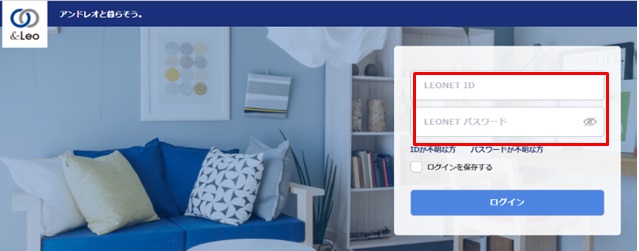
① Log in with your LEONET ID and password on the right top corner of the screen.
※To cancel with the Tenant's Exclusive Website "&Leo", you must complete the initial settings of your room LEONET account.
(Must have created your own LEONET ID and password.)
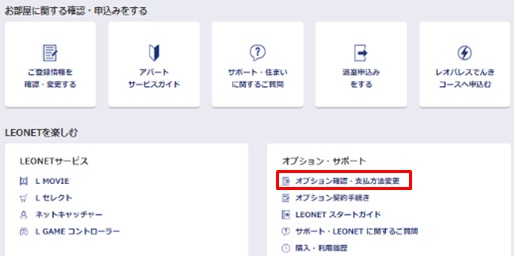
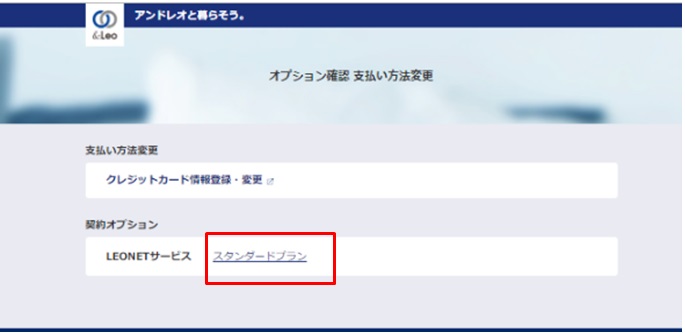
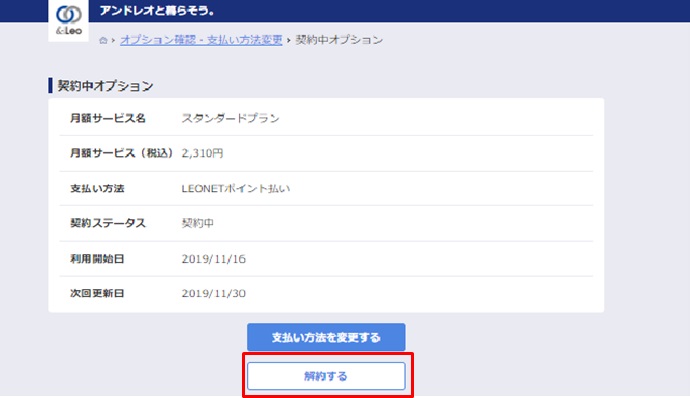
⑤ The important notes regarding the cancellation of the optional service will be displayed. After confirming the content, select "cancel the contract" 「解約する」.
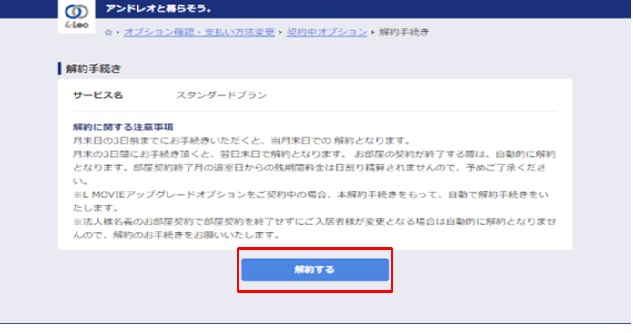
As stated on the important notes, the contracts that were requested to end at least 3 days before the last day of the month will end by the last day of this same month.
※If the payment method is along the room rent, if you complete the procedure before at least 3 days before the last day of the month, the optional plan contract will be over in the last day of the following month.
※Corporate contracts that pay the optional plan along the rent can only cancel the contract through a LeoPalace center.
The following list is about typical problems and inquiries.
※Please click the desired option.
Please click the desired option.
Communication may not be available. Please try the following.
・Please check if the connection is loose.
・Connect the LAN cable again, and restart the device.
・If you have connected another device such as a router, please reconnect again, then restart the device.
■How to restart the LifeStick
・Disconnect the LifeStick's AC adapter and check the LAN cable(unplug and plug).
※Please check if there is no damage on the LAN cable.
・If you plug the AC adapter into the outlet again, it will restart.
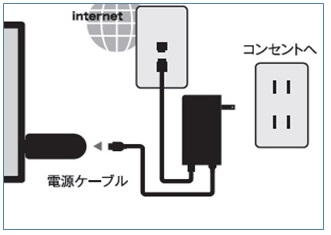
If there is no improvement after trying the above, please inform us from "Inquiry form".
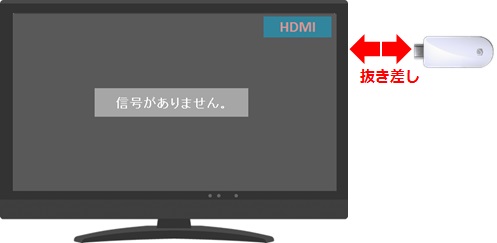
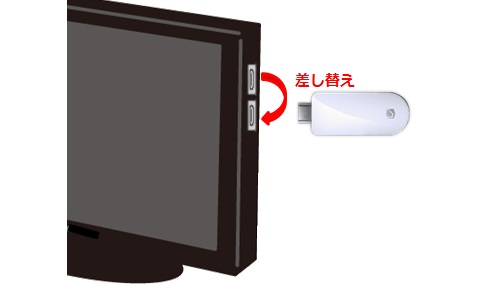
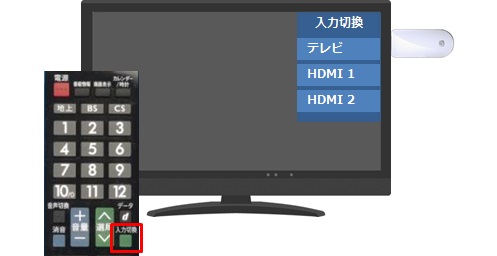
If there is no improvement, please inform us from "Inquiry form".
① An Internet contract(Standard plan/ Basic plan/ Light plan) is required to use the Wi-Fi connection from the Lifestick.
If the initial settings is completed and the Internet contract is valid, SSID and password are displayed on the right top corner of the home screen.
※To use the Wi-Fi function of LifeStick, you need to set it on a TV that supports HDMI connection.
If you do not have a TV, you will not be able to use the Wi-Fi function of LifeStick, so please prepare an access point by yourself.
The contract may have expired, so please check your contract status.
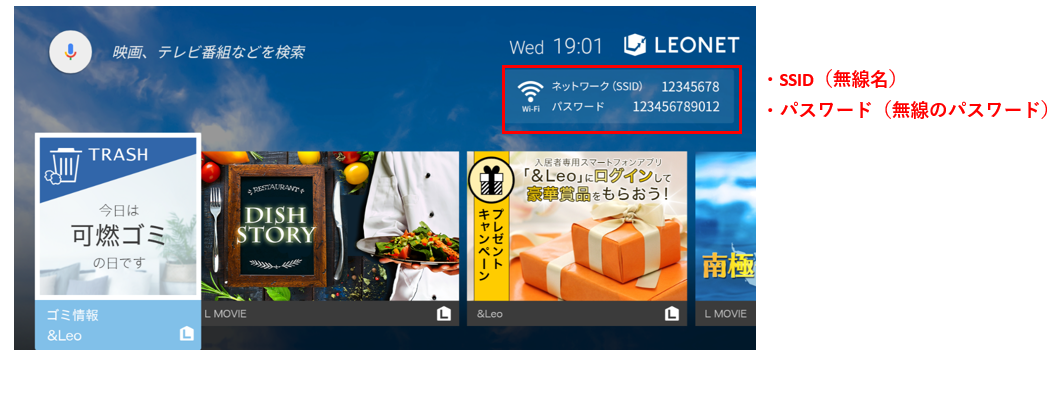
②After software updates, the Wi-Fi of Lifestick may not be connected.
Please restart the Lifestick, and try to connect the Wi-Fi on your device again.
[1]Unplug the AC adapter and plug back it in to restart.
After then, please check the Wi-Fi SSID/ password displayed in the Lifestick screen.
[2]Delete the WI-FI from the connected device(PC/ Smartphone), and set it up again.
For corporate contract, if "パスワードを入力してください"(Please enter your password) is displayed on the Lifestick screen(TV), please enter your password you created.
※After reconnecting the AC adapter of LifeStick, the password displayed in the TV screen is required to use the Wi-Fi.
To use the Wi-Fi connection of Lifestick, an Internet contract(Standard plan/ Basic plan/ Light plan) is required.
If the initial setting is completed and the Internet contract is valid, SSID and password are displayed on the right top corner of the home screen.
※To use the Wi-Fi function of LifeStick, you need to set it on a TV that supports HDMI connection.
If you do not have a TV, you will not be able to use the Wi-Fi function of LifeStick, so please prepare an access point by yourself.
The contract may have expired, so please check your contract status.
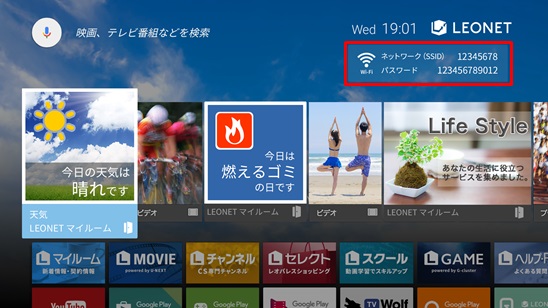
If the SSID/ password of WI-FI is not displayed even though the Internet contract is valid, please check the following.
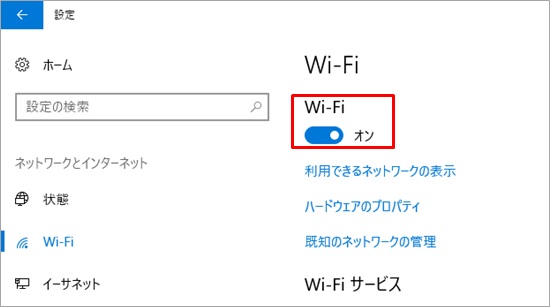
①If there is a lot of Wi-Fi surrounding, the SSID may not be displayed.
Please try to switch the Wi-Fi OFF>ON on your device such as PC, smartphone, or tablet.
※Depending on the computer model, the Wi-Fi button may be external.
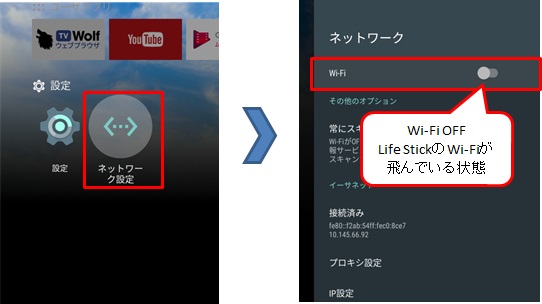
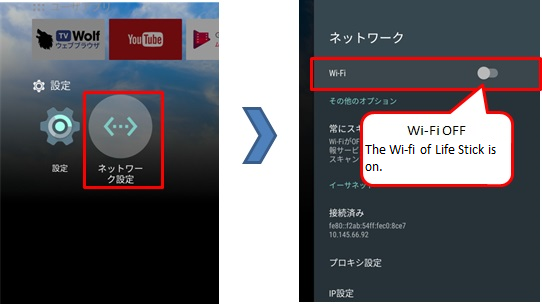
②Please check if the Wi-Fi is OFF from network setting on the Lifestick home screen.
If it is ON, the Wi-Fi cannot work.
Change it to OFF, and restart the Lifestick then check.
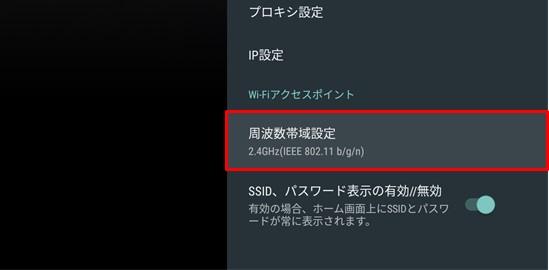
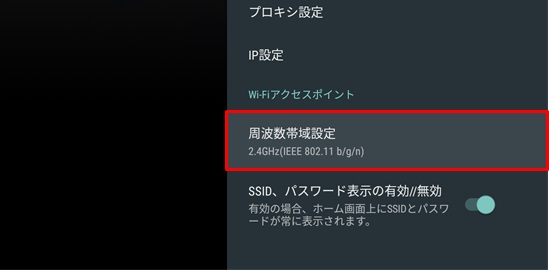
③The Wi-Fi access point of LifeStick may not be compatible to your device(PC, smartphone etc.).
If the Wi-Fi access point is 5.0 GHz, please change it to 2.4GHz from network setting > Wi-Fi access point.
・Restart with the remote control from TOP menu.
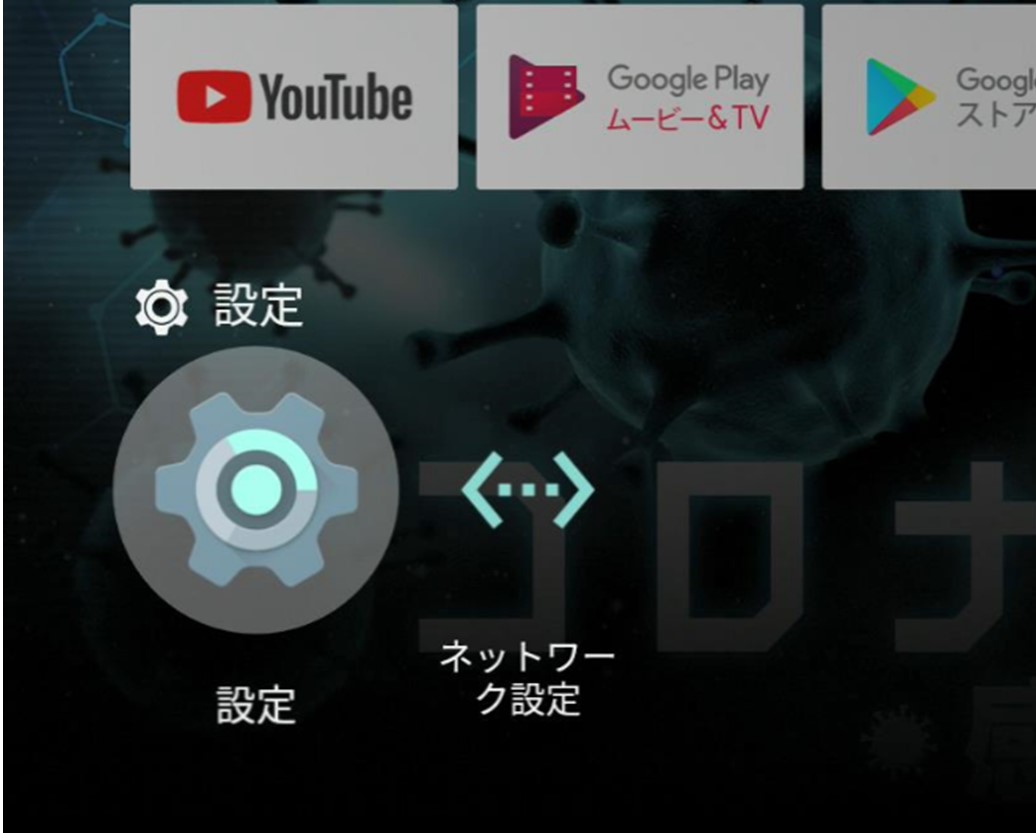
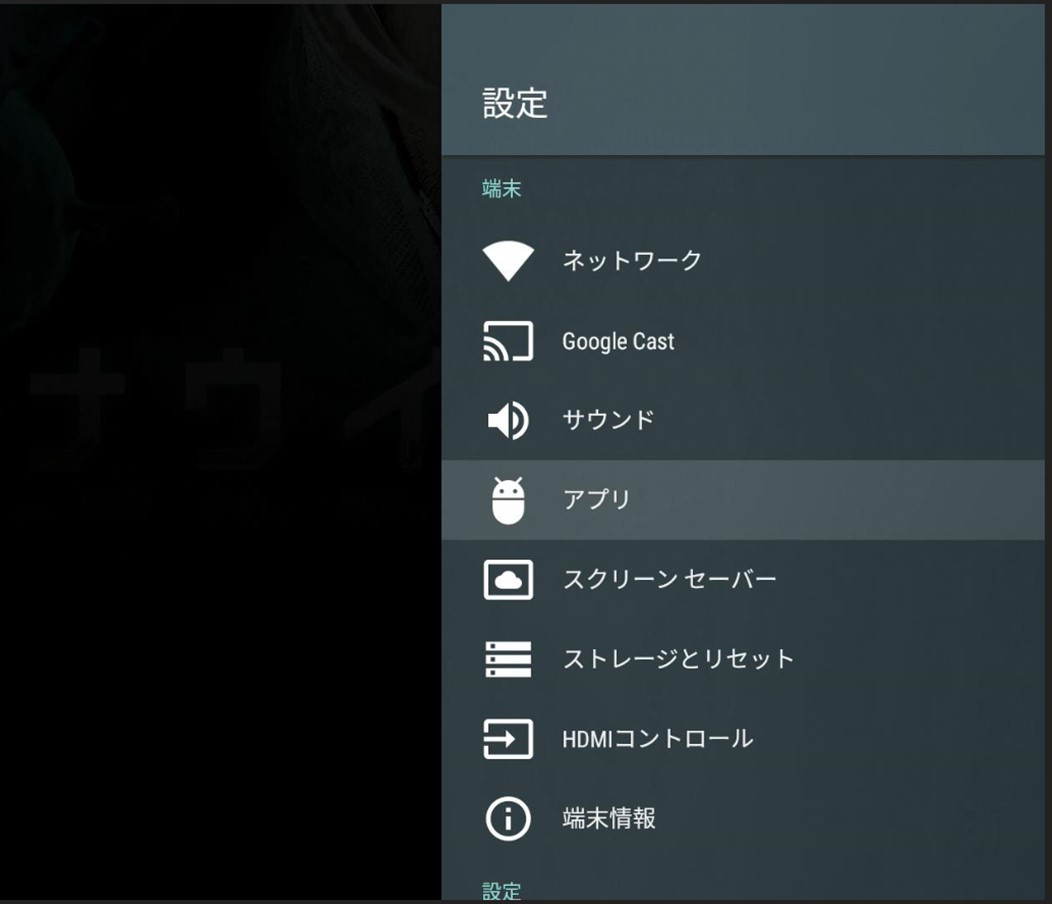
Select "Settings" ⇒ "Device preference" ⇒ "Reset" from the menu.
If there is no improvement, please inform us from "Inquiry form".
Please try to restart the Lifestick and your device(smartphone, PC, tablet etc.), and disconnect the LAN cable extending from the wall once and connect again.
If you use a HUB or a router, please check the LAN cable connected to is loose.
※If there is a problem with the LAN port of the hub or router, please check with the manufacturer.
If there is no improvement after trying the above, please inform us from "Inquiry form" because it may be communication problem.
①Is the TV turned on? Is the LifeStick wiring is properly connected?
There is a light on the LifeStick main unit. You can check the connection status by the color.
Steady blue light・・Normal
Flashing blue light・・Operating. Please wait.
Steady red light・・Sleep mode
Flashing red light・・Updating
Flashing pink light・・Connection error. Please check if the LAN cable is disconnected.
Flashing green light・・Initializing the LifeStick
No light・・Power is not being supplied. Please check if the outlet is unplugged.
②Did you switch the input of the TV to HDMI?
Please use the input switch button on the TV remote control to switch to the correct input.
Please check the following if it does not respond when you press the confirm button of the Lifestick.
・Disconnect the Lifestick device from the HDMI port of the TV
・Unplug and plug the micro USB(Lifestick device and cable)
・Unplug and plug the LAN cable
・Unplug and plug the AC adapter from the outlet
③Is the remote control pairing disconnected?
If the remote control does not respond, its pairing may be disconnected.
Please check and try the following.
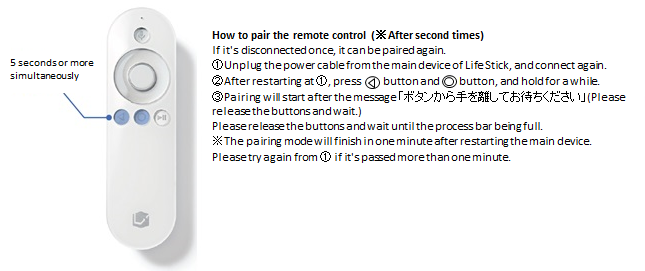
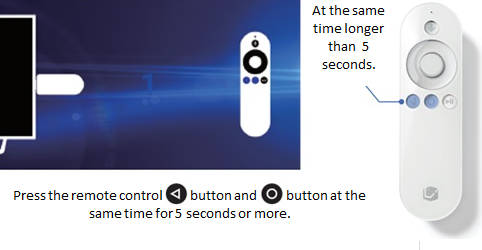
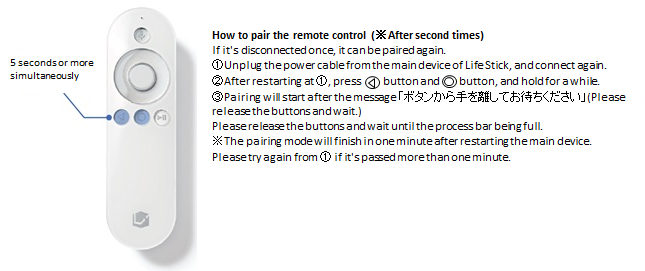
(1)Press and hold the △ and 〇 buttons on the remote control, and place it near the Lifestick main unit when the front of the remote control is blinking.
(2)Unplug and plug the AC adapter of Lifestick from the outlet.
(3)The pairing screen is displayed again, then press and hold △ and 〇 buttons at the same time for pairing.
※The pairing screen may not be displayed after restarting once, please try to unplug and plug the AC adapter again.
If there is no improvement, please inform us from "Inquiry form".
If you are experiencing any of the following problems with your LifeStick, please try the following.
The devices are having difficulties to connect to the rechargeable model Lifestick's Wi-Fi:
1 On the bottom of the Lifestick HOME screen, select "Settings"(設定).
2 From the Settings menu, select Device preferences (デバイス設定).
3 On the Device preferences, select and disable the HDMI control(HDMIコントロール)
After returning to the HOME screen, and try the following.
1 On the bottom of the Lifestick HOME screen, select "Settings"(設定).
2 From the Settings menu, select Device preferences (デバイス設定).
3 Select the Screen saver(スクリーンセーバー).
4 Select Put device to sleep(端末をスリープ状態にする), and select Never(スリープしない).
After trying the above, please return to the HOME screen and restart the Lifestick main unit.
・About the rechargeable Lifestick The screen becomes the Lifestick screen without permission
1 On the bottom of the Lifestick HOME screen, select "Settings"(設定).
2 From the Settings menu, select Device preferences (デバイス設定).
3 On the Device preferences, select and disable the HDMI control(HDMIコントロール)
※Please note that if you are using the TV remote control, you will not be able to use the above operation.
・Unable to pair/ unable to operate remote control
⇒Please unplug and plug the AC adapter of LifeStick to restart.
After restarting, press and hold △ and 〇 buttons on the Lifestick remote control to display the pairing screen, and try pairing again.
You can use the Internet without using Lifestick.
※To use the Internet, you need to subscribe to an Internet contract (one of the Standard plan, Basic plan, and Light plan). Please check here for how to subscribe.
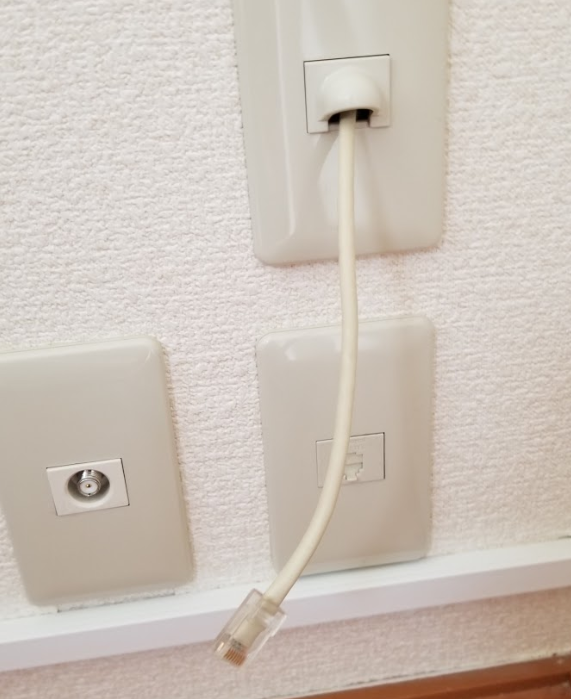
About wiring, in the Leopalace property, the LAN cable comes out from the wall as show below.
※Some LAN cables are plugged in.
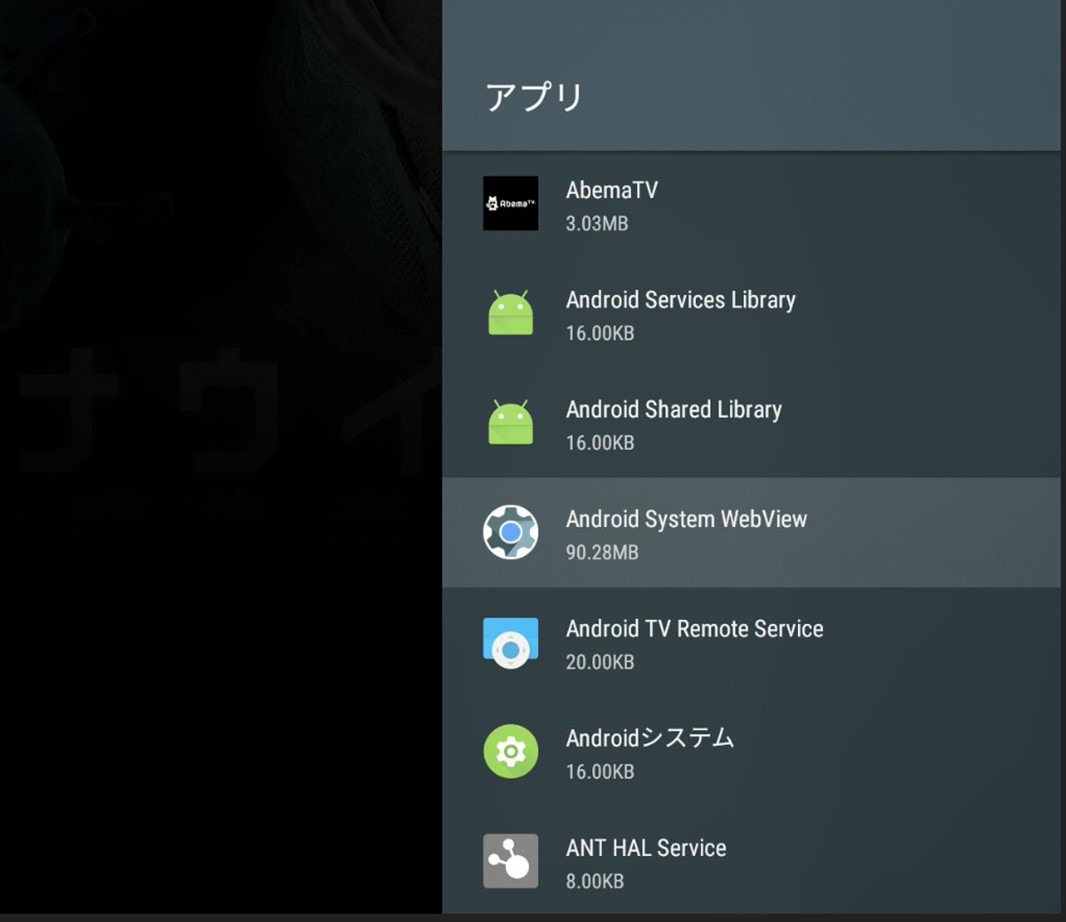
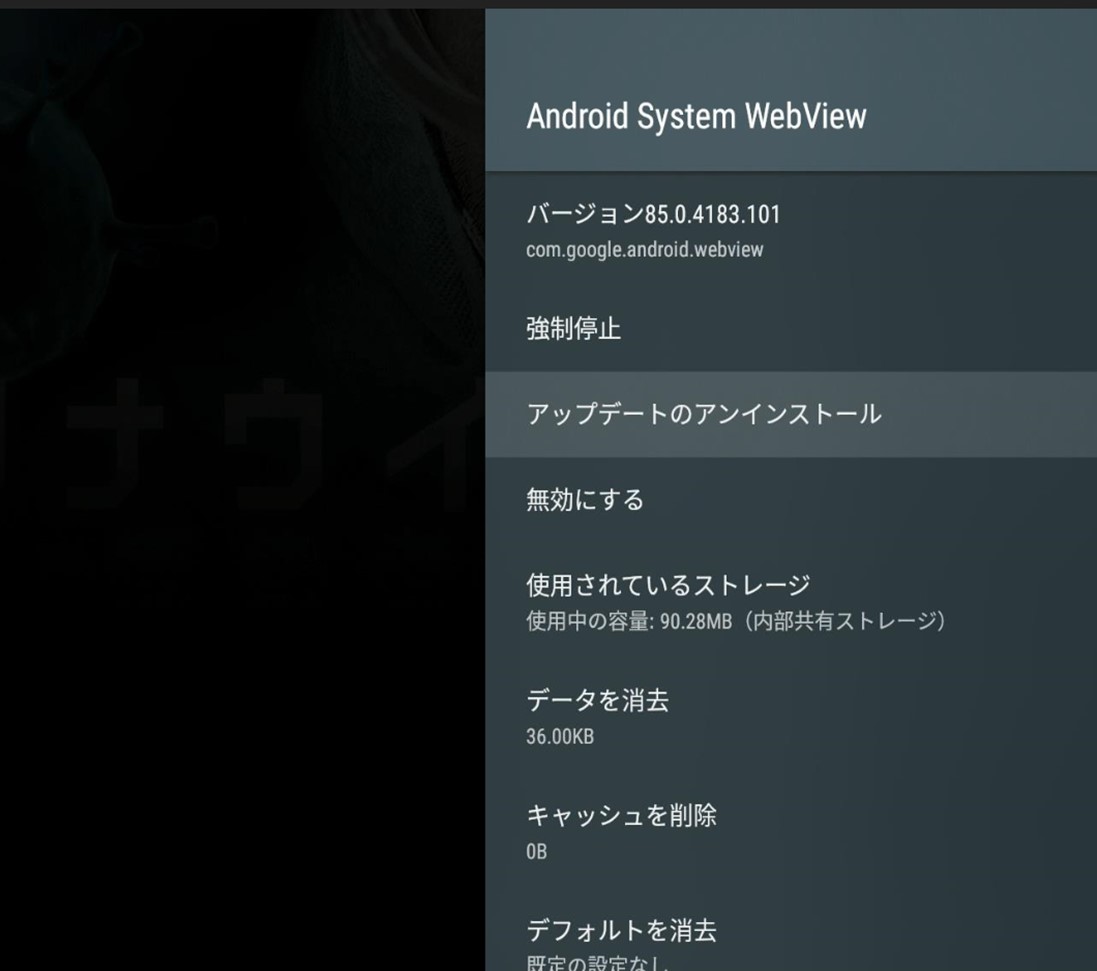
By performing the above, the keyboard can be displayed and used.
Also, if you have registered a Google account, it may be automatically updated and returned to the original state.
Therefore, it is available to prevent unintended updates by cancelling the account registration until this OS is applied, or by unchecking "Automatic update" in the Google play store.
※After resetting, please perform the initial setting with your changed LEONET ID and password. Therefore, please be sure to have your LEONET ID and password.
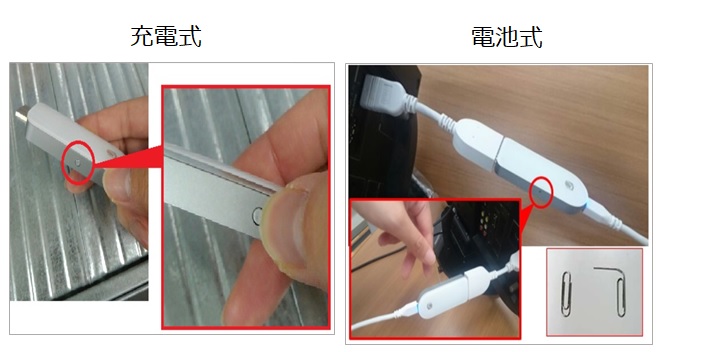
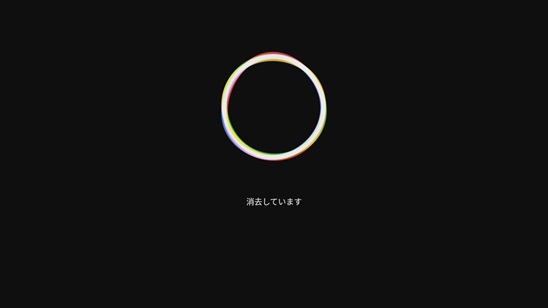
By the following methods, you can reset the Lifestick main unit to the factory settings.
■Rechargeable type remote
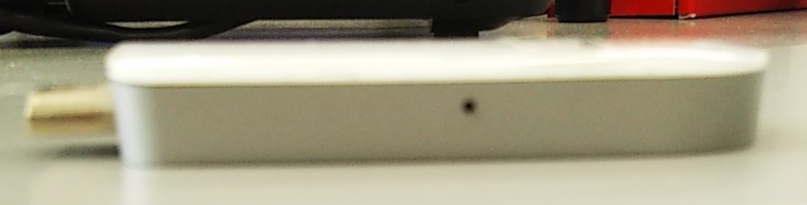
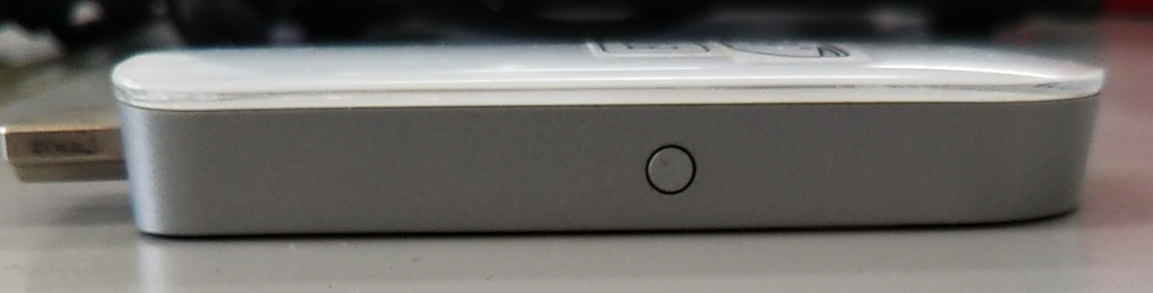
・・・Press and hold the round button on the side of the Lifestick for 5 seconds
■Battery type remote
・・・Press and hold the small hole on the side of the Lifestick with the tip of a paper clip for 5 seconds.
Please check here for initial setting with changed ID and password.
※If you lose or damage the product due to your intentional or negligence, the replacement cost will be charged.
・Loss/ damage of Life Stick main unit : 15,970 yen (including tax)
・Loss/ damage of Life Stick remote control : 3,850 yen (including tax)
Please note that it may take about one week to be delivered after ordering.
Please inform us from "Inquiry form" for the replacement.
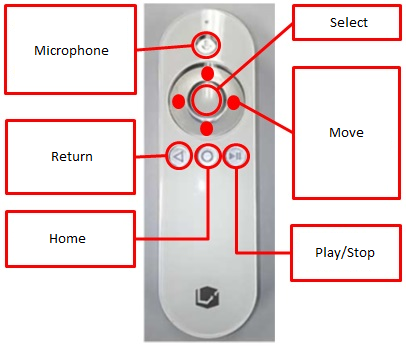
The basic operation of the remote control is as follows.
Please check here if it does not work.
Pairing means synchronizing the Lifestick with the remote control.
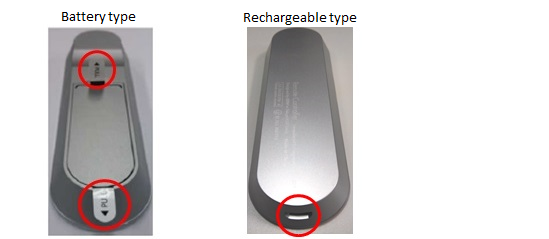
※Please check there is no insulating tape on the back cover of the battery type remote control. Please remove it if there is.
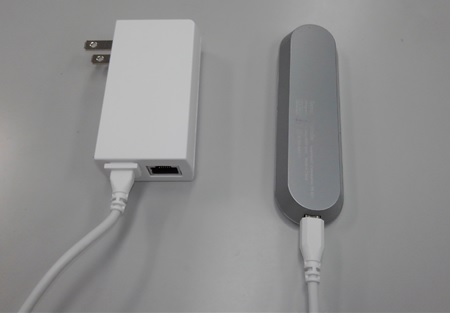
If it is rechargeable, it may not be charged. Please unplug the micro USB of Lifestick, and charge it.
When the red light on the remote control turns off, it is full charged.
①Pairing while the following screen is being displayed.
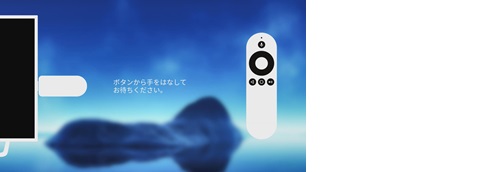
②After the message 「ボタンから手を離してお待ちください」(Please release the button and wait) is displayed, pairing will start.
Release the button near the Lifestick and wait until the bar on the screen is full.
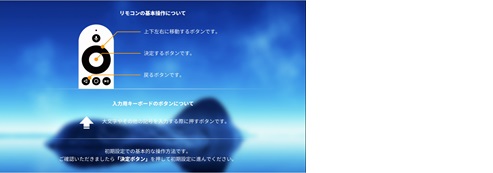
It may be placed in each storage in the room.
The LifeStick remote control has the following shape.
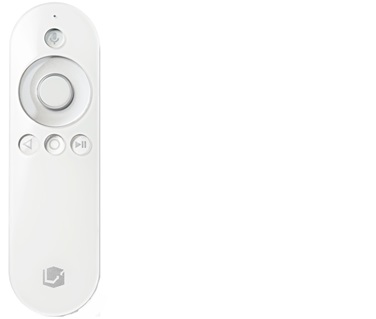
If you cannot find it, please inform us from "Inquiry form".
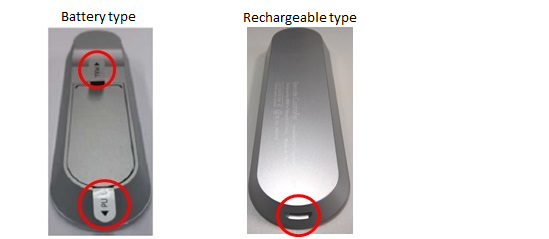
・Is the light on the Lifestick main unit glowing blue?・・・・Here if it doesn't glow blue
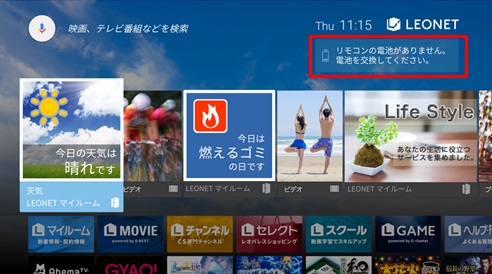
①If it is out of battery
If it is out of battery, the remaining battery will be displayed on the right top corner of the TOP page screen.
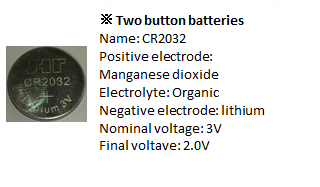
Please change the battery.
※The contact of the battery may be poor, please remove the battery and insert again, and check if the remote control operates.
If there is no improvement, please inform us from the "Inquiry form".
Multiple devices can be connected by connecting Lifestick's Wi-Fi.
※How to connect Lifestick's WI-FI
About wired connection, multiple PCs can be connected with using a HUB, but the device prepared by customers cannot be supported by us, so please kindly understand in advance.
※The use of the router may affect the service. Please use it in AP mode.
If you have an contract, "SSID"(WI-FI) and "パスワード"(password) will be displayed on the right top corner in the screen when you complete the initial settings.
※To use the WI-FI function of LifeStick, you need to set it on a TV that supports HDMI connection.
If you do not have a TV, you will not be able to use the WI-FI function of Lifestick, so please prepare your own access point.
※An Internet plan(Standard, Basic, Light) including the Internet is required to use the WI-FI of LifeStick. Here for how to contract
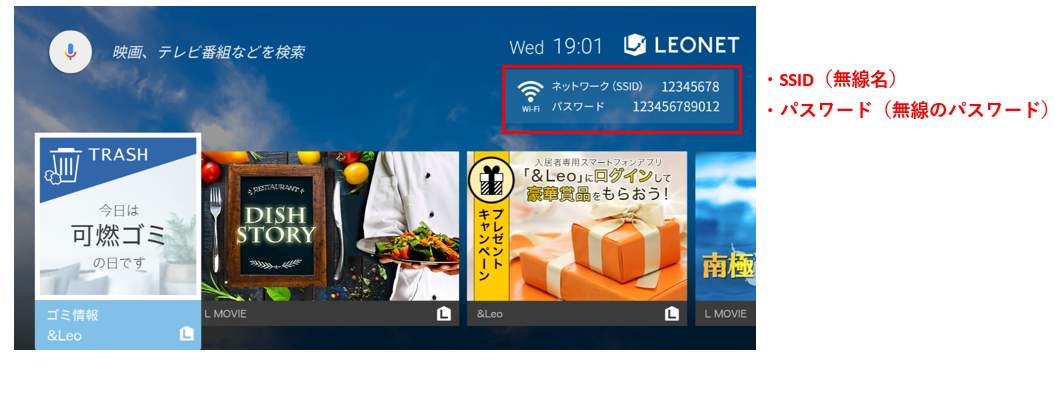
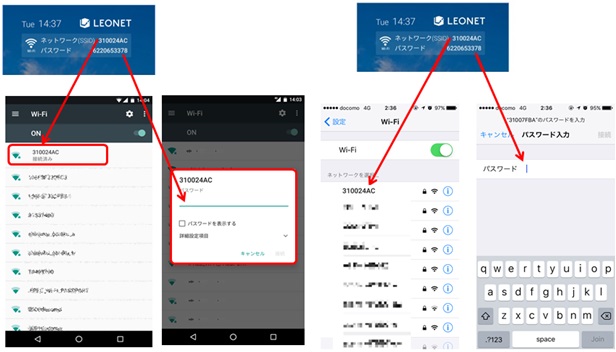
Find the SSID(wireless name) displayed on the LEONET top page on the WI-FI setting screen of your device, and enter the wireless password.
■Smartphone
①Please turn on WI-FI from the settings of your smartphone and tap the SSID displayed on the LEONET top page.
②Please enter the password displayed on the LEONET top page.
■PC
◇Windows series
①Click the wireless LAN display(icon) in the task tray at the bottom right of the desktop.
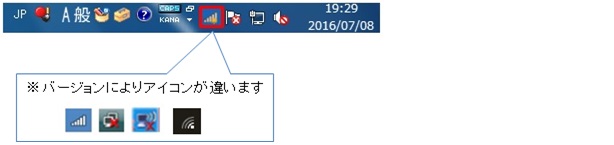
②SSID will be displayed, so select the SSID displayed in the upper right of the LEONET service TOP screen and connect.
③The connection key(Security key/ Network key) will be required, so please enter the password displayed on the right top corner of the LEONET service TOP screen.
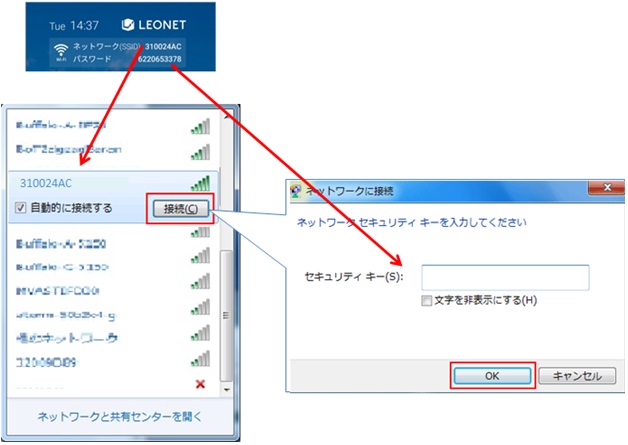
If you cannot connect with the above, please select the type of computer from here.
◇Mac
①Click the wireless LAN display(icon) in the task tray.
②If Wi-Fi is off, select 「Wi-Fi を入にする」(turn on Wi-Fi) from the menu.
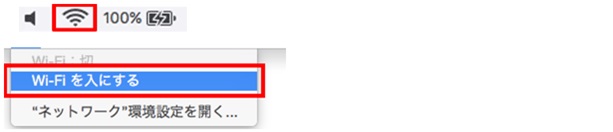
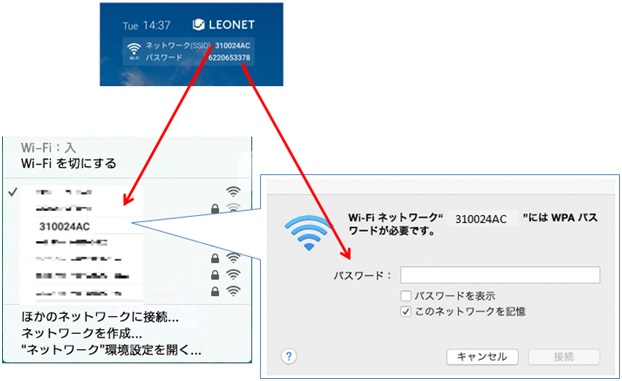
※If your computer does not have a built-in wireless LAN and you need to use a LAN card or USB, please contact the manufacturer which you purchased the product.
※Up to 8 devices such as smartphones, tablets, and PCs can be connected at the same time.
※Wireless Internet using Lifestick can be used without displaying the authentication screen for entering LEONET ID and password.
※The authentication screen will be displayed if you use the wired connection with connecting the LAN cable to your device.
Click here if there is no SSID and password in the screen.
Please refer to the following for the connection method on each device.
■Connecting with a wired connection or a router
If you connect the LAN cable from the wall to your PC or your own wireless device, the following authentication screen will be displayed after starting a browser.
If the screen below is displayed, you do not need to set up your computer.
※The display differs depending on the connected device and OS.
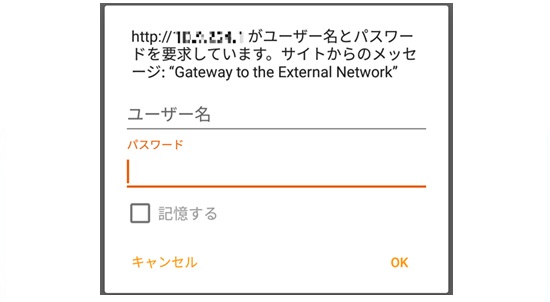
When the above screen is displayed, enter "LEONET ID" as the user name and "password" as the password to connect.
If you have changed to any "LEONET ID/ password" from the initial settings of Lifestick or from the &Leo app/ resident-only website "&Leo", enter the changed "LEONET ID/ password".
Click here if you lost your changed "LEONET ID/ password".
If the "LEONET ID/ password" has not been changed, enter the "LEONET ID/ Password" described in the "Registration confirmation" or "Key delivery confirmation".
Click here if you do not know the initial "LEONET ID/ Password".
※To use Internet connection, you need to subscribe to optional services including Internet connection.
Click here for how to check the contract state.
■Connection using Lifestick
To use Lifestick's WI-FI, you can connect by setting WI-FI without the above authentication screen.
※You need to set it on a TV that supports HDMI connection to use the WI-FI function of Lifestick.
If you do not have a TV, you cannot use the WI-FI function of Lifestick, so please prepare your own access point.
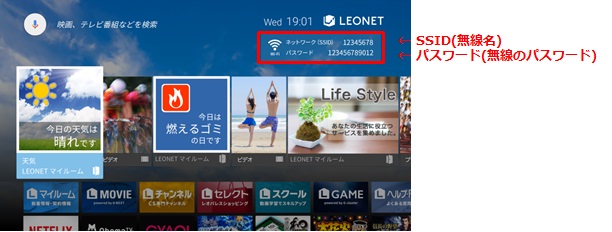
If you have an Internet contract, SSID and password will be displayed in the service TOP screen after the initial settings are completed.
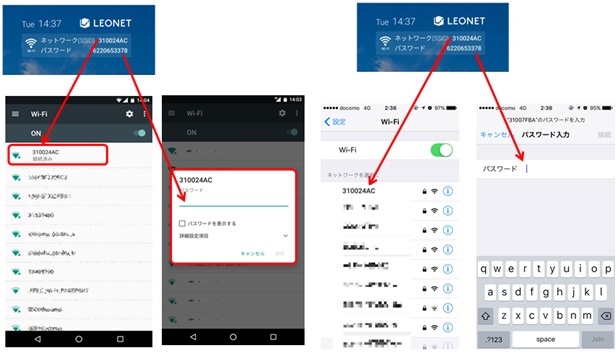
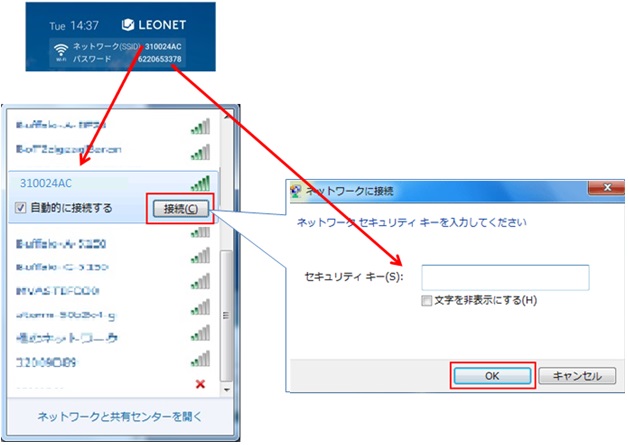
Select the above SSID from the network settings of your device(computer, smartphone etc.), and enter the password to connect.
■Connection on smartphone using LifeStick
【Smartphone】
■Connection on PC using Lifestick
【PC】
■Wi-Fi SSID and password are not displayed in the screen
①If there is a lot of Wi-Fi surrounding, SSID may not be displayed.
Please try Wi-Fi OFF>ON on your computer, smartphone, or tablet, and check again.
※Depending on the computer model, the Wi-Fi button may be external.
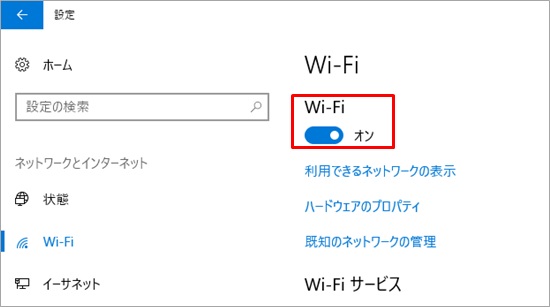
②Please check if network settings> Wi-Fi is turned off at the bottom of the screen.
If it is ON, the Lifestick's Wi-Fi cannot be turned on.
After turning it off, please restart Lifestick and check.
③The WI-FI access point of Lifestick may not be compatible to your device(PC, smartphone etc.).
If the WI-FI access point is 5.0GHz from Lifestick's network settings> WI-FI access point, change it to 2.4GHz and check again.
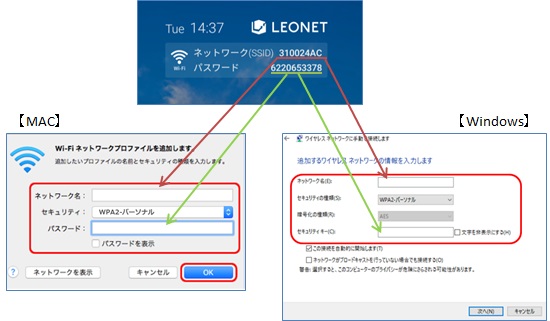
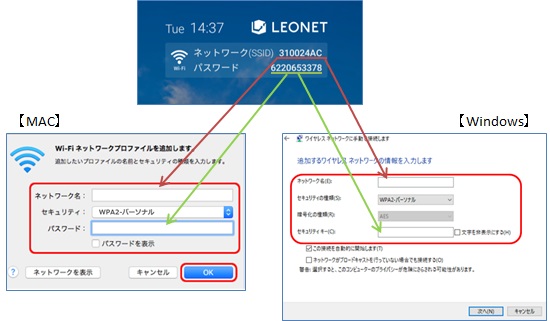
④Try manual connection to network.
Network name : Enter the displayed SSID.
Security type : Select "WPA2-personal"
Security key/ password : Enter the password displayed in the screen.